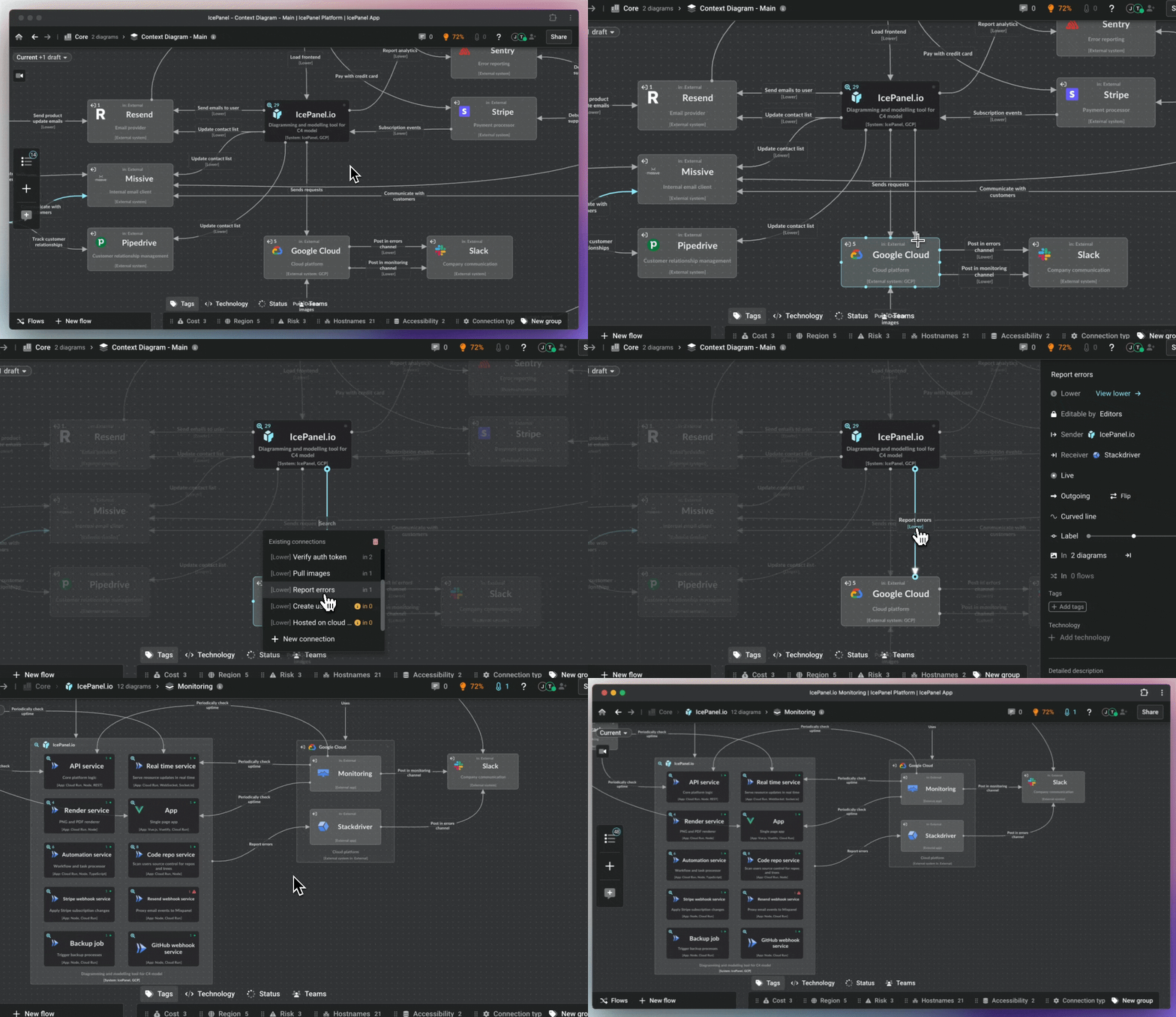
# Welcome

Learn about starting in IcePanel and using the C4 model

👋 Hey there! It's super cool to have you here!&#x20;

Getting started in IcePanel is super easy and you'll become a pro and *WOW* your teammates in no time with modern storytelling techniques. 😎

## 🏁 Getting started

### 🍿 Videos

<table data-view="cards"><thead><tr><th></th><th data-hidden></th><th data-hidden></th><th data-hidden data-card-target data-type="content-ref"></th><th data-hidden data-card-cover data-type="files"></th></tr></thead><tbody><tr><td><strong>Why IcePanel is different?</strong></td><td></td><td></td><td><a href="https://www.youtube.com/watch?v=g6VYaxnnWs8&#x26;ab_channel=IcePanel">https://www.youtube.com/watch?v=g6VYaxnnWs8&#x26;ab_channel=IcePanel</a></td><td><a href="https://4065434276-files.gitbook.io/~/files/v0/b/gitbook-x-prod.appspot.com/o/spaces%2FOHewp5hylgOsOa0VDOBo%2Fuploads%2FEblLhRUAmgXMiZDvud5G%2FYoutube%20-%20Why%20IcePanel.jpeg?alt=media&amp;token=a3ee3d17-5ce7-4c72-a31c-e3ee1d7f9e71">Youtube - Why IcePanel.jpeg</a></td></tr><tr><td><strong>The C4 model - explained</strong></td><td></td><td></td><td><a href="https://www.youtube.com/watch?v=nUVG0zPiO64&#x26;t=1s&#x26;ab_channel=IcePanel">https://www.youtube.com/watch?v=nUVG0zPiO64&#x26;t=1s&#x26;ab_channel=IcePanel</a></td><td><a href="https://4065434276-files.gitbook.io/~/files/v0/b/gitbook-x-prod.appspot.com/o/spaces%2FOHewp5hylgOsOa0VDOBo%2Fuploads%2FeSpgxFyQAzBIMDKUWcQi%2FYoutube%20-%20c4%20model.webp?alt=media&amp;token=b3acb49c-83da-4117-8688-27ea3d7e95e8">Youtube - c4 model.webp</a></td></tr><tr><td><strong>Modelling - explained</strong></td><td></td><td></td><td><a href="https://www.youtube.com/watch?v=b1hdvoX02m4&#x26;t=1s&#x26;ab_channel=IcePanel">https://www.youtube.com/watch?v=b1hdvoX02m4&#x26;t=1s&#x26;ab_channel=IcePanel</a></td><td><a href="https://4065434276-files.gitbook.io/~/files/v0/b/gitbook-x-prod.appspot.com/o/spaces%2FOHewp5hylgOsOa0VDOBo%2Fuploads%2FCuRYp7zjlqXnXjMqWsDU%2FYoutube%20-%20modelling.webp?alt=media&amp;token=05747280-2dc4-473b-87ae-616d9986010b">Youtube - modelling.webp</a></td></tr></tbody></table>

### 📚 Guides

<table data-view="cards"><thead><tr><th></th><th></th><th data-hidden></th><th data-hidden data-card-target data-type="content-ref"></th><th data-hidden data-card-cover data-type="files"></th></tr></thead><tbody><tr><td><strong>Getting started guide</strong></td><td>How to create your first IcePanel model.</td><td></td><td><a href="/getting-started">Getting started</a></td><td><a href="https://4065434276-files.gitbook.io/~/files/v0/b/gitbook-x-prod.appspot.com/o/spaces%2FOHewp5hylgOsOa0VDOBo%2Fuploads%2F5A7uUXs40nLwjvKhYTcK%2FGetting%20started.png?alt=media&amp;token=f57e8d55-803c-44a4-8793-4fb4ea5539d3">Getting started.png</a></td></tr><tr><td><strong>The C4 model - What is it?</strong></td><td>An abstraction first approach to visualising software architecture.</td><td></td><td><a href="/core-features/modelling">Modelling</a></td><td><a href="https://4065434276-files.gitbook.io/~/files/v0/b/gitbook-x-prod.appspot.com/o/spaces%2FOHewp5hylgOsOa0VDOBo%2Fuploads%2Fi7Fh7mXVPN7SRV3RU2Re%2FC4%20model.png?alt=media&amp;token=daf1b76c-371a-4e3c-994a-9d29c829f32a">C4 model.png</a></td></tr><tr><td><strong>Current vs Future design</strong></td><td>How to propose and plan future design changes</td><td></td><td><a href="/future-state-design/draft-current-vs-future-state">Drafts (old)</a></td><td><a href="https://4065434276-files.gitbook.io/~/files/v0/b/gitbook-x-prod.appspot.com/o/spaces%2FOHewp5hylgOsOa0VDOBo%2Fuploads%2FzrJT54A7VVwCNdAKw3D7%2FDrafts.png?alt=media&amp;token=336d73b9-32f2-4648-b26b-eb9725b0b61c">Drafts.png</a></td></tr></tbody></table>

## ⚡️ Popular features

<table data-view="cards"><thead><tr><th></th><th></th><th></th><th data-hidden data-card-cover data-type="files"></th><th data-hidden data-card-target data-type="content-ref"></th></tr></thead><tbody><tr><td><strong>Flows</strong></td><td></td><td>Show data and user journeys</td><td><a href="https://4065434276-files.gitbook.io/~/files/v0/b/gitbook-x-prod.appspot.com/o/spaces%2FOHewp5hylgOsOa0VDOBo%2Fuploads%2FKlEPbWMJBylsPO3X9TtG%2FFlows.png?alt=media&amp;token=bb0bc87a-9b09-41df-bb75-be75b4ebd560">Flows.png</a></td><td><a href="/visual-storytelling/flows">Flows</a></td></tr><tr><td><strong>Tags</strong></td><td></td><td>Overlay different perspectives for different audiences</td><td><a href="https://4065434276-files.gitbook.io/~/files/v0/b/gitbook-x-prod.appspot.com/o/spaces%2FOHewp5hylgOsOa0VDOBo%2Fuploads%2Fr8sKbRP6ZXIeUE0tpnJb%2FTags.png?alt=media&amp;token=1e1a9b4b-4121-4430-a28c-2cc9e313d118">Tags.png</a></td><td><a href="/visual-storytelling/perspective-tags">Tags</a></td></tr><tr><td><strong>Drafting</strong></td><td></td><td>Current vs Future state</td><td><a href="https://4065434276-files.gitbook.io/~/files/v0/b/gitbook-x-prod.appspot.com/o/spaces%2FOHewp5hylgOsOa0VDOBo%2Fuploads%2FzrJT54A7VVwCNdAKw3D7%2FDrafts.png?alt=media&amp;token=336d73b9-32f2-4648-b26b-eb9725b0b61c">Drafts.png</a></td><td><a href="/future-state-design/draft-current-vs-future-state">Drafts (old)</a></td></tr><tr><td><strong>Dependencies</strong></td><td></td><td>View incoming and outgoing dependencies of an object</td><td><a href="https://4065434276-files.gitbook.io/~/files/v0/b/gitbook-x-prod.appspot.com/o/spaces%2FOHewp5hylgOsOa0VDOBo%2Fuploads%2FfZTagus1RaoYbbB6KDX3%2FFlows.png?alt=media&amp;token=b98e4e87-83f3-4e61-a837-f1d957a5cea6">Flows.png</a></td><td><a href="/core-features/dependencies-view">Dependencies view</a></td></tr><tr><td><strong>Domains</strong></td><td><em><mark style="color:yellow;">Growth plan</mark></em></td><td>Split the systems in your model to use the C4 model at scale.</td><td><a href="https://4065434276-files.gitbook.io/~/files/v0/b/gitbook-x-prod.appspot.com/o/spaces%2FOHewp5hylgOsOa0VDOBo%2Fuploads%2F1gTKlWIZtB67HBa6APof%2FDomains.png?alt=media&amp;token=6a14037a-2985-4c60-9675-bb35e06f6b3a">Domains.png</a></td><td><a href="/core-features/domains">Domains</a></td></tr><tr><td><strong>Single Sign-on (SSO)</strong></td><td><em><mark style="color:yellow;">Growth plan</mark></em></td><td>Use your own auth provider</td><td><a href="https://4065434276-files.gitbook.io/~/files/v0/b/gitbook-x-prod.appspot.com/o/spaces%2FOHewp5hylgOsOa0VDOBo%2Fuploads%2FcoKljnVwe6tbtq0vKFAB%2FSSO.png?alt=media&amp;token=1e837588-82af-4a22-ab36-8070b8ec010a">SSO.png</a></td><td><a href="/other-information/sso-saml">SSO - SAML</a></td></tr></tbody></table>

***

## 🤯 Feeling lost?

If you're unsure on how to do something or have some cool ideas, let us know at <mail@icepanel.io> and we'll respond as soon as we can!

<figure><img src="https://4065434276-files.gitbook.io/~/files/v0/b/gitbook-x-prod.appspot.com/o/spaces%2FOHewp5hylgOsOa0VDOBo%2Fuploads%2FLCiywU60FDS9qUqqrk1J%2FBrian%20travelling.gif?alt=media&amp;token=9be901e4-a385-4d61-a922-e949e2fb9c89" alt="" width="375"><figcaption></figcaption></figure>


# Getting started

Create your first IcePanel diagram and model

## The basics

IcePanel is an interactive modelling and diagramming tool that uses the [C4 model](http://www.c4model.com) to help you communicate your team's system architectures in a structured way. It helps explain how things work to your audiences through an abstraction-first approach, overlaying details when needed.

With the C4 Model, you can drill down or zoom in and out of different levels of detail, depending on the audience you're communicating your designs to. In most software teams, this is a mix of technical (developers, architects, operations, etc.) and non-technical people (product, business stakeholders, etc.).

Using modelling instead of diagramming alone removes much of the maintenance headache of keeping multiple diagrams up-to-date, as changes sync automatically through all your diagrams.

## Quick start guide

Getting started in IcePanel is simple. Here is a quick example to follow so you can have robust system documentation that will help you educate, learn, make decisions and plan future developments (*which also look pretty cool* 😎).

### Step 1: Create your first context view

<figure><img src="https://4065434276-files.gitbook.io/~/files/v0/b/gitbook-x-prod.appspot.com/o/spaces%2FOHewp5hylgOsOa0VDOBo%2Fuploads%2F2xppWPLq68m8rB6NEfSI%2Fgetting-started-1-h.gif?alt=media&amp;token=2256f7cb-2091-4235-87a2-230c33f2688d" alt=""><figcaption><p>Add Actors, Systems, and Connections</p></figcaption></figure>

1. Create a [landscape](/core-features/landscape) (if you haven't already)
2. Add the top-level objects for your design, such as:
   * The system(s) your company develops (start with 1)
   * Third-party systems you depend on
   * People who use your solution, such as customers
3. Add connections between the different objects, highlighting their high-level relationships.

{% hint style="info" %}
Adding and editing objects in diagrams automatically adds them to your model to be re-used later.
{% endhint %}

#### 🤔 What this is for

This is the context level ([Level 1](https://c4model.com/#SystemContextDiagram)) of the C4 model, and the focus here is the big-picture view of your system architecture. This will mainly show how your system(s) solve your customer's problems, remaining primarily at the business level, so keep it simple!

#### 👥 Target audience

Everyone! Anyone in or out of your company who needs a high-level overview of how your system(s) work. Perfect for your business, product, or other non-technical peers, as well as onboarding new technical teammates.

#### 📋 Make sure to

1. Name your objects in a way anyone can understand.
2. Label all connections so the relationships are clear.

### Step 2: Zoom into a system and add your apps/stores

<figure><img src="https://4065434276-files.gitbook.io/~/files/v0/b/gitbook-x-prod.appspot.com/o/spaces%2FOHewp5hylgOsOa0VDOBo%2Fuploads%2FNS92zFaalFpO7RUWLDHy%2Fgetting-started-2-h.gif?alt=media&amp;token=0d0fc820-e219-4d8d-95a6-6f94e2eb2bfe" alt=""><figcaption><p>Zoom-in and add Apps and Stores</p></figcaption></figure>

1. Zoom into a System (using the +🔍 icon on the top left of the system).
2. Add the Apps and Stores that are inside the primary system.
3. Connect them to show messages or relationships between them.

#### 🤔 What this is for

This is the App level ([Level 2 - known as Container diagram in C4](https://c4model.com/#ContainerDiagram)). It shows the individually deployed/runnable units in each System that execute or store code.

#### 👥 Target audience

Mainly technical people, such as architects and developers. Some product people (such as product owners, product managers, or business analysts) will gain value here, especially for planning purposes.

#### 📋 Make sure to

1. Name your objects in a way anyone can understand.
2. Label all connections so the relationships are clear.

### Step 3: Add existing objects from the level above

<figure><img src="https://4065434276-files.gitbook.io/~/files/v0/b/gitbook-x-prod.appspot.com/o/spaces%2FOHewp5hylgOsOa0VDOBo%2Fuploads%2FtltzEUa7SSQPyWgY6lta%2Fgetting-started-3-h.gif?alt=media&amp;token=7f0e2c57-3d0d-499b-a4be-86f09baf0382" alt=""><figcaption><p>Add objects from the level above</p></figcaption></figure>

Because we're using a model, we can add objects from higher levels here, such as other systems you depend on or the people interacting with your solution.

1. Add your Actors and Systems from the level above by either:
   1. Double-clicking in the diagram and typing their name.
   2. Going to the "Model objects" tool on the left and drag them in.
2. Add the connections to the apps/stores inside the system from previously created connections.

You can create multiple diagrams to show different views of your model. Examples include customer-specific views, focusing on one object, and current vs. future design.

{% hint style="info" %}
Connections that were created at a higher level will show as higher connections.
{% endhint %}

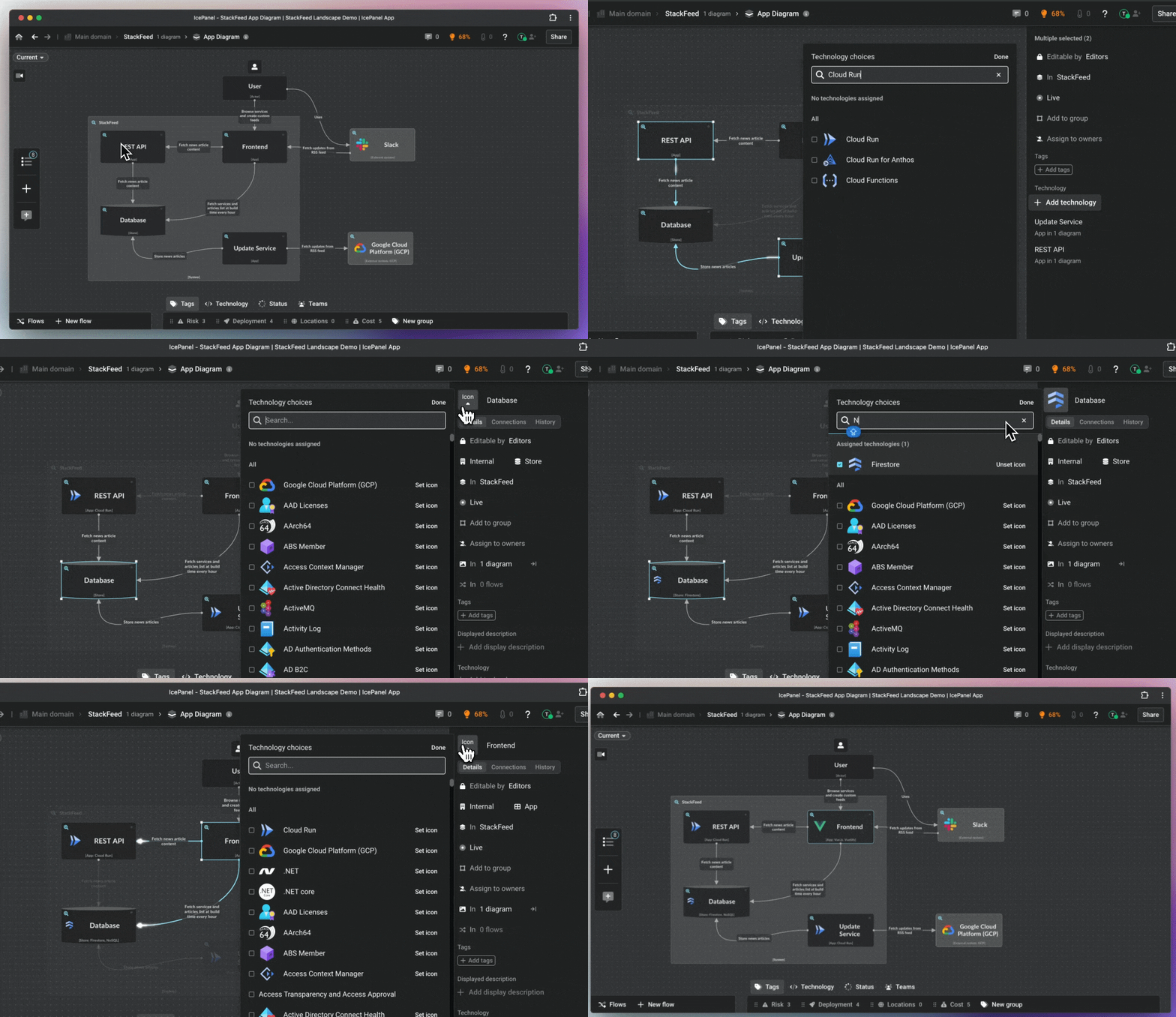
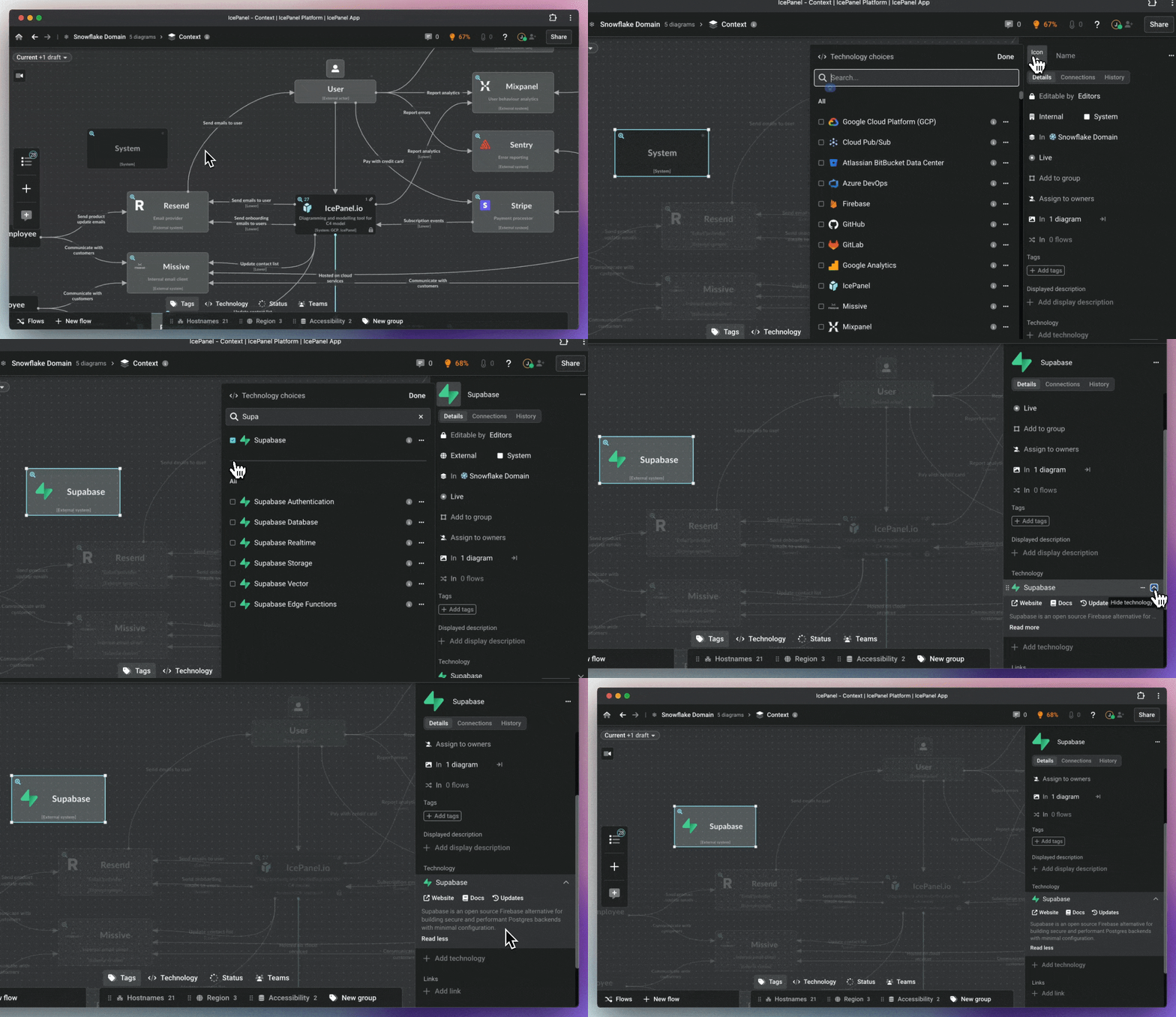
### Step 4: Assign tech choices

<figure><img src="https://4065434276-files.gitbook.io/~/files/v0/b/gitbook-x-prod.appspot.com/o/spaces%2FOHewp5hylgOsOa0VDOBo%2Fuploads%2F20F1Idh7x4uVN6hIoY8T%2Fgetting-started-4-h.gif?alt=media&amp;token=e8bbeae2-79dc-4ee7-b639-e69a2bd948f4" alt=""><figcaption><p>Assign tech choices to your objects</p></figcaption></figure>

Once you have your Apps and Stores laid out and connected, start adding any tech choices, such as what service in AWS, GCP or Azure service, languages, libraries or frameworks, etc.

1. Select your model object. You can multi-select objects by holding the `Shift` key.
2. Go to the technology section on the right-hand panel.
3. Search for your tech choice and add it.

These choices come with docs preassigned and a simple description for those unfamiliar. These can be used later to highlight tech choices using the [tags bar](/visual-storytelling/perspective-tags), allowing people to learn your architecture's technical choice landscape and filter your model.

### Step 5: Describe each object and diagram

<figure><img src="https://4065434276-files.gitbook.io/~/files/v0/b/gitbook-x-prod.appspot.com/o/spaces%2FOHewp5hylgOsOa0VDOBo%2Fuploads%2FzEdcOaeEDXZXDS4vG0FV%2Fgetting-started-5-h.gif?alt=media&amp;token=d131a59b-96f1-47fc-a9c7-d60633368b32" alt=""><figcaption><p>Add descriptions to your objects</p></figcaption></figure>

Each object and diagram has a description, which adds details to help your teammates understand how things work. Descriptions follow that object wherever it is.

The **minimum** you should add is a brief displayed description for each object. This might seem obvious, but it will help your teammates (especially new ones).

1. Select an object.
2. Go to the right-hand panel.
3. Add a displayed description to each object (max 120 characters).

Try to explain:

* What the object is.
* What its primary responsibilities are.

Use the detailed description field to show other useful information, such as a link to the appropriate repository.

{% hint style="info" %}
The detailed description field supports Markdown, so you can quickly import your existing documents and formatting manually or through our [API](/integrations/rest-api).
{% endhint %}

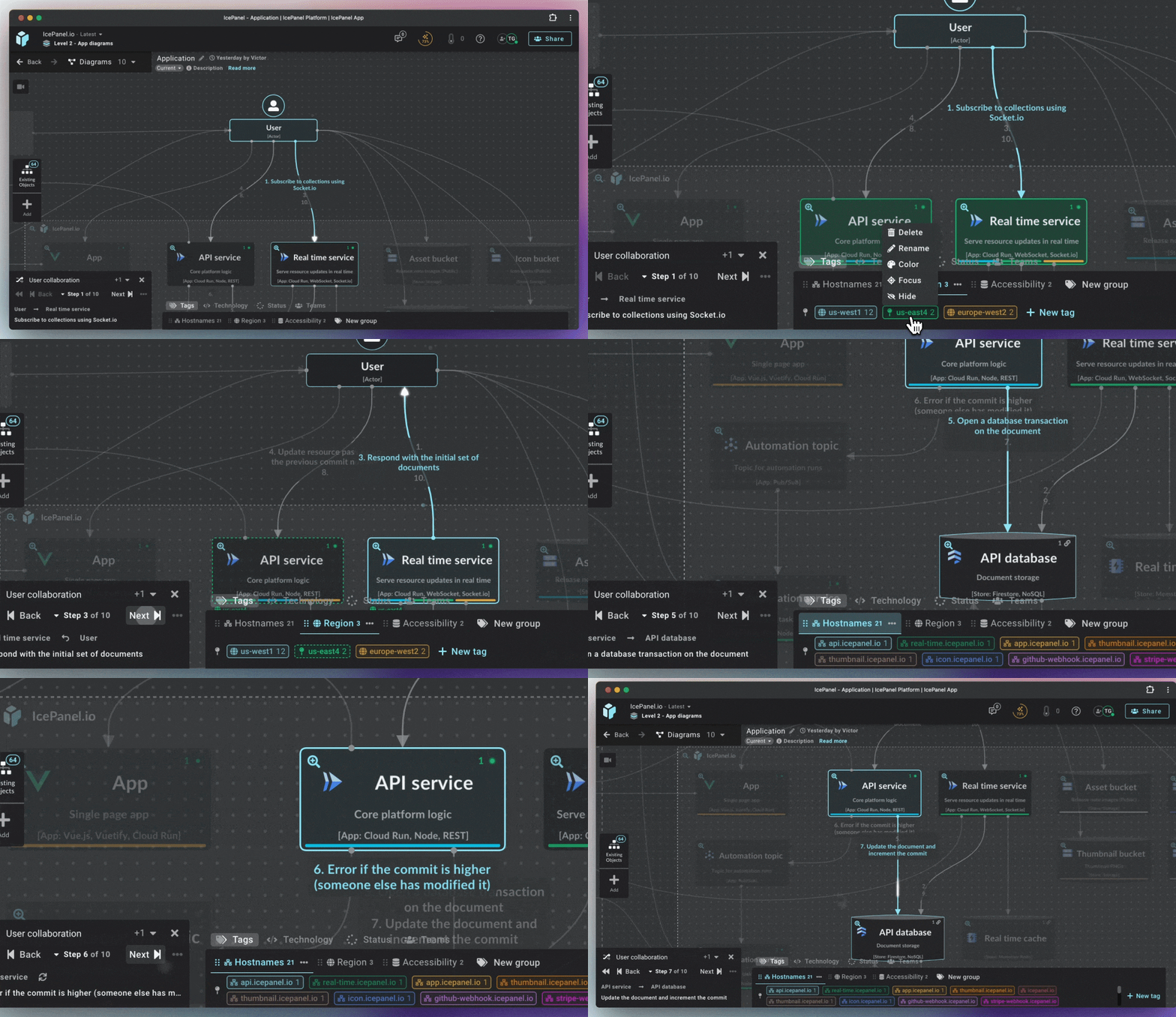
### Step 6: Create your first Flow

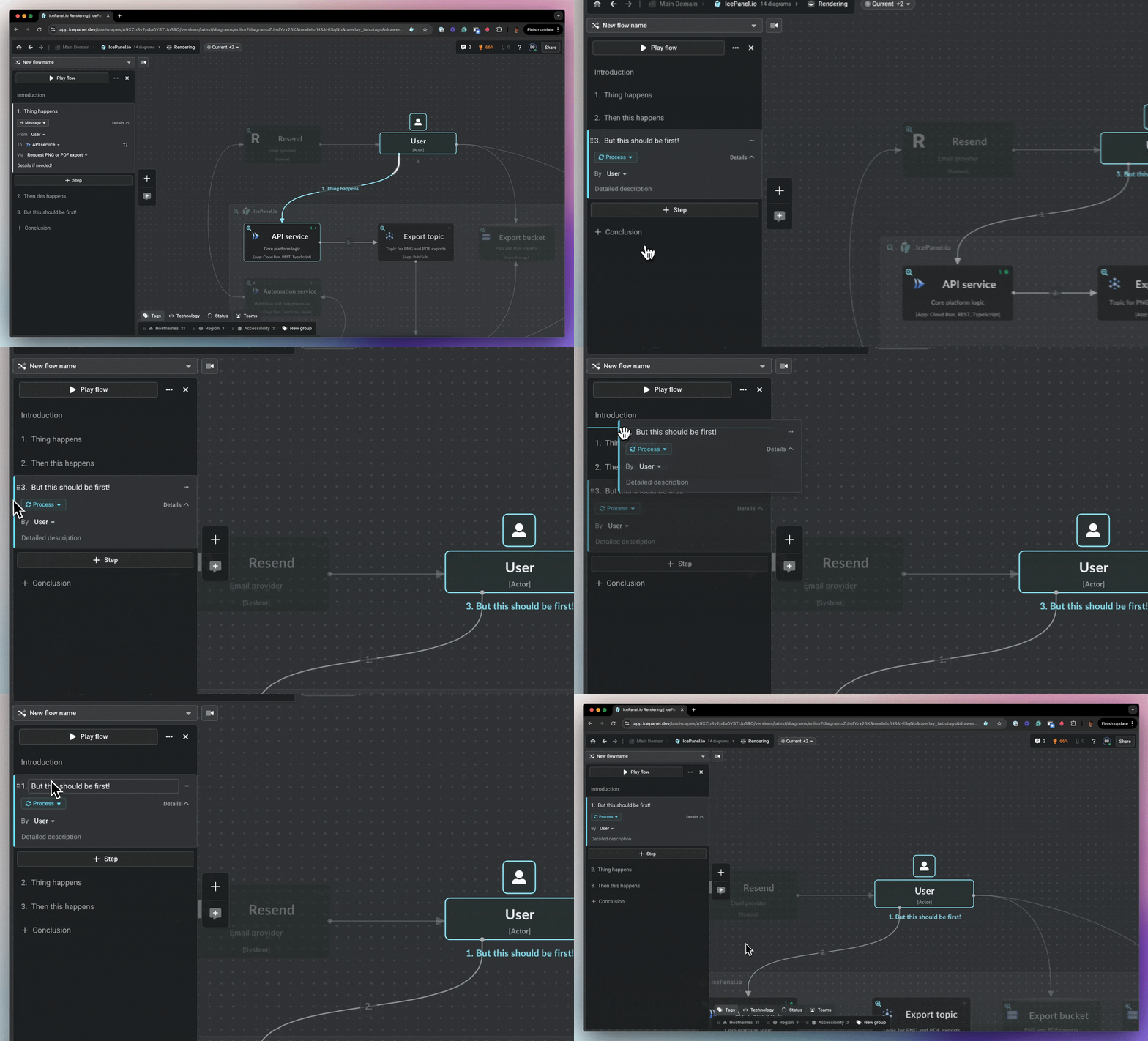
<figure><img src="https://4065434276-files.gitbook.io/~/files/v0/b/gitbook-x-prod.appspot.com/o/spaces%2FOHewp5hylgOsOa0VDOBo%2Fuploads%2FBOUd7s0Z28wKmtfCrGR3%2Fgetting-started-6-h.gif?alt=media&amp;token=9a1a1bb3-33d3-45e4-9fed-09799f9b34df" alt=""><figcaption><p>Create your first Flow</p></figcaption></figure>

Your Systems architecture doesn't live in a static world without interactions and data flows, so neither should your diagrams. Flows allow you to show how your system works in multiple scenarios or user journeys on the same view.

1. Click `Create flow` in the diagram Flows tab at the bottom left of the screen. Name your Flow.
2. Select the object or connection you want to show in your first step.
3. Click `+ Step` on the left.
4. Add an optional description to the step.
5. Keep adding steps to show the rest of the flow.
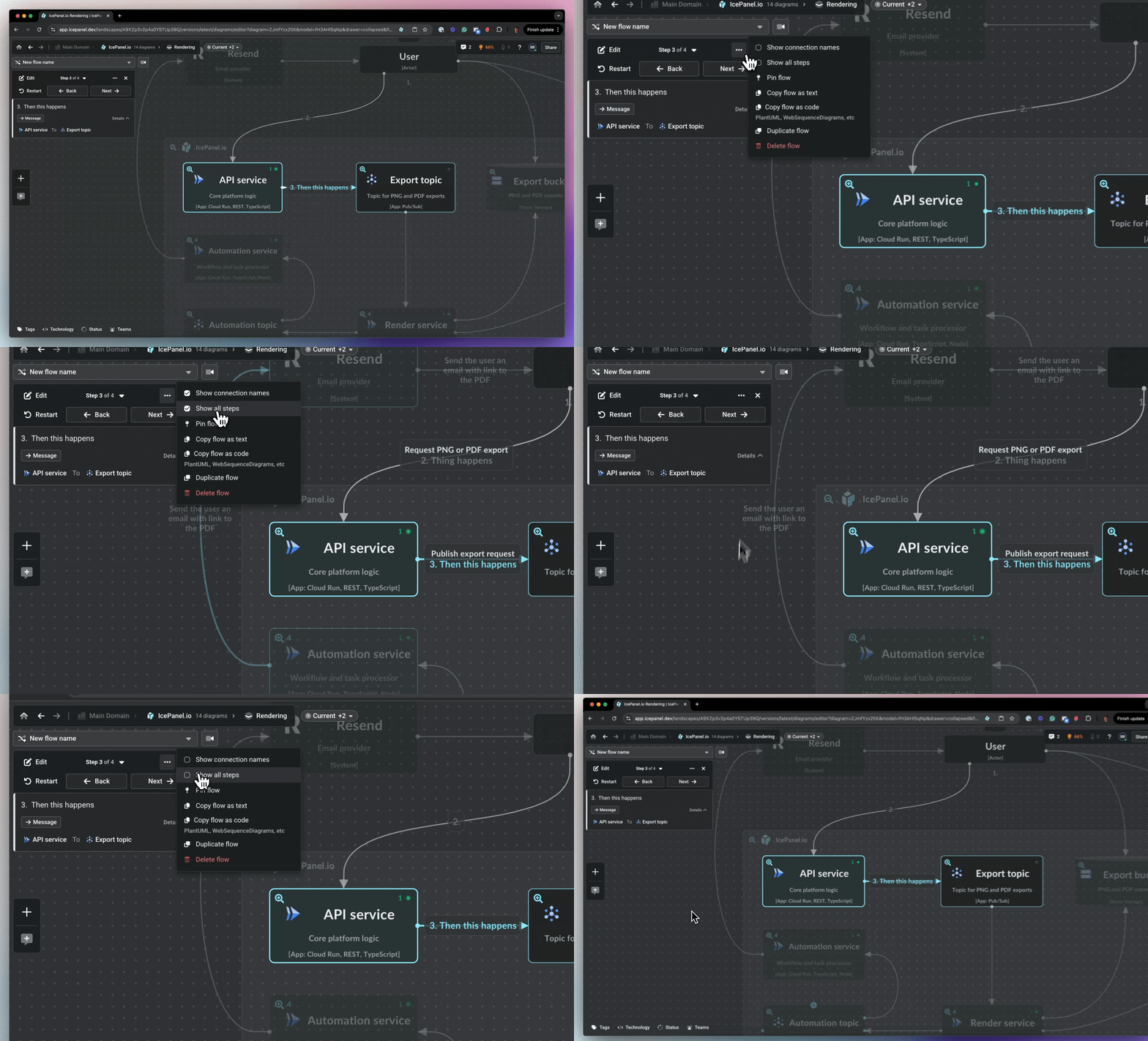
6. Use the `Back` and `Next` buttons to step through your flow when complete.

<table data-view="cards"><thead><tr><th></th><th data-hidden></th><th data-hidden></th><th data-hidden data-card-cover data-type="files"></th><th data-hidden data-card-target data-type="content-ref"></th></tr></thead><tbody><tr><td>👉 See flows for more</td><td></td><td></td><td><a href="https://4065434276-files.gitbook.io/~/files/v0/b/gitbook-x-prod.appspot.com/o/spaces%2FOHewp5hylgOsOa0VDOBo%2Fuploads%2FpFKifwmbJc2Vx3uM4FMy%2FFlows.png?alt=media&amp;token=0ccd6157-d452-4491-88c6-9aea0f93fe7b">Flows.png</a></td><td><a href="/visual-storytelling/flows">Flows</a></td></tr></tbody></table>

### Step 7: Add and view Tags to show different perspectives

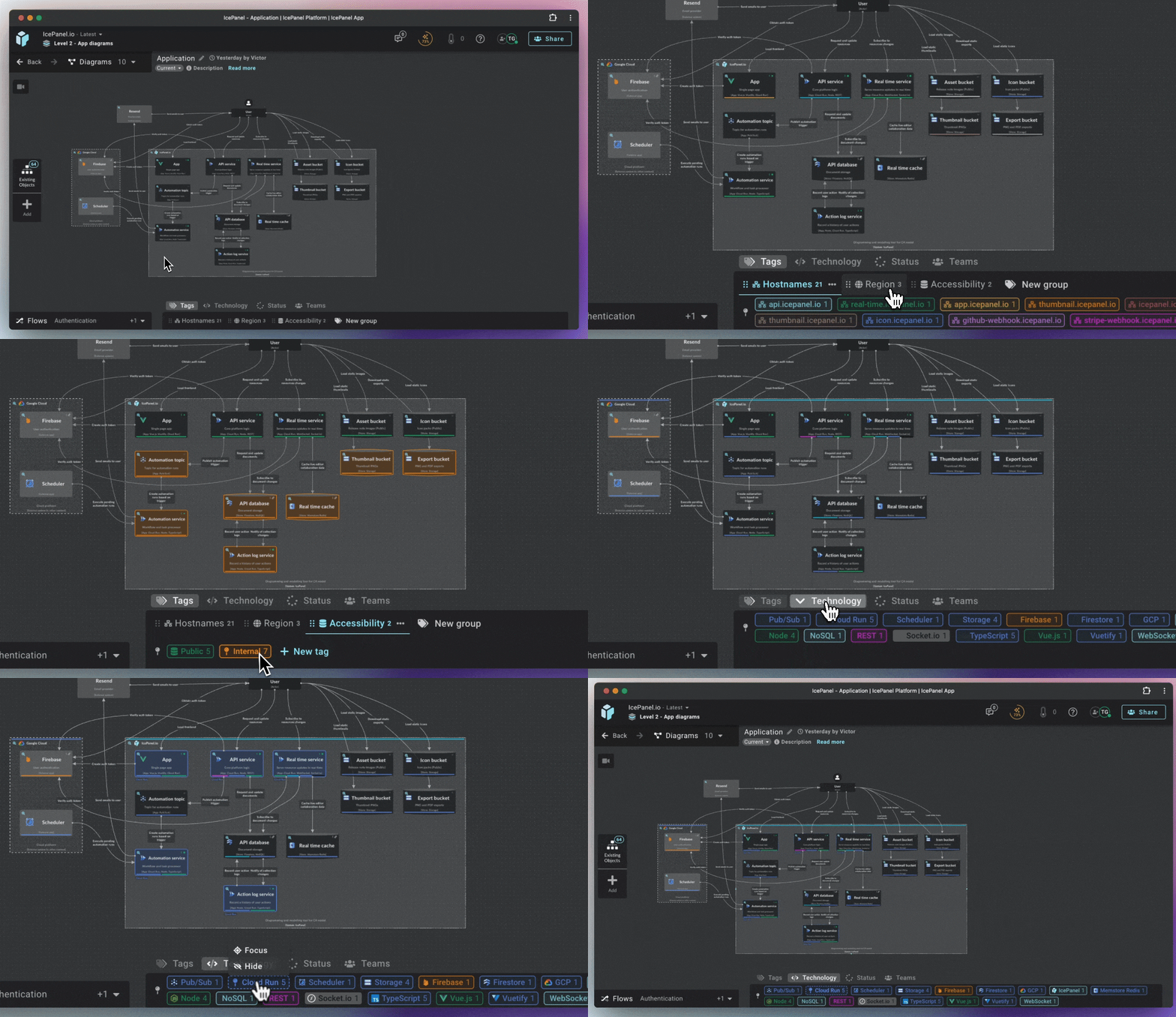
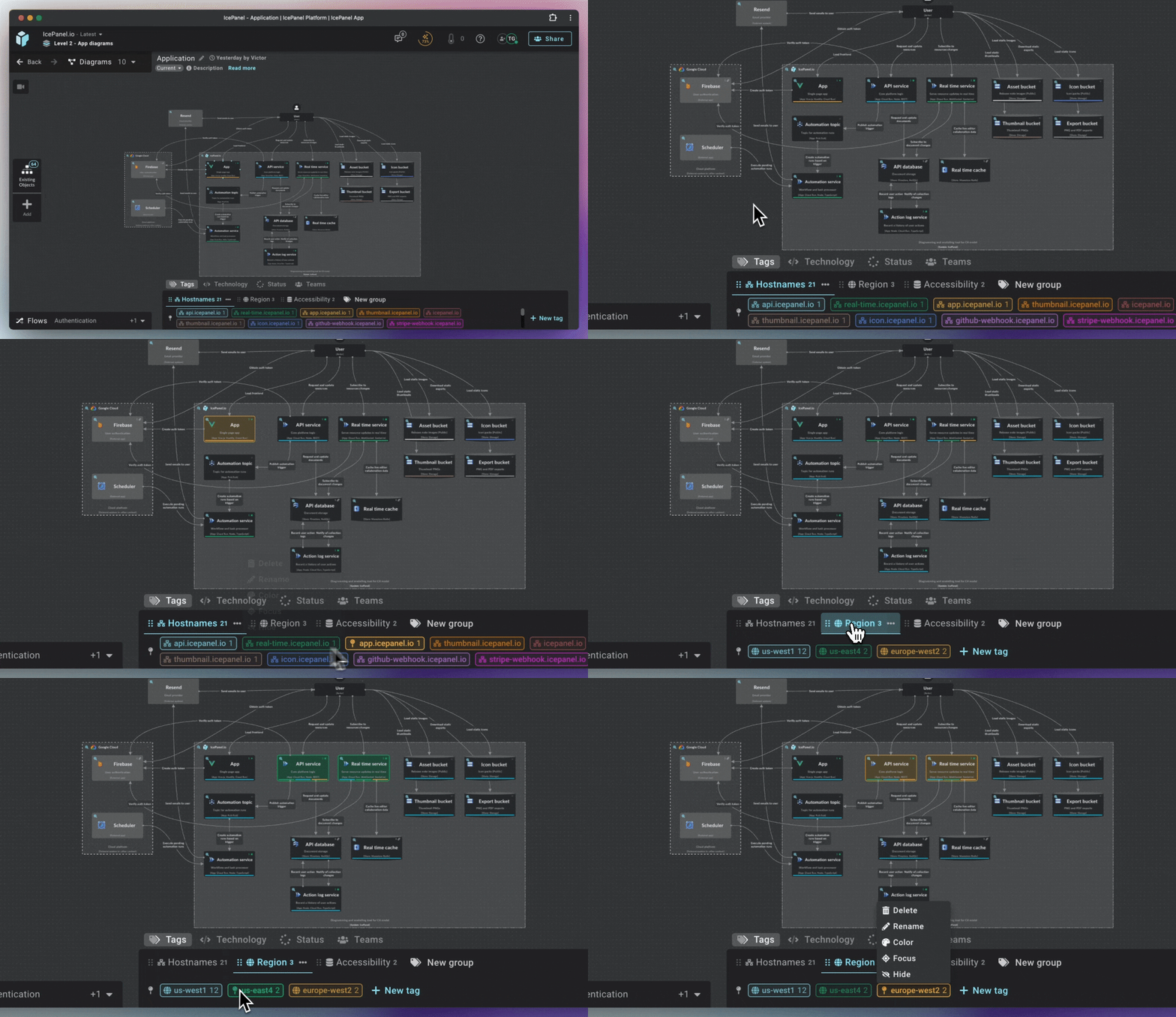
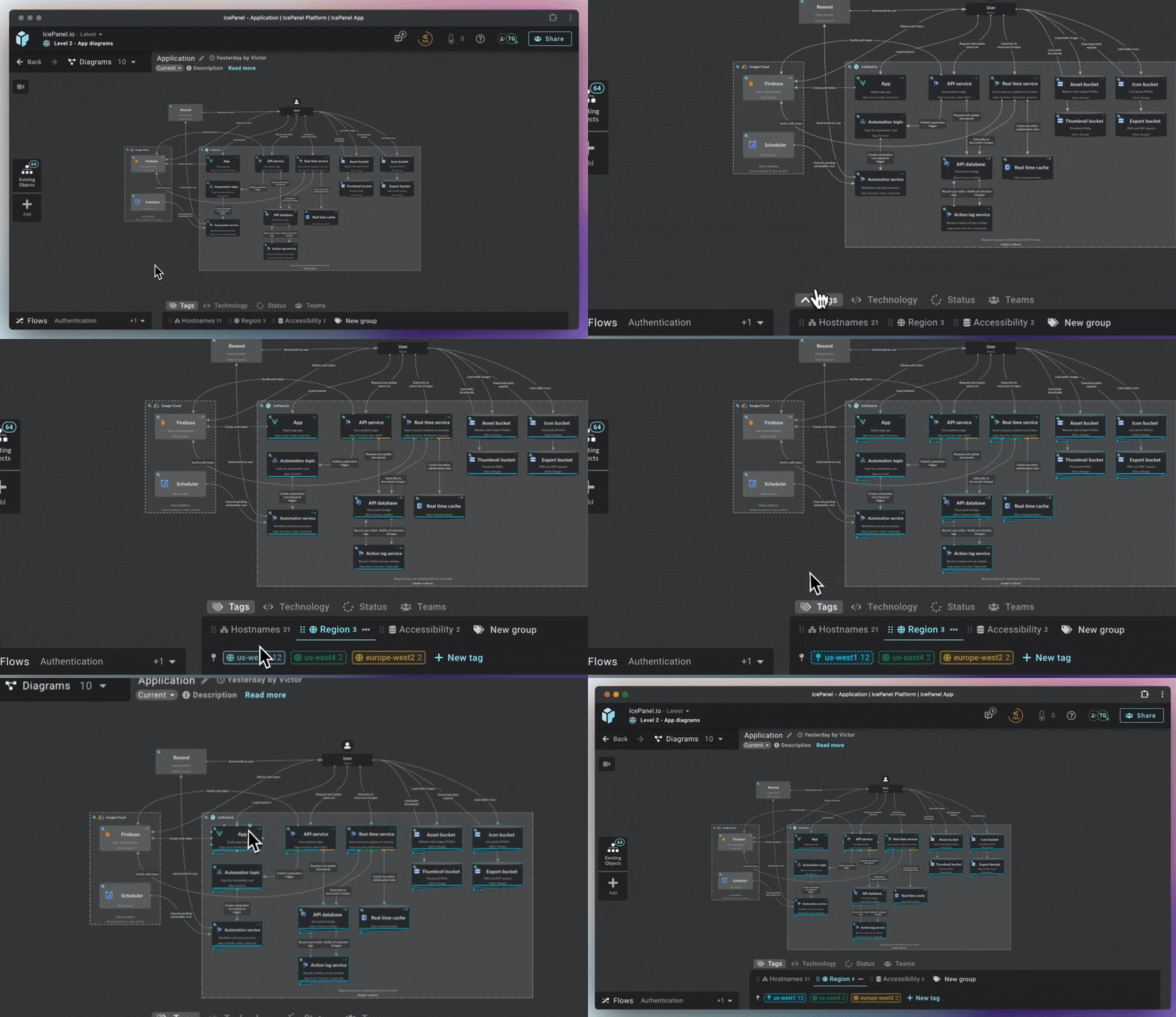
<figure><img src="https://4065434276-files.gitbook.io/~/files/v0/b/gitbook-x-prod.appspot.com/o/spaces%2FOHewp5hylgOsOa0VDOBo%2Fuploads%2F346ZCCpA6bFtkdN4B2xG%2Fgetting-started-7-h.gif?alt=media&amp;token=8042db25-36c0-4d76-81b0-8c7c264c591f" alt=""><figcaption><p>Add tags to your objects</p></figcaption></figure>

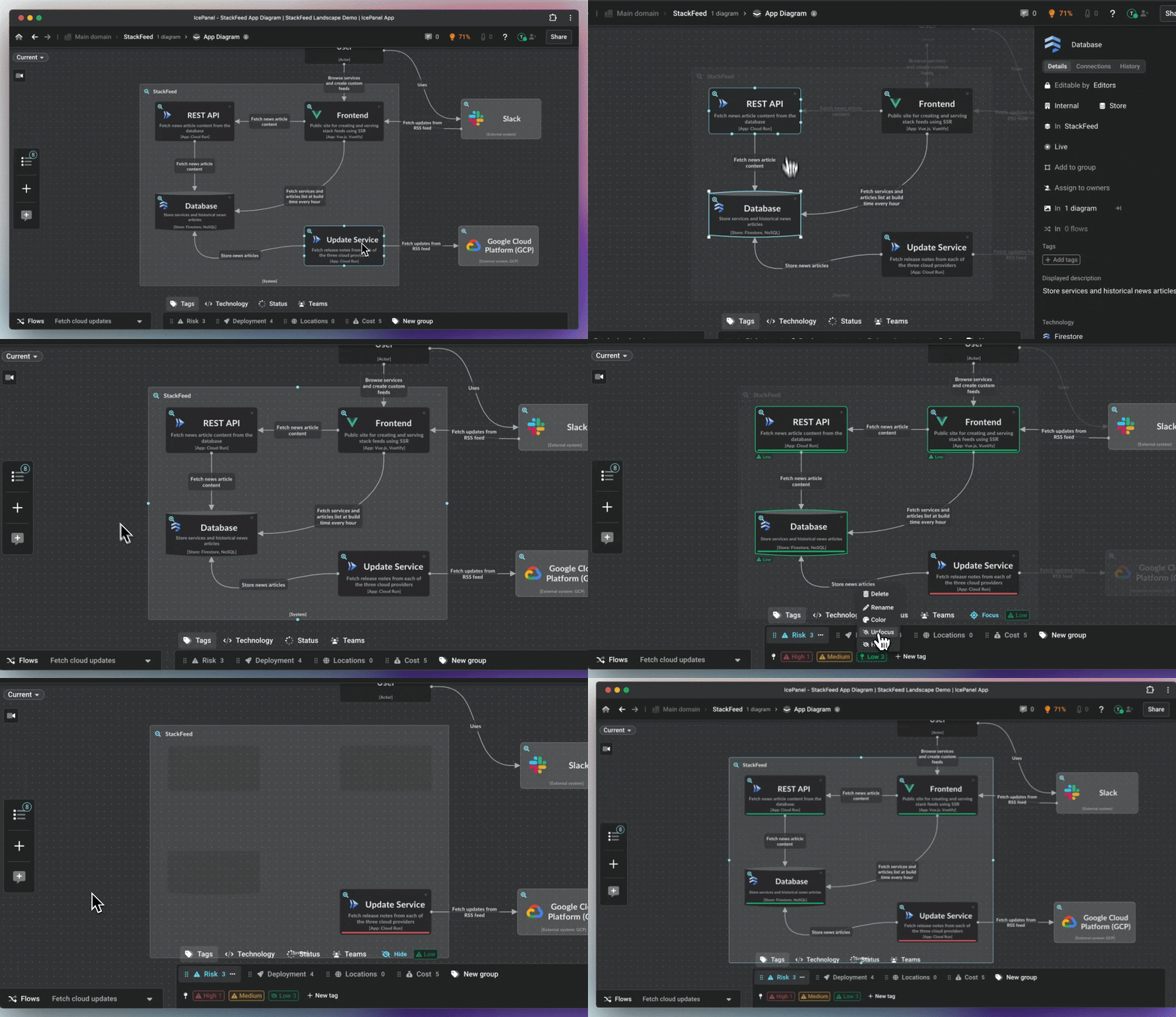
Tags allow you to show multiple perspectives of your diagrams without duplicating them. Use Tag groups to show different information, such as deployment information, the risk, or the cost of your model.

1. Open the Tags bar at the bottom of the screen.
2. Click an object to open the details in the right-hand panel.
3. Click the `Add tags` button.
4. Add tags that apply to the tag group you want to show.
5. Hover over the tags in the bottom tag bar to highlight them. You can also click on them to pin them or select the hide/focus options.

Tags are a great way to change the focus of your design with little effort and help target specific areas of focus for each of your audiences.

<table data-view="cards"><thead><tr><th></th><th data-hidden></th><th data-hidden></th><th data-hidden data-card-cover data-type="files"></th><th data-hidden data-card-target data-type="content-ref"></th></tr></thead><tbody><tr><td>👉 See Tags for more</td><td>👉 See tags for more</td><td></td><td><a href="https://4065434276-files.gitbook.io/~/files/v0/b/gitbook-x-prod.appspot.com/o/spaces%2FOHewp5hylgOsOa0VDOBo%2Fuploads%2Fr8sKbRP6ZXIeUE0tpnJb%2FTags.png?alt=media&amp;token=1e1a9b4b-4121-4430-a28c-2cc9e313d118">Tags.png</a></td><td><a href="/visual-storytelling/perspective-tags">Tags</a></td></tr></tbody></table>

### Step 8: Collaborate with your teammates and Share

<figure><img src="https://4065434276-files.gitbook.io/~/files/v0/b/gitbook-x-prod.appspot.com/o/spaces%2FOHewp5hylgOsOa0VDOBo%2Fuploads%2FoP6DB2OOfDC06hGxuEPa%2Fgetting-started-8-h.gif?alt=media&amp;token=51de3349-49d6-4863-baaa-d4340dcd5ebd" alt=""><figcaption><p>Share your diagram</p></figcaption></figure>

IcePanel is a collaborative tool for your whole team. Getting others involved helps you gain knowledge from across your business. Invite them as viewers (unlimited and free on all IcePanel plans) or create interactive read-only share links of your designs. [Share links & embeds](/collaboration/sharing) are a great way to showcase your designs without them needing an account using just a browser.

#### Invite your teammates:

1. Click the `Share` button in the top right of the screen.
2. Type the emails of the people you want to invite to your team.
3. Send invitations.

**Create share links:**

1. Click the `Share` button in the top right of the screen.
2. Navigate to the `Share link` tab.
3. Toggle on share links.
4. Copy and paste the link to anyone you want to show your designs.

{% hint style="info" %}
Wherever you are when you create a share link will be where your audience lands when opening the URL. This includes position, selected object, Flow, Tags etc.
{% endhint %}

### Step 9: Create your first version

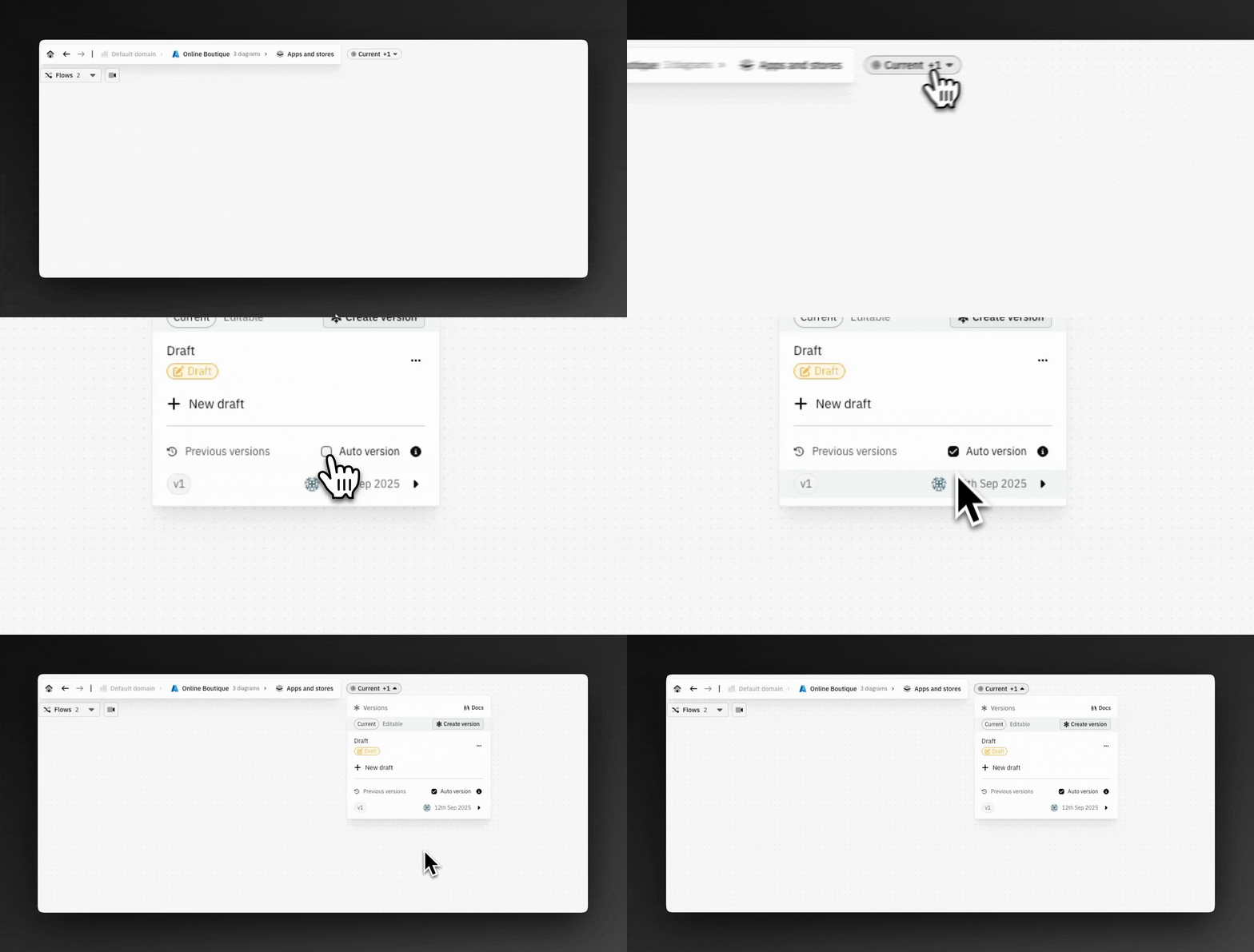
<figure><img src="https://4065434276-files.gitbook.io/~/files/v0/b/gitbook-x-prod.appspot.com/o/spaces%2FOHewp5hylgOsOa0VDOBo%2Fuploads%2Ff8WmPkW22x0NzTQwVqcA%2Fgetting-started-9-h.gif?alt=media&amp;token=af70bcf4-d02d-47ea-9380-780ecec63a64" alt=""><figcaption><p>Create a version of your landscape</p></figcaption></figure>

You can create versions of your landscapes to track changes and use the timeline to visualize how your architecture has evolved.

1. Click the `Current` drop-down at the top left of the canvas.
2. Click the `Create version` button.
3. Name your version and add notes (this will help you and others in the future).
4. Click the `Create version` button to confirm.
5. Select the `Current` drop-down to view the version timeline.

### That's the basics!

Congratulations! You've started your journey into interactive architecture documentation that remains up-to-date and can be accessed by all your teammates!

### What next?

<table data-view="cards"><thead><tr><th></th><th data-hidden></th><th data-hidden></th><th data-hidden data-card-target data-type="content-ref"></th><th data-hidden data-card-cover data-type="image">Cover image</th></tr></thead><tbody><tr><td>Modelling</td><td></td><td></td><td><a href="/core-features/modelling">Modelling</a></td><td><a href="https://4065434276-files.gitbook.io/~/files/v0/b/gitbook-x-prod.appspot.com/o/spaces%2FOHewp5hylgOsOa0VDOBo%2Fuploads%2FrALlzS1MgXjwkmvhkD8h%2FModelling%20-%20banner.png?alt=media&amp;token=6a14213e-0ff0-4b3b-b079-db06f4d3b757">Modelling - banner.png</a></td></tr><tr><td>Diagramming</td><td></td><td></td><td><a href="/core-features/diagramming">Diagramming</a></td><td><a href="https://4065434276-files.gitbook.io/~/files/v0/b/gitbook-x-prod.appspot.com/o/spaces%2FOHewp5hylgOsOa0VDOBo%2Fuploads%2Ff7dkXanF1WuebS3aKGlm%2FDiagrams%20-%20banner.png?alt=media&amp;token=69e50998-2200-466a-84a2-6c689e613438">Diagrams - banner.png</a></td></tr><tr><td>Dependencies</td><td></td><td></td><td><a href="/core-features/dependencies-view">Dependencies view</a></td><td><a href="https://4065434276-files.gitbook.io/~/files/v0/b/gitbook-x-prod.appspot.com/o/spaces%2FOHewp5hylgOsOa0VDOBo%2Fuploads%2F76NWVA0M1VkzEruaZgSY%2FDependency%20view%20-%20banner.png?alt=media&amp;token=28838a2a-caf7-40c3-a6c8-e42b390a0d21">Dependency view - banner.png</a></td></tr></tbody></table>

***

Still need help? Let us know at <mail@icepanel.io>, and we'll respond as soon as we can!


# Modelling

IcePanel uses a modern, lightweight, and agile way to model system architecture using the [C4 Model](http://c4model.com) - *created by Simon Brown*. This helps create simple, easily digestible, and maintainable diagrams targeted at each of your audiences.

Using modelling instead of diagramming tells the full story, not just a single diagram view.

Using the C4 model, you can create different hierarchical diagrams that explain how your solution works, from the high-level business of your systems to the low-level technical details.

IcePanel makes it easy for anyone (technical or non-technical) to use this powerful way to visualize software.

## What is modelling?

Modelling (*in software architecture*) is a way to see the **full picture** of how your system(s) work. It is view-agnostic and provides more detail than a single diagram.

## Why is modelling better?

There are a few core benefits of a model-based approach, as opposed to just diagramming (i.e. with just shapes and lines):

### 1. Reusability

You can reuse the same objects, including all existing connections and previously assigned metadata.

### 2. Syncing diagrams

When you change the reusable object, it updates in all other places it was referenced, massively reducing maintenance.

### 3. Deeper insights

Because your objects live in a source of truth, you can analyze how they're being used, what objects have specific traits or technologies, and more!

### 4. Consistency&#x20;

You can visualize your solutions consistently when paired with a standard modelling language, such as the C4 model. This means you don't have to relearn how others think a diagram should look, making conversations flow better.

## What is the C4 model?

Simon Brown created the C4 model to resolve the pains of explaining and communicating software architecture in the agile world. It acts as a map of your system, starting at the high-level detail (imagine looking at the whole world on Google Earth) down to the low-level technical details needed to develop your product (zooming into your street).

It is a way to communicate design decisions to multiple audiences at the level of detail they need. From business logic to technical decisions, the C4 model makes it easy to maintain in the long run when changes inevitably occur to your design.

## 🔢 The 4 C's in C4

The 4 C's relate to the different levels of detail in the diagrams created from the model.

### 1️⃣ Level 1 - Context diagrams

<div align="center"><figure><img src="https://4065434276-files.gitbook.io/~/files/v0/b/gitbook-x-prod.appspot.com/o/spaces%2FOHewp5hylgOsOa0VDOBo%2Fuploads%2F46NKgyIWMDPcCzczvWPL%2Flevel-1.png?alt=media&amp;token=4168b272-7a45-4279-a4b4-c8d09285e609" alt="" width="328"><figcaption><p>Level 1 - Context diagram breakdown</p></figcaption></figure></div>

**The big picture**—high-level overviews of how your system(s) work in the overall ecosystem with other external systems and the people who use them (users, customers, etc.).

**Scope** - Systems (internal and external) and actors.

**Intended audience** - Anyone! Business, Product, Architects, Developers and Operations.

***

### 2️⃣ Level 2 - Container diagrams

{% hint style="info" %}
We call these App diagrams in IcePanel, as "Container" is more commonly used for Docker.
{% endhint %}

<figure><img src="https://4065434276-files.gitbook.io/~/files/v0/b/gitbook-x-prod.appspot.com/o/spaces%2FOHewp5hylgOsOa0VDOBo%2Fuploads%2FiowMgG2U5d2RRDhqHAOO%2Flevel-2.png?alt=media&amp;token=d784ae02-f87c-4f16-be40-26d82990e5bd" alt="" width="328"><figcaption><p>Level 2 - App diagram breakdown</p></figcaption></figure>

**High-level responsibilities of a system**—These diagrams show how the separately deployable components interact to make a system work.

**Scope** - Apps and stores (inside the system you're zoomed into), other systems (internal and external) and actors.

**Intended audience** - Architects, Developers, Product, and Operations.

***

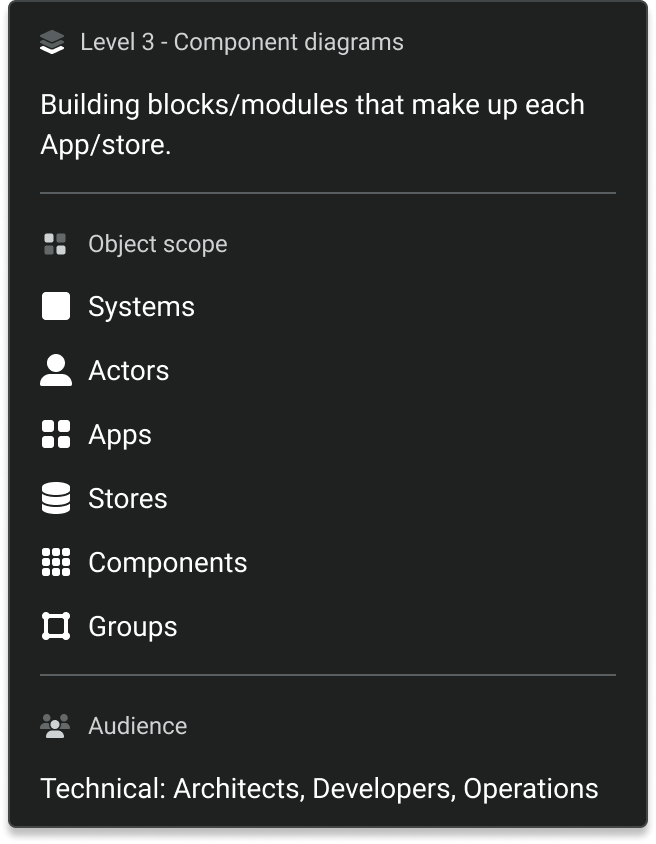
### 3️⃣ Level 3 - Component diagrams

<figure><img src="https://4065434276-files.gitbook.io/~/files/v0/b/gitbook-x-prod.appspot.com/o/spaces%2FOHewp5hylgOsOa0VDOBo%2Fuploads%2Fu3OfQ5COGOV3YoKjXxYN%2Flevel-3.png?alt=media&amp;token=cb352089-87e9-4537-9a34-e627b1005ee5" alt="" width="328"><figcaption><p>Level 3 - Component diagram breakdown</p></figcaption></figure>

**The building blocks and interactions of an app**—Zoom in on each app to show the components that make each app work and the interactions within. These are more technical diagrams for a technical audience.

**Scope** - Components (inside the app you're zoomed into), other apps and stores in the same system, other systems (internal and external) and actors.

**Intended audience** - Architects, Developers and Operations.

***

### 4️⃣ Level 4 - Code diagrams

These show how an app or store works and functions inside—currently, you can't diagram the fourth level in IcePanel. We believe you should refrain from diagramming this manually and [link your model objects](/integrations/linking-to-reality) to the code itself (reality).

This level is rarely diagrammed in practice. As Simon says, "...most IDEs can generate this level of detail on demand."

## Using the C4 model in IcePanel

IcePanel is a visual C4 modelling, diagramming, and documentation tool that maintains the C4 hierarchical structure.

### IcePanel's model object structure

* Organization
  * Landscape
    * Domain
      * Actor
      * Group
      * System
        * App or store
          * Component

### Model object details

When you select a model object (Actor, Group, System, App, Store or Component), you can view and edit the details in the right-hand panel. These details include:

* Icon (linked to technology choices)
* Name of object
* Connections
* History
* Team edit access `(Growth plan only)`
* Internal or external object type
* Abstraction (Actor, System, Group, App, Store, Component)
* Status (Live, future, deprecated or removed)
* [Domain](/core-features/domains) `(Growth plan only)`
* [Ownership team](/collaboration/ownership-teams) `(Growth plan only)`
* Diagrams list
* [Flows](/visual-storytelling/flows) list
* [Tags](/visual-storytelling/perspective-tags)
* Display description
* Technology choices
* Custom Links
* Detailed description

{% hint style="warning" %}
Each model object must have a unique name within its scope. Violating this rule raises an “already exists” error.

In practice, this means that a model object cannot share a name with another object that:

* Share the same parent, or
* Reside higher in the hierarchy within the same Domain.

Otherwise, sharing names is allowed. This lets you apply the same naming conventions across Systems, as long as no ambiguities arise. For example, each system can have a Store named “database” and an App named “front-end” without issue.
{% endhint %}

### Adding objects in the diagram view

<figure><img src="https://4065434276-files.gitbook.io/~/files/v0/b/gitbook-x-prod.appspot.com/o/spaces%2FOHewp5hylgOsOa0VDOBo%2Fuploads%2FEmlxFzxQwjut31wbyF0E%2Fadd-object.gif?alt=media&amp;token=3b7b45f9-ec16-403e-bfcd-b103396d6ac4" alt=""><figcaption><p>Adding objects in IcePanel via the diagram view</p></figcaption></figure>

You can add, edit or remove objects from your model in a diagram.

**To add new objects in a diagram:**

1. Click the `+` button on the left toolbar.
2. Drag and drop the object button in the canvas (you can also click and drop).
3. Name the object and add a displayed description.
4. Drag a new connection from an existing object to a blank space in the canvas to create a new object.

Adding objects this way adds them to your model for reuse. This is the best and quickest way to build up your model while keeping it in the context of the diagram you're creating.

{% hint style="warning" %}
Make sure to name your objects in a way anyone can understand.
{% endhint %}

### **Editing model objects**

In IcePanel, changing an object will update it everywhere it exists. This includes all diagrams, flows, and the model. Make a change anywhere, and it will auto-sync everywhere.

### **Removing model objects from a diagram**&#x20;

You can remove model objects from just a diagram but keep them in the model for later or another diagram. To do this:

* Select the object in the diagram.
* Press the `Backspace` or `Del` key.
* OR click the 3 dot `...` menu and select `Remove from the diagram.`

### **Deleting objects from the model**

{% hint style="danger" %}
This action cannot be undone. You can only perform this action from the Model Objects Tab. Removing an object from your diagram does not delete it from the model.
{% endhint %}

<figure><img src="https://4065434276-files.gitbook.io/~/files/v0/b/gitbook-x-prod.appspot.com/o/spaces%2FOHewp5hylgOsOa0VDOBo%2Fuploads%2Ffvc4XTe6YnY9KuGHgZHC%2Fimage.png?alt=media&amp;token=8249da4a-596e-46e4-a5c6-7a995dee1530" alt=""><figcaption><p>Deleting a model object in IcePanel</p></figcaption></figure>

1. Find the object or objects you wish to delete.
2. Click the 3 dot menu at the top right.
3. Click `Delete object` .
4. You will see a list of all things that will be permanently deleted.

This will delete the object from the model, all diagrams it was in, all connections in and out, diagrams that the object owns, and any details about it. You cannot reverse this action.

Alternatively, you can also open the object(s) on the Model Objects Tab and delete it from the top right.&#x20;

<figure><img src="https://4065434276-files.gitbook.io/~/files/v0/b/gitbook-x-prod.appspot.com/o/spaces%2FOHewp5hylgOsOa0VDOBo%2Fuploads%2FDknsLtqXgsyzmWL1m1Pl%2Fimage.png?alt=media&amp;token=a02dbdb8-dcd6-4633-8ce1-c034296ed304" alt=""><figcaption><p>Deleting a model object in IcePanel</p></figcaption></figure>


# Model objects view

Model objects can be viewed in a list format in the Model Objects view. Navigate to this page from the left-hand menu in the home screen.

## Adding objects in the model objects view

<figure><img src="https://4065434276-files.gitbook.io/~/files/v0/b/gitbook-x-prod.appspot.com/o/spaces%2FOHewp5hylgOsOa0VDOBo%2Fuploads%2FJIIWYOeHoUBxelnXBxhE%2Fmodelling-1.gif?alt=media&amp;token=03e51b72-5533-4f42-a306-c035e8ba26c4" alt=""><figcaption><p>IcePanel's model objects list</p></figcaption></figure>

Here, you can quickly add and view your model objects in your domain. You can also search for and sort by tags, diagram count, description added, etc.

**Visible by default:**

* &#x20;Actors, Systems and Groups

**Expand systems to view:**

* Apps and Stores

**Expand apps and stores to view:**

* Components

You can add, edit, and delete objects from here. You can also view and edit the details of each object, just like in a diagram.

{% hint style="success" %}
You can duplicate any object in the model object list by right-clicking it and selecting the *Duplicate object* option.
{% endhint %}

<figure><img src="https://4065434276-files.gitbook.io/~/files/v0/b/gitbook-x-prod.appspot.com/o/spaces%2FOHewp5hylgOsOa0VDOBo%2Fuploads%2Fv9P4A5y2vgGbV3e4PFLg%2Fimage.png?alt=media&amp;token=b34b2b03-4a7b-4c8a-adac-4b9f4a6a0ad5" alt=""><figcaption><p>Duplicate object</p></figcaption></figure>

## Filtering in the model view

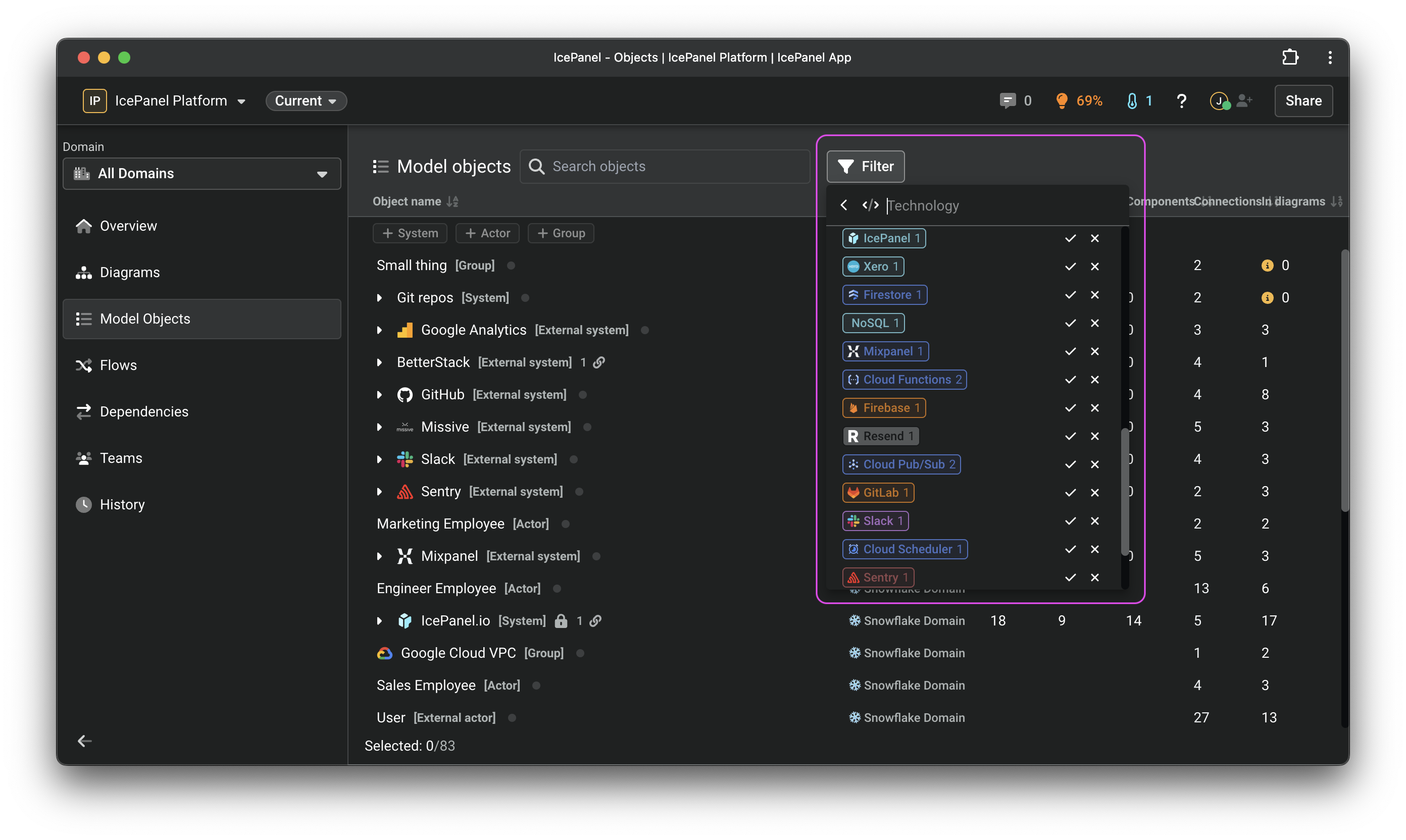
<figure><img src="https://4065434276-files.gitbook.io/~/files/v0/b/gitbook-x-prod.appspot.com/o/spaces%2FOHewp5hylgOsOa0VDOBo%2Fuploads%2FfDCPAVkVbic1fLBXpgdK%2Ffiltering-model-objects.png?alt=media&amp;token=8d0b6511-3d5d-4f0c-a027-881010a90737" alt=""><figcaption><p>Filtering options in model objects section</p></figcaption></figure>

You can filter your model objects based on:

* Technology choices
* Status
  * Live
  * Future
  * Deprecated
  * Removed
* Team ownership `(Growth plan only)`
* Tags (custom)
* Type
  * Internal
  * External
  * System
  * Actor
  * Group
  * App
  * Store
  * Component
* Diagram
  * In a diagram
  * In a flow
* Details
  * Has a display description
  * Has a detailed description


# Connections list

The Connections list contains all connections in your landscape or domain. Navigate to this view from the left-hand menu on the home screen.

<figure><img src="https://4065434276-files.gitbook.io/~/files/v0/b/gitbook-x-prod.appspot.com/o/spaces%2FOHewp5hylgOsOa0VDOBo%2Fuploads%2F1RZizlQsiStRuUNlIAiI%2Fconnections-list.png?alt=media&amp;token=cee2eb7a-0a77-4fa0-b027-1d80923b5271" alt=""><figcaption><p>Connections list</p></figcaption></figure>

On the connections list, you can:

* Search for connections.
* View all your connections in the landscape or by domain.
* Select connections to view and edit details.
* Multi-select connections to batch edit by holding shift or cmd/ctrl.
* Filter by from/to objects, technologies, status, tags, in diagram/flow, and has a detailed description.


# Groups

{% hint style="info" %}
Groups used to be called "Areas" and are available on all plans.
{% endhint %}

## What are groups?

Groups are used to overlay additional information around model objects in a diagram. You can assign any model object, except another group, to 1 or many groups. This information is stored in the model.

Groups auto-size around objects assigned to them and resize around other groups to ensure easily readable diagrams with less overlap. You cannot manually edit the size of a group when you have assigned model objects to it.

A group with no child objects can be used as a flexible visual overlay or bounding box without storing the objects inside.

<figure><img src="https://4065434276-files.gitbook.io/~/files/v0/b/gitbook-x-prod.appspot.com/o/spaces%2FOHewp5hylgOsOa0VDOBo%2Fuploads%2FzW4qrhpyFtgdQQ4cKwgl%2FGroups%20showcase.gif?alt=media&amp;token=e99bdb21-b64d-43b9-9478-8197a0d24de2" alt=""><figcaption><p>Groups can be used to show a collection/group of model objects</p></figcaption></figure>

## Use cases for Groups

Groups can be used in many ways to show a collection of objects as additional information.&#x20;

Some examples of when to use groups:

* **Deployment group** - showing how objects are deployed together
* **Microservice** - for example, an API with a data store, making a Microservice
* **Environment information** - for showing what lives in Production vs Development
* **Domains** - show your domains as a physical bounding box
* **Technology choices** - such as cloud providers in a multi-cloud solution
* **Tags** - Show a bounding box for any tag group, team, status, etc.

## Creating a new group

To create a group in a diagram:

1. Hover over the  `+ Add` button in the left-hand toolbar
2. Click the `Group` option, and a new group will be added to the diagram
3. Name your new group

<figure><img src="https://4065434276-files.gitbook.io/~/files/v0/b/gitbook-x-prod.appspot.com/o/spaces%2FOHewp5hylgOsOa0VDOBo%2Fuploads%2F372TRiH9L8lkAmgCQBLF%2FCreating%20a%20group.gif?alt=media&amp;token=4532d81e-6647-4779-ae57-91c43c132289" alt=""><figcaption></figcaption></figure>

{% hint style="info" %}
Double-click anywhere in the diagram canvas to create existing or new objects.
{% endhint %}

## Deleting a group

1. In the diagram view or model view, select a group
2. Go to the 3 dot menu top right
3. Select `Delete object`
4. Confirm the deletion of this group by clicking `Delete from model`

<figure><img src="https://4065434276-files.gitbook.io/~/files/v0/b/gitbook-x-prod.appspot.com/o/spaces%2FOHewp5hylgOsOa0VDOBo%2Fuploads%2FCf26W2Om0CiuVLI4l0GI%2FDeleting%20a%20group.gif?alt=media&amp;token=602f1e18-bae2-4a55-9943-f41ac85697bf" alt=""><figcaption></figcaption></figure>

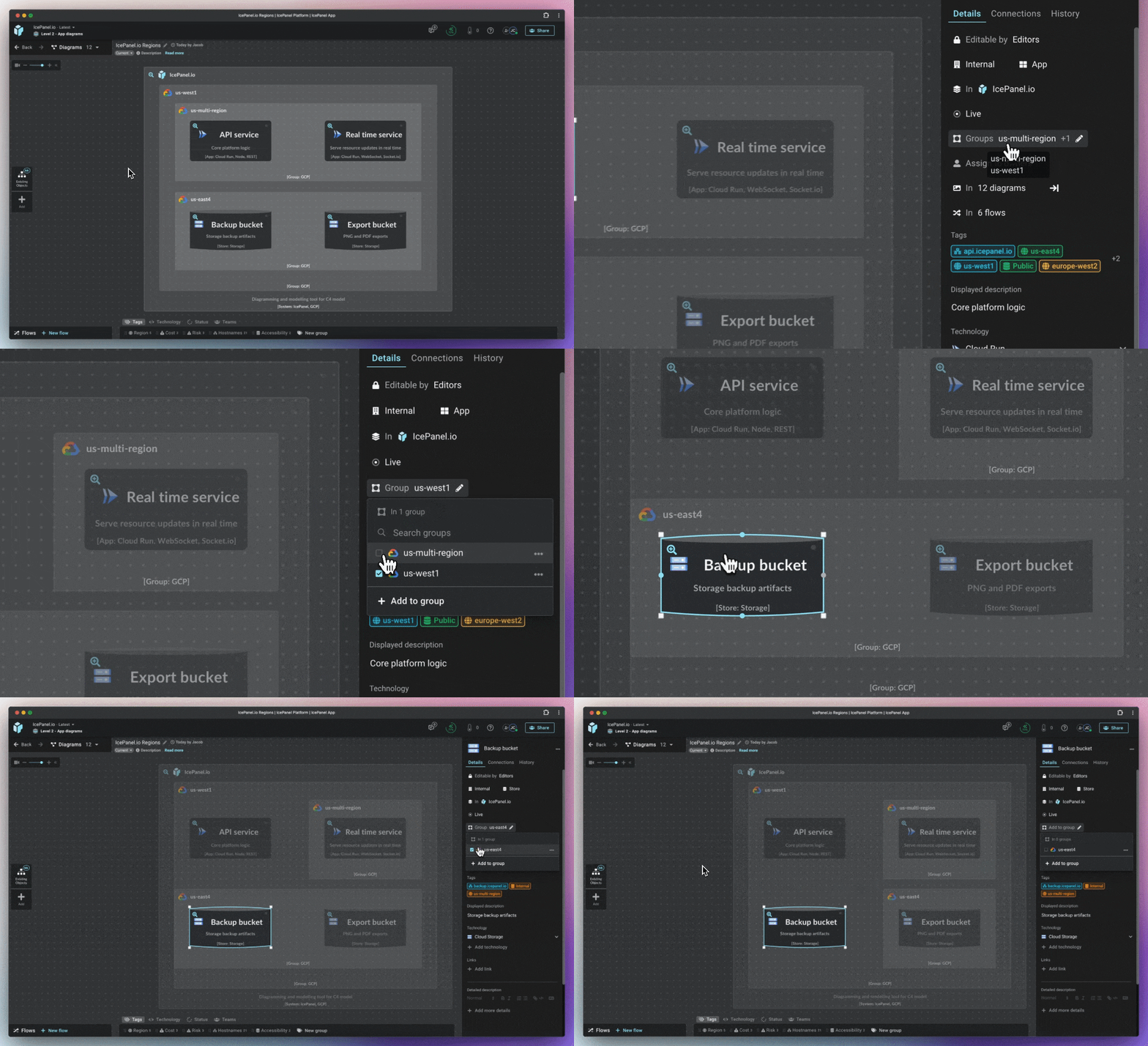
## Assigning objects to groups

Objects can be assigned to 1 or many groups. A group can store any object type except other Groups.

### How to assign an object to a group:

1. Select the object you wish to add to a group
2. Click the Group dropdown in the right-hand panel
3. Click on the `+ Add to group` button
4. Search and select the group(s) you want to add these objects to

<figure><img src="https://4065434276-files.gitbook.io/~/files/v0/b/gitbook-x-prod.appspot.com/o/spaces%2FOHewp5hylgOsOa0VDOBo%2Fuploads%2FQqOmuMX6KYZRRVSARZbd%2FAssinging%20a%20group%20to%20an%20object.gif?alt=media&amp;token=b6b14512-efee-4a7d-9514-7c22c4235564" alt=""><figcaption><p>Assinging objects to a group</p></figcaption></figure>

### Multi-select assigning groups to objects

You can multi-select and add multiple objects to groups at once.

1. Multi-select objects using `Shift` key + click objects
2. Select the Groups dropdown
3. Select the Groups you want to assign them to

<figure><img src="https://4065434276-files.gitbook.io/~/files/v0/b/gitbook-x-prod.appspot.com/o/spaces%2FOHewp5hylgOsOa0VDOBo%2Fuploads%2FaPqi6eQmhygisjVDAnCr%2FMulti%20selecting%20groups.gif?alt=media&amp;token=29394092-d85b-4add-8448-6eec30b29d6a" alt=""><figcaption><p>Assinging multiple objects to a group</p></figcaption></figure>

{% hint style="info" %}
Adding an object to a group in the diagram will auto-resize it to fit the containing objects. If the group isn't in the diagram, you'll need to add it from the left-hand options or by double-clicking in the diagram.
{% endhint %}

### How to unassign objects from a group:

1. Select the object or objects you wish to remove from a group
2. Click the group dropdown in the right-hand panel
3. Deselect the group(s) you want to remove these objects from

<figure><img src="https://4065434276-files.gitbook.io/~/files/v0/b/gitbook-x-prod.appspot.com/o/spaces%2FOHewp5hylgOsOa0VDOBo%2Fuploads%2FxjFng0dY2OL3cmHWdXhD%2FUnassinging%20groups.gif?alt=media&amp;token=e361f09b-e28d-4ae5-8565-89ae4dc15af3" alt=""><figcaption></figcaption></figure>

{% hint style="info" %}
When you unassign a group from the last object, they won't be removed from the diagram. You may need to clean up the diagrams they're in.
{% endhint %}

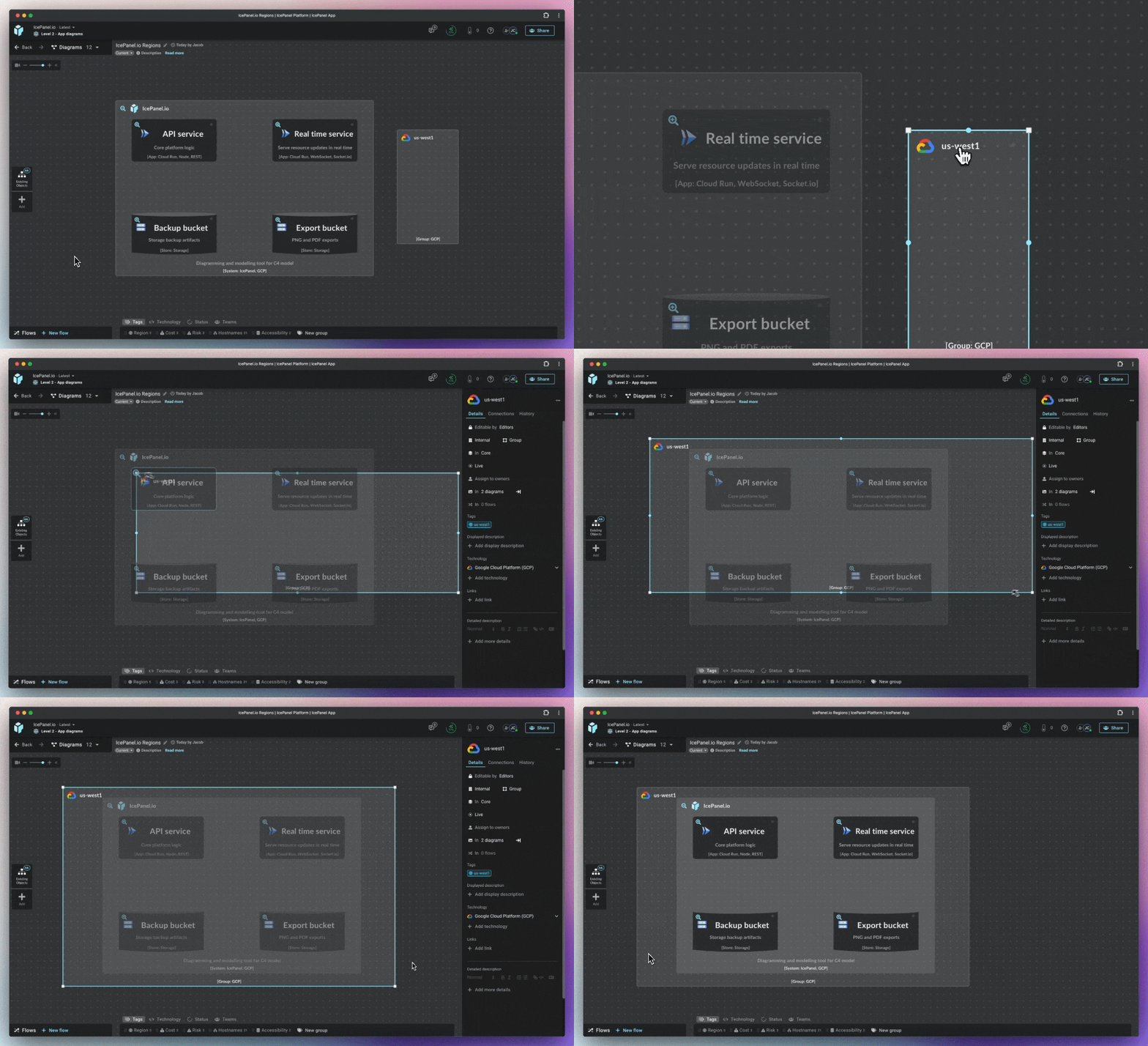
## Unassigned Groups

Groups without any model objects assigned are considered unassigned, meaning they're flexible bounding boxes that can be placed anywhere. These do not resize around objects and can be manually resized.

<figure><img src="https://4065434276-files.gitbook.io/~/files/v0/b/gitbook-x-prod.appspot.com/o/spaces%2FOHewp5hylgOsOa0VDOBo%2Fuploads%2FDNzY2X5kKXUuiW3HUwc2%2FUnassigned%20group.gif?alt=media&amp;token=bebdcdbc-d9f8-4a50-8e1d-d19b1207b5b3" alt=""><figcaption><p>Unassigned groups can be used as flexible overlays</p></figcaption></figure>

## Nested Groups

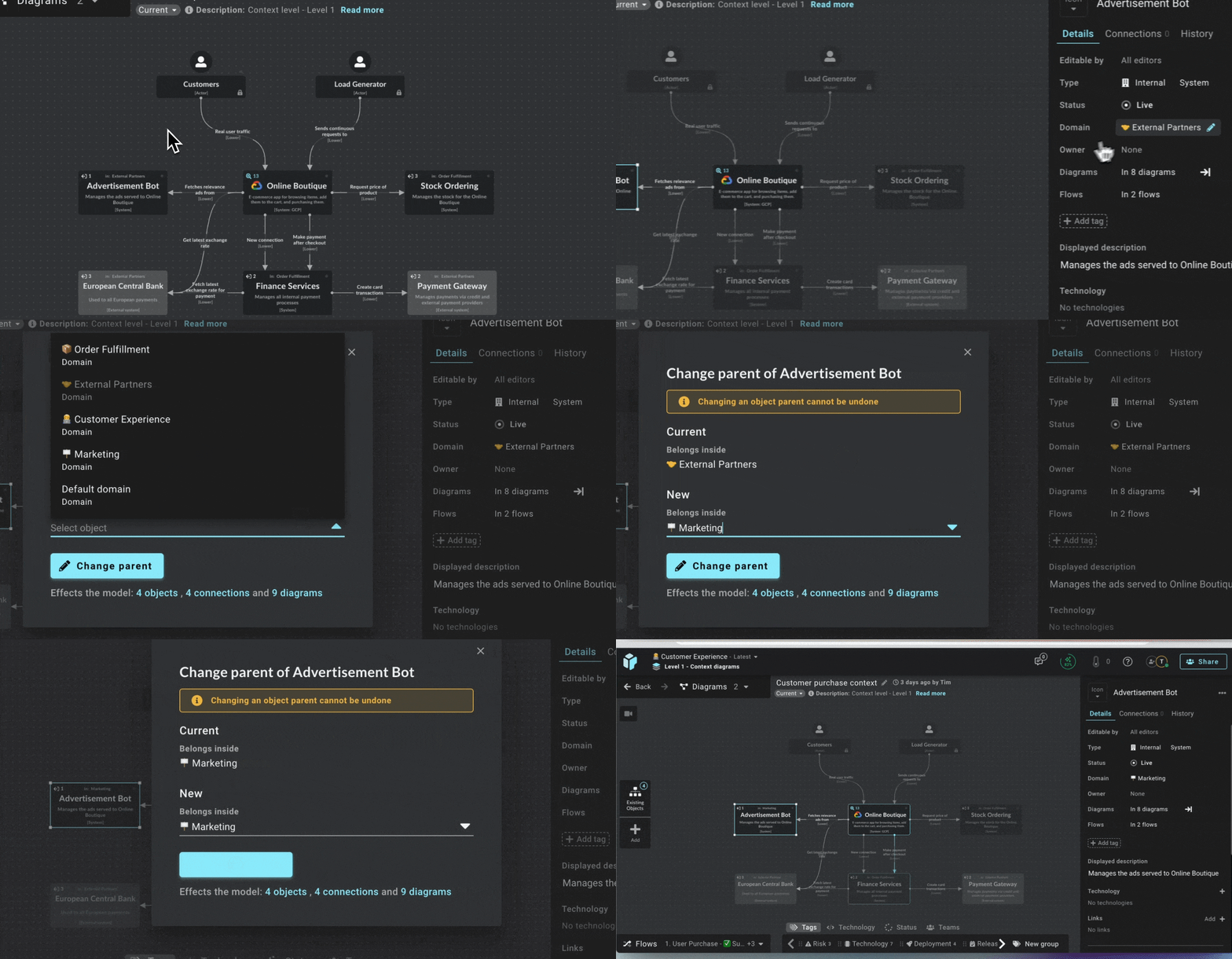
You can nest groups inside each other, which is especially helpful for visualizing hierarchical structures like a deployment diagram. For example, one group might represent a cloud region, with nested groups for individual services or components—this kind of hierarchy helps clarify how different parts of the system relate and are organized logically.

To nest a group inside another group, select the group you want to nest and hit the *In* drop-down. Find the group that you would like to use and confirm by selecting *Change Parent*.&#x20;

<figure><img src="https://4065434276-files.gitbook.io/~/files/v0/b/gitbook-x-prod.appspot.com/o/spaces%2FOHewp5hylgOsOa0VDOBo%2Fuploads%2FWojUIqZcYRCVAZbLVUPn%2FClipboard-20251119-000939-632.gif?alt=media&amp;token=36a57cef-7091-4e12-b9d5-127708fd6a2f" alt=""><figcaption><p>Nest a group inside another group</p></figcaption></figure>


# Diagramming

How to diagram with IcePanel

Diagrams are at the centre of IcePanel. Combined with the C4 model, you can effortlessly show how your systems fit together at different levels of detail. Go from a high-level overview of your system to the apps and components that make it work. Add tags and flows to communicate different stories about your system. IcePanel's model-based philosophy enables you to create reusable objects across different diagrams, leading to greater consistency.

<figure><img src="https://4065434276-files.gitbook.io/~/files/v0/b/gitbook-x-prod.appspot.com/o/spaces%2FOHewp5hylgOsOa0VDOBo%2Fuploads%2Fo2ZBDJ5JDRUrgw01cM6v%2Fdiagramming-1.gif?alt=media&amp;token=52b54803-f39a-4ff2-ba2f-835c443305f7" alt=""><figcaption><p>IcePanel diagrams are based on the C4 model</p></figcaption></figure>

## Diagram basics

### Creating a diagram

The diagram hierarchy in IcePanel is based on the [C4 model](/core-features/modelling), with 3 levels of connected diagrams (instead of Level 4 diagrams, we allow you to [link objects to reality](/integrations/linking-to-reality)). There are 2 ways to create diagrams.

#### On the landscape page

1. Go to the Diagrams section.
2. Click on the `Create diagram` button.
3. Select the diagram type and parent object.

<figure><img src="https://4065434276-files.gitbook.io/~/files/v0/b/gitbook-x-prod.appspot.com/o/spaces%2FOHewp5hylgOsOa0VDOBo%2Fuploads%2FNNtZAYgRItmDiCeWHnB0%2FScreenshot%202025-02-20%20at%201.02.58%E2%80%AFPM.png?alt=media&amp;token=1cd6aa5f-b8d4-463a-8caa-b926f88b0f7d" alt=""><figcaption><p>Creating a diagram from the diagrams section</p></figcaption></figure>

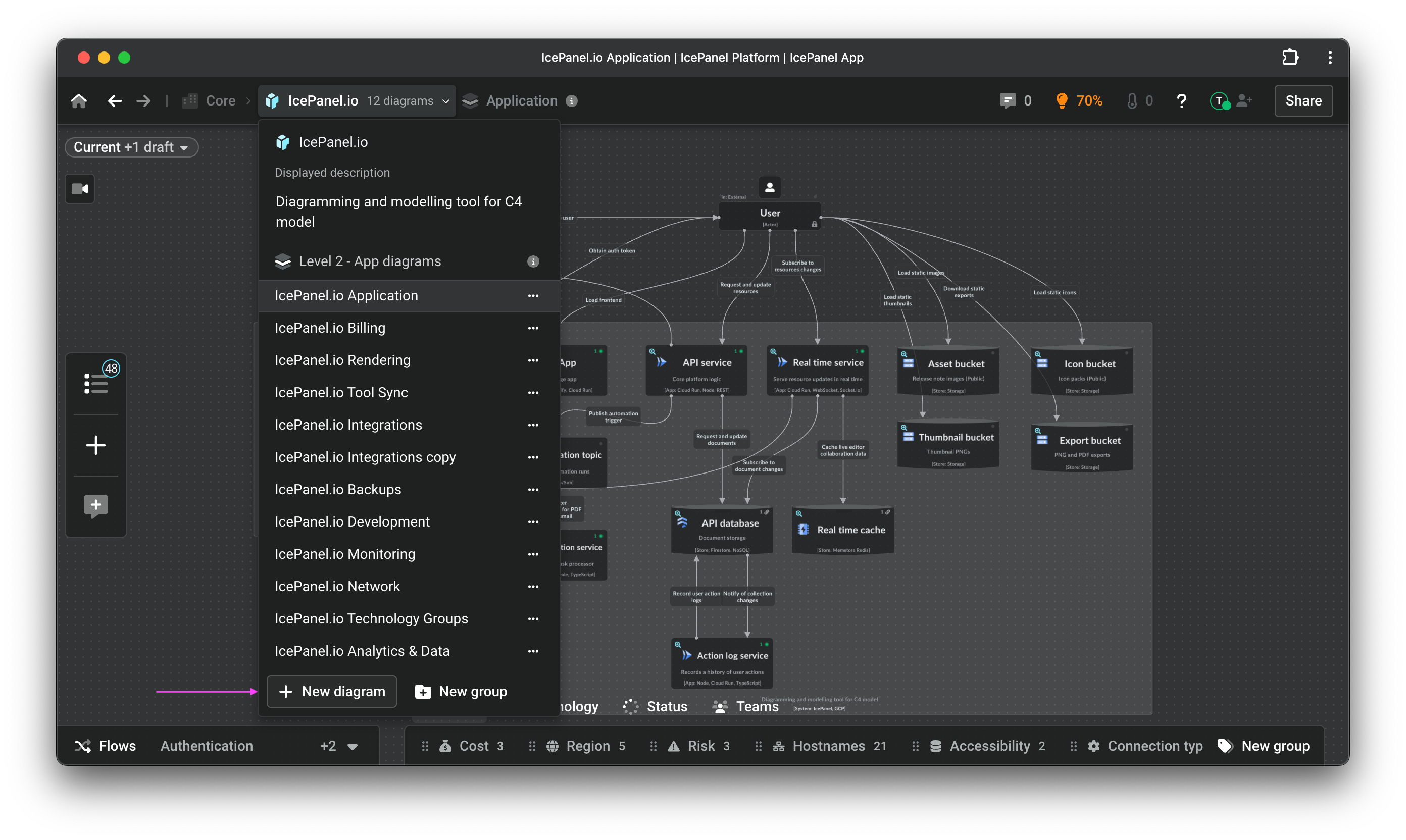
#### In a diagram

1. Navigate to the top left and click on the name of the diagram
2. Hover over the parent of diagram
3. Click on the `New diagram` button

<figure><img src="https://4065434276-files.gitbook.io/~/files/v0/b/gitbook-x-prod.appspot.com/o/spaces%2FOHewp5hylgOsOa0VDOBo%2Fuploads%2F2HALW0b46awFm7cqdWRK%2Fimage.png?alt=media&amp;token=69211d16-6954-4d7c-ae96-2185d1cb64ae" alt=""><figcaption><p>Create a new diagram from the dropdown</p></figcaption></figure>

{% hint style="info" %}
Diagram groups are only available on Growth, Scale and Enterprise plans.
{% endhint %}

### The top-level navigation

{% hint style="info" icon="question" %}
The navigation was updated in March 2026. If you miss the old navigation, feel free to send feedback via the contact us form in the app.
{% endhint %}

The top-level navigation bar shows two distinct tabs:

1. **Diagram tab**

* The diagram you are on
* The diagrams you can browse:
  * Your recently viewed
  * Your recently edited
* Search all diagrams

<figure><img src="https://4065434276-files.gitbook.io/~/files/v0/b/gitbook-x-prod.appspot.com/o/spaces%2FOHewp5hylgOsOa0VDOBo%2Fuploads%2FJRXnyouVF17UKNvfc1QH%2Fimage.png?alt=media&amp;token=f70f398c-1737-4a00-b03d-5d8e704cb76a" alt=""><figcaption><p>Diagram tab</p></figcaption></figure>

2. **The Belong To tab**

This shows where you are in the C4 hierarchy, allows you to navigate across and up levels, and view diagram details.

<figure><img src="https://4065434276-files.gitbook.io/~/files/v0/b/gitbook-x-prod.appspot.com/o/spaces%2FOHewp5hylgOsOa0VDOBo%2Fuploads%2FneGEiKppTLz8Mrm7bDDY%2Fimage.png?alt=media&amp;token=c8d2ab21-c821-4f75-930c-8a63bdbabf1d" alt=""><figcaption><p>C4 model diagram tab</p></figcaption></figure>

Use this tab to:

* See which diagram you're in and at which level.
* Navigate between different diagrams at a level.
* Navigate to a diagram at a higher level.
* View and edit diagram details (name, description)
* See when the diagram was last edited
* Add a description (with AI)
* Create a new Group
* Access versions
* Duplicate a diagram
* Move the diagram to another domain

### Creating new objects

Adding an object to a diagram creates it in the model.  This means you can **reuse** the same objects across different diagrams or make a single edit (to its name, for example) to change it everywhere. There are 3 ways to add new objects to a diagram.

#### From the left toolbar

1. Navigate to the left toolbar and hover on the `+` button. A list of object types will appear.
2. Select the object type you want to add and place it in the diagram.&#x20;

{% embed url="<https://studio.saltfish.ai/demo-share/demo_1770249741716_qwd47jgxu>" %}

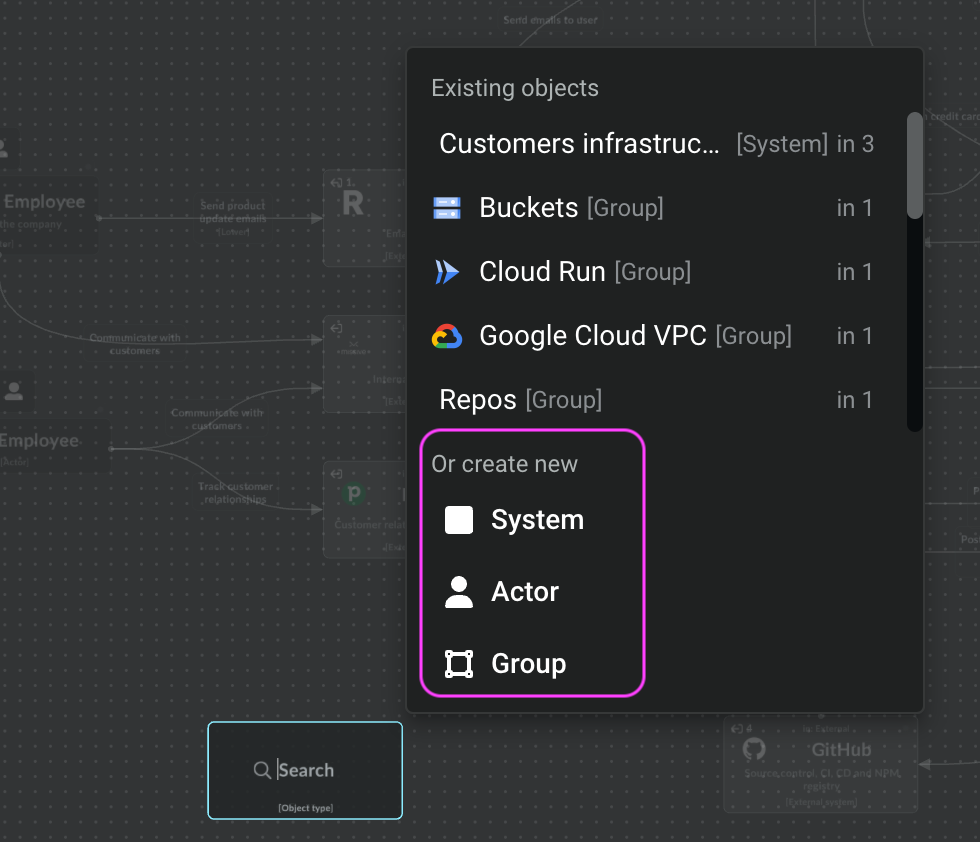
#### In the canvas

1. Double-click in the diagram area.
2. Click on the object type you want to add.
3. Name your object.

<figure><img src="https://4065434276-files.gitbook.io/~/files/v0/b/gitbook-x-prod.appspot.com/o/spaces%2FOHewp5hylgOsOa0VDOBo%2Fuploads%2FrvVtqISu8C01BvQBjpYy%2Fadd-object.png?alt=media&amp;token=ca338baf-a3ed-4c9b-bffb-eb96ef8e477e" alt="" width="375"><figcaption><p>Double-click in a canvas to add a new object</p></figcaption></figure>

#### **Using keyboard shortcuts**

* Create a new system: `Shift + S`
* Create a new actor: `Shift + P`
* Create a new Group: `Shift + G`
* Create a new app: `Shift + A`
* Create a new store: `Shift + D`
* Create a new component: `Shift + X`

See all [Hotkeys](/other-information/hotkeys)

{% hint style="success" %}
You can duplicate any existing object by simply right clicking the object and selecting the *Duplicate Object* option. You can multi-select them to duplicate multiple at a time!&#x20;

Use shortcut `CMD/Ctrl + D` to duplicate quickly.
{% endhint %}

<figure><img src="https://4065434276-files.gitbook.io/~/files/v0/b/gitbook-x-prod.appspot.com/o/spaces%2FOHewp5hylgOsOa0VDOBo%2Fuploads%2FBnqPuBm5yaNdxxdAY55O%2Fimage.png?alt=media&amp;token=52802f7e-2ff0-4470-8d0f-47d67fe02066" alt=""><figcaption><p>Duplicating an object in the Canvas</p></figcaption></figure>

### Adding existing objects

There are 2 ways to add existing objects to a diagram.

#### From the left toolbar

1. Navigate to the left toolbar and click on the  button `+` .
2. Search for objects by name.
3. Click on the object you want to add to the diagram or drag and drop.

<figure><img src="https://4065434276-files.gitbook.io/~/files/v0/b/gitbook-x-prod.appspot.com/o/spaces%2FOHewp5hylgOsOa0VDOBo%2Fuploads%2FJnTs5DOQ3VqsfpaFJqtE%2FScreenshot%202025-02-20%20at%201.07.37%E2%80%AFPM.png?alt=media&amp;token=a9926d28-8293-4ac6-a9a9-d0d390fedea3" alt="" width="375"><figcaption><p>Add objects from your model</p></figcaption></figure>

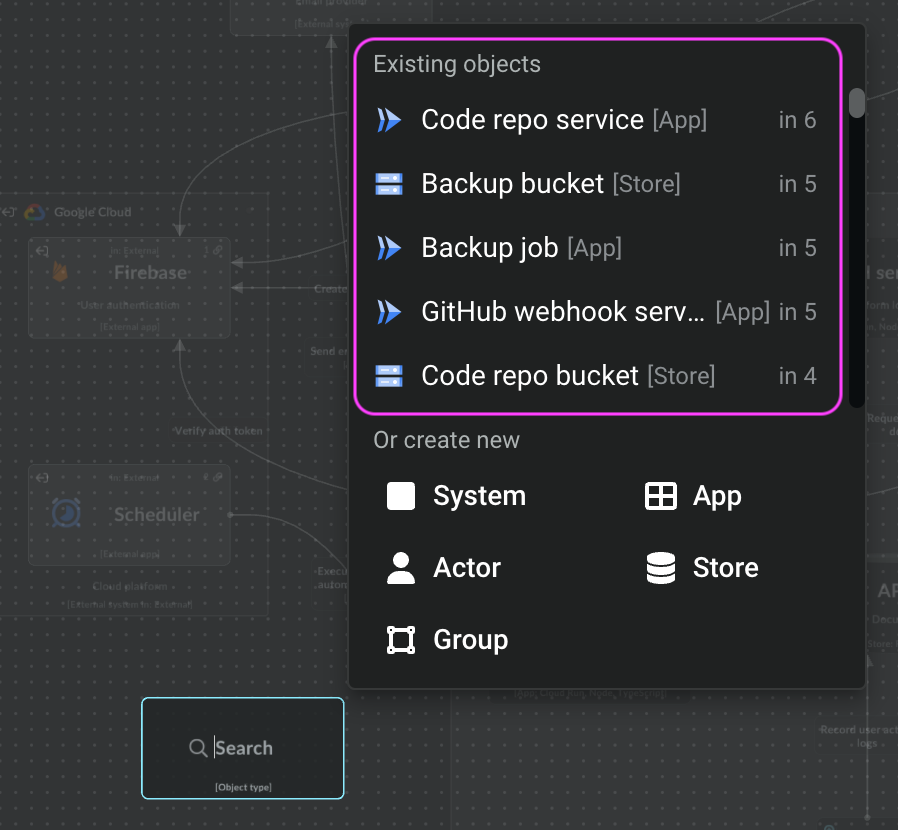
#### In the canvas

1. Double-click in the diagram area.
2. Search for the object by name or select the object from the dropdown list.

<figure><img src="https://4065434276-files.gitbook.io/~/files/v0/b/gitbook-x-prod.appspot.com/o/spaces%2FOHewp5hylgOsOa0VDOBo%2Fuploads%2FV5NazetKa6YqieVj5WVo%2Fadd-model-objects.png?alt=media&amp;token=5841b2de-b474-4b41-89a8-eabca4af7efc" alt="" width="375"><figcaption><p>Double-click and add objects in your model</p></figcaption></figure>

### Searching for objects

You can search for objects in a diagram by clicking the `+` button and using the filters. You can filter to view only objects in the diagram or the parent object. If you click on an object in the list that exists in the diagram, the canvas will move and focus on it.

<figure><img src="https://4065434276-files.gitbook.io/~/files/v0/b/gitbook-x-prod.appspot.com/o/spaces%2FOHewp5hylgOsOa0VDOBo%2Fuploads%2FCxDJll4ItHC6ztei4gzK%2FScreenshot%202025-02-20%20at%201.09.39%E2%80%AFPM.png?alt=media&amp;token=bf55ae37-3843-46e2-8565-d80284276bf3" alt="" width="375"><figcaption><p>Finding objects in a diagram</p></figcaption></figure>

{% hint style="info" %}
Use CMD/CTRL + F to open the search menu with the in current diagram filter selected.
{% endhint %}

### Editing object details

Click on an object to view or edit properties on the right-hand menu, such as:

* Icon
* Object name
* Editable permissions (only available on Growth and Isolation plans)
* Object type
* Parent
* Status (Live, Future, Deprecated, Removed)
* Groups it belongs to
* Owners
* Diagrams the object is in
* Flows the object is in
* Tags
* Displayed description
* Technology
* Links
* Detailed description
* Connections to and from the object
* History of changes to the object

{% hint style="warning" %}
Any changes you make will affect the model and all diagrams the object is in.&#x20;
{% endhint %}

<figure><img src="https://4065434276-files.gitbook.io/~/files/v0/b/gitbook-x-prod.appspot.com/o/spaces%2FOHewp5hylgOsOa0VDOBo%2Fuploads%2FI9n3D7NbKWdYsBHkIkVx%2FScreenshot%202024-04-19%20at%204.01.42%E2%80%AFPM.png?alt=media&amp;token=58ba7c42-fa66-422a-90a8-5d4570a51cce" alt="" width="305"><figcaption><p>Object details panel</p></figcaption></figure>

### Navigating across diagrams

There are a few ways to navigate across diagrams:

1. Clicking the 🔎 icon at the top-left of an object in a diagram. A numeric indicator will show how many objects are nested within the object. If there are no nested objects, a blank diagram will be created at a lower level when you click on it.
2. Selecting a diagram from the Diagram Tab.
3. Selecting a diagram from the Belong To Tab.

{% hint style="warning" %}
We recommend breaking complex diagrams into multiple diagrams that exist in parallel. Each diagram should communicate a specific message or architectural story and be tailored to a particular audience.

In practice, this often means creating multiple Level 2 diagrams that focus on different aspects of the system. Readers can explore these alternative views using the 🔎 icon, allowing them to navigate between diagrams without overwhelming a single view with too much detail.

This approach helps keep diagrams focused, easier to understand, and more useful for different stakeholders.
{% endhint %}

### Custom zooming

By default, when you zoom into an object, you will land on the top diagram in the list of possible diagrams within that object. For example, zooming into a system will land on the first Level 2 App diagram within that system.&#x20;

You can select a custom landing point for your zoom action, based on the diagram you're in when you zoom. This helps to keep context when lower diagrams are focused on the same concepts higher up. This will only change the zoom behaviour of an object for the current diagram you're in.

For example,  you can set it up so that when someone is in `Context diagram 1`  when you zoom into `Core System` you will land on `App diagram 1` . Separately, you can set it up so when you're in `Context diagram 2` , and you zoom into `Core System` you will land on `App diagram 2` instead.

To set up custom zooming:

1. Go to the diagram you want to customize the zooming for.
2. Hover on the zoom icon of the object that owns the diagram you want to land on.
3. Click the `...` menu on the diagram you want to land on.
4. Click "Set as custom landing diagram."
5. Now, when you zoom into this object from that diagram, it will navigate to your custom set location.

To remove custom zooming and set back to default:

1. Go to the diagram that has the customized zooming.
2. Hover on the zoom icon of the object that owns the diagram that's set up.
3. Click the `...` menu on the diagram with "Custom" next to it.
4. Click "Remove custom landing diagram."
5. To confirm it worked, check by seeing "Default" next to the top diagram in the list
6. Now, when you zoom into this object from that diagram, it will navigate to your default (top of the list) diagram.

<figure><img src="https://4065434276-files.gitbook.io/~/files/v0/b/gitbook-x-prod.appspot.com/o/spaces%2FOHewp5hylgOsOa0VDOBo%2Fuploads%2F4CmSAdDUgNsUCX2xy2v0%2FCustom%20zoom%20landing%20diagram.gif?alt=media&amp;token=5e43442f-0e3d-4395-bd50-f154d7ac7ea6" alt=""><figcaption><p>Setting a custom zoom landing diagram.</p></figcaption></figure>

## Connections

### Adding connections

Connections are stored in the model as relationships. This means you can reuse those connections in other diagrams between the same object, keeping changes in sync and even allowing you to use connections from lower levels at higher levels as *"implied"* connections.

To connect model objects:

1. Use the + circular buttons on the edge of each object to drag a connection to another object.
2. If an existing connection exists in the model, it'll appear in a dropdown over the connection.
3. Name the connection and press `Enter` or the `+ New connection` button.

{% hint style="info" %}
Blank connections are not added to your model until you give it a name.
{% endhint %}

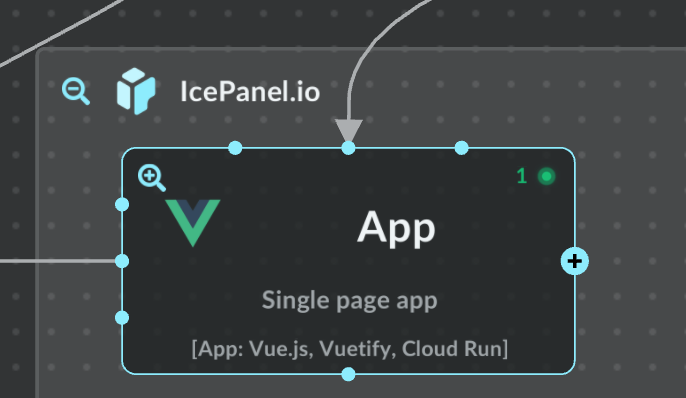
Each object has 12 unique connection points, except for actors, which have 6. For legibility, we recommend sending and receiving connections from unique points instead of overlapping.

<figure><img src="https://4065434276-files.gitbook.io/~/files/v0/b/gitbook-x-prod.appspot.com/o/spaces%2FOHewp5hylgOsOa0VDOBo%2Fuploads%2Fl4gKQq9kcIvtrKf38AGf%2Fconnection-points.png?alt=media&amp;token=7e8f24b2-5e24-46af-bf73-19c70d136d77" alt="" width="343"><figcaption><p>App object with connection points</p></figcaption></figure>

### Editing connections

Click on a connection to view/edit things such as:

* Name
* Team edit permissions (only available on Growth and Isolation plans)
* Sender
* Receiver
* Status (Live, Future, Deprecated, Removed)
* Direction -  Outgoing *(default),* No direction, and Bidirectional
* Line shape - Curved line *(default)*, Straight line and Square edge line
* Label position
* Diagrams list
* Flows list
* Tags
* Technology
* Links
* Detailed description

<figure><img src="https://4065434276-files.gitbook.io/~/files/v0/b/gitbook-x-prod.appspot.com/o/spaces%2FOHewp5hylgOsOa0VDOBo%2Fuploads%2FoKONh6k1bPH4AVQFIija%2FScreenshot%202024-04-19%20at%204.02.52%E2%80%AFPM.png?alt=media&amp;token=cba60514-bad0-4f75-a7d1-c9df5adf6271" alt="" width="304"><figcaption><p>Connections panel</p></figcaption></figure>

{% hint style="info" %}
You can also multi-select connections to edit their status, line shape, tags, and technologies.
{% endhint %}

<figure><img src="https://4065434276-files.gitbook.io/~/files/v0/b/gitbook-x-prod.appspot.com/o/spaces%2FOHewp5hylgOsOa0VDOBo%2Fuploads%2FP03slRVUx0Kcwxr44HuE%2Fconnections-1.gif?alt=media&amp;token=96b7b4fb-1bfc-4a75-8fc8-f1268543ad14" alt=""><figcaption><p>Mult-seclect objects to batch edit</p></figcaption></figure>

### Viewing dependencies and connections of an object

To view an object's dependencies and connections:

1. Click on an object and navigate to the `Connections` tab in the object details panel.
2. You'll see a list of incoming and outgoing connections, along with a breakdown of direct and lower connections. Use the filters to toggle viewing direct, lower, incoming, and outgoing connections in the list.
3. To view dependencies, Click on the `View dependencies` at the top to see the incoming and outgoing dependencies of the object.&#x20;
   * More details can be found here - [Dependencies view](/core-features/dependencies-view)

<figure><img src="https://4065434276-files.gitbook.io/~/files/v0/b/gitbook-x-prod.appspot.com/o/spaces%2FOHewp5hylgOsOa0VDOBo%2Fuploads%2F8nQcAvnwANKKoW9qPQCP%2Fconnections-2.gif?alt=media&amp;token=b51bc03c-bdc2-4cb6-aa51-84f349eb3f09" alt=""><figcaption><p>Using the connections tab and viewing dependencies</p></figcaption></figure>

### Using lower connections

Existing connections from lower levels in the C4 model can be reused at higher levels. These are called *lower connections* and will sync changes in the original connection. These connections will show if a relationship has been created between objects inside (child objects) of those 2 objects previously.

When the original connection is updated, the lower connections will also update, including the sender and receiver of the connection in all diagrams in which it is located and the flows that the connected objects are in.

<figure><img src="https://4065434276-files.gitbook.io/~/files/v0/b/gitbook-x-prod.appspot.com/o/spaces%2FOHewp5hylgOsOa0VDOBo%2Fuploads%2FmYltibNcKJsMM2vIuQGs%2Fconnections-3.gif?alt=media&amp;token=b2ab3b68-dbcf-416f-8e9e-cad0e397e930" alt=""><figcaption><p>Adding a lower connection at Level 1</p></figcaption></figure>

### Showing relationships from another scope

Using the expand option, you can show apps inside a system talking directly to an app inside another system.

To do this:

1. Go to a Level 2 (app) or 3 (component) diagram.
2. Add an external system or app,
3. Select the `Expand`option in the object details menu.
4. Create new objects and change the parent to the external object.

<figure><img src="https://4065434276-files.gitbook.io/~/files/v0/b/gitbook-x-prod.appspot.com/o/spaces%2FOHewp5hylgOsOa0VDOBo%2Fuploads%2FAHWeNxfqughQPVXX8zif%2Fexpand-system.gif?alt=media&amp;token=a1775550-68e7-4393-a83f-c91b235d40c9" alt=""><figcaption><p>Expand systems to connect objects across multipel systems</p></figcaption></figure>

### Change connection to another object

To change the connection in the model to another object, click and drag the start or end of the connection to another object.

You'll see a modal to select either "New connection" or "Change connection in model":

* **New connection:** This creates a duplicate new connection for that change with the same name (it does not copy over documentation).
* **Change connection in model:** This will change the connection in the model and sync with the diagrams in which the old and new connections belong.

<figure><img src="https://4065434276-files.gitbook.io/~/files/v0/b/gitbook-x-prod.appspot.com/o/spaces%2FOHewp5hylgOsOa0VDOBo%2Fuploads%2FNHDBFSGSmlpIEZFqbirb%2FScreenshot%202024-02-15%20at%204.11.14%E2%80%AFPM.png?alt=media&amp;token=8b21310a-0021-41a5-984b-e741c8433489" alt=""><figcaption><p>Changing a connection to another object</p></figcaption></figure>

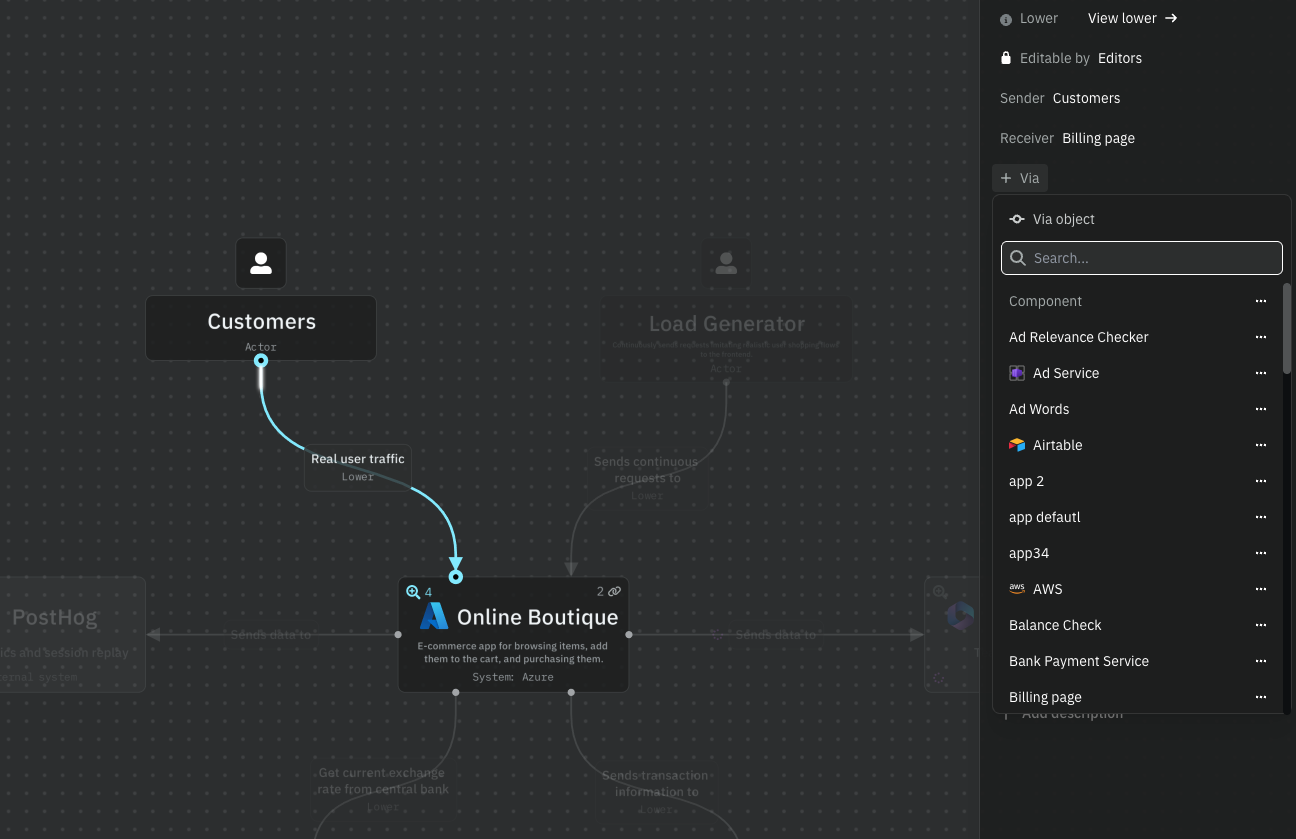
### Connection Via Property

You can attach a **Via Property** to any connection by clicking the *Via* field and selecting the relevant object. Once selected, the object will appear directly on the connection. This is particularly useful for event-driven flows using topics and queues (e.g. Kafka, RabbitMQ).

<figure><img src="https://4065434276-files.gitbook.io/~/files/v0/b/gitbook-x-prod.appspot.com/o/spaces%2FOHewp5hylgOsOa0VDOBo%2Fuploads%2FJkIseHEMHZVz2EnzBDR1%2Fimage.png?alt=media&amp;token=bafdbf3a-2213-4e24-9e3f-d00f82ef521c" alt=""><figcaption><p>Adding a 'Via Property' to a Connection</p></figcaption></figure>

{% hint style="info" %}
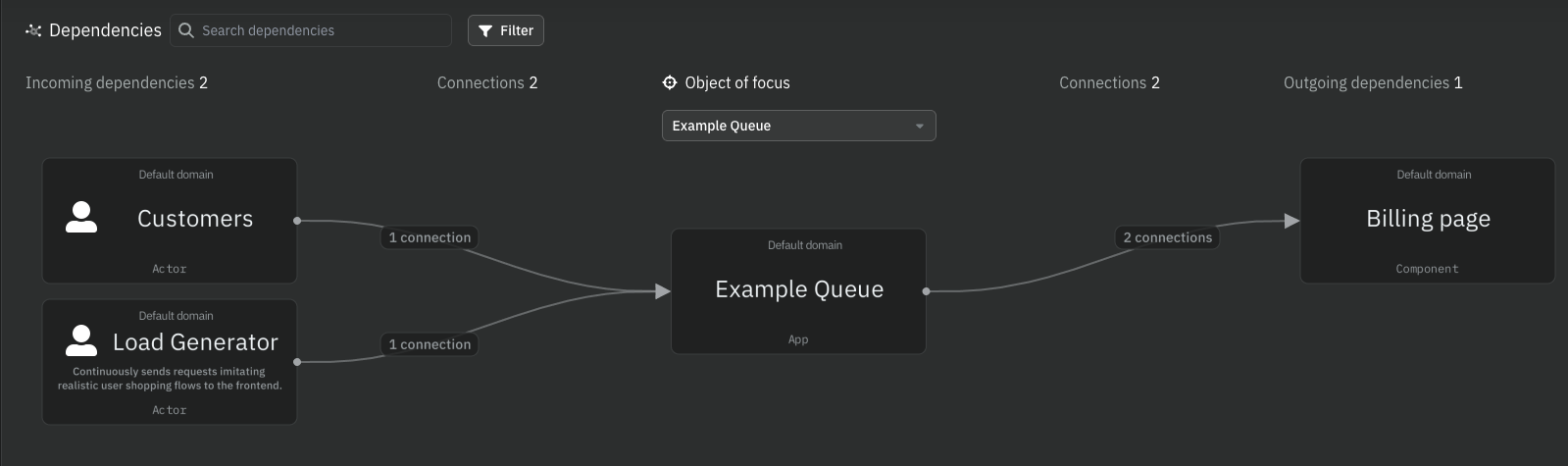
The dependencies view also reflects the connections added *Via Property*. This way, you get an easy understanding of any of your queues.
{% endhint %}

<figure><img src="https://4065434276-files.gitbook.io/~/files/v0/b/gitbook-x-prod.appspot.com/o/spaces%2FOHewp5hylgOsOa0VDOBo%2Fuploads%2FohonBatxOxvoeVFvzcCZ%2Fimage.png?alt=media&amp;token=331fb0c3-6889-43bd-be1c-e1285fdba1ea" alt=""><figcaption><p>Dependencies view with Via Property Connections</p></figcaption></figure>

### Connections table

The Connections table show all the connections you have created. You are able to filter based on any of the filters available.&#x20;

{% hint style="success" %}
The *Via Property* filter allows you to show the connections that have a *Via Property*.
{% endhint %}

<figure><img src="https://4065434276-files.gitbook.io/~/files/v0/b/gitbook-x-prod.appspot.com/o/spaces%2FOHewp5hylgOsOa0VDOBo%2Fuploads%2FRGjbXrFp09705GY13qPn%2Fimage.png?alt=media&amp;token=3dce079c-a59f-433a-8b9d-c02999e71f68" alt=""><figcaption><p>Filtering Connections with the Via Property filer</p></figcaption></figure>

### Diagram vs model changes

You can think of diagrams as a visual representation of a model. You can visualize the same model through different diagrams depending on what you want to communicate. When you update or delete your model objects, the changes will be made globally, wherever that object exists. This saves you time from manually going to each object and updating it.

{% hint style="danger" %}
Using the delete key in a diagram does not remove objects from your model. To permanently remove objects from your model, delete them from the Model objects tab (on the landscape page).
{% endhint %}

## Diagram best practices

Here are some tips when creating diagrams:

* Name all of your diagrams.
* Name all of your objects (including connections).
* Add icons to every object.
* Add *display descriptions* to each object.
* Create separate diagrams at the same level to reduce complexity.
* Use the right level of complexity at each level (Level 1 should have fewer objects than Level 2).
* Use the same connection type in a diagram (avoid mixing curves and straight lines).
* Only use bidirectional connections for open connections like websockets. Otherwise, show the request connection and use Flows to show the response.
* For legibility, avoid overlapping connections in a diagram.

***

## Continue your IcePanel journey 🚀

<table data-view="cards"><thead><tr><th></th><th></th><th></th><th data-hidden data-card-cover data-type="files"></th><th data-hidden data-card-target data-type="content-ref"></th></tr></thead><tbody><tr><td><strong>Tags</strong></td><td>Organize your objects</td><td></td><td><a href="https://4065434276-files.gitbook.io/~/files/v0/b/gitbook-x-prod.appspot.com/o/spaces%2FOHewp5hylgOsOa0VDOBo%2Fuploads%2Fr8sKbRP6ZXIeUE0tpnJb%2FTags.png?alt=media&amp;token=1e1a9b4b-4121-4430-a28c-2cc9e313d118">Tags.png</a></td><td><a href="/visual-storytelling/perspective-tags">Tags</a></td></tr><tr><td><strong>Flows</strong></td><td>Show different use cases</td><td></td><td><a href="https://4065434276-files.gitbook.io/~/files/v0/b/gitbook-x-prod.appspot.com/o/spaces%2FOHewp5hylgOsOa0VDOBo%2Fuploads%2FpFKifwmbJc2Vx3uM4FMy%2FFlows.png?alt=media&amp;token=0ccd6157-d452-4491-88c6-9aea0f93fe7b">Flows.png</a></td><td></td></tr><tr><td><strong>Linking to reality</strong></td><td>Connect objects to code</td><td></td><td><a href="https://4065434276-files.gitbook.io/~/files/v0/b/gitbook-x-prod.appspot.com/o/spaces%2FOHewp5hylgOsOa0VDOBo%2Fuploads%2FSZlPidwYBA1ucc4WnHxI%2FLinking%20to%20reality%20-%20banner.png?alt=media&amp;token=3be5b71f-4a84-4eec-be60-2590e3e497b4">Linking to reality - banner.png</a></td><td></td></tr></tbody></table>


# Diagrams section

The diagrams section contains a list of all your diagrams in the landscape or domain.  Use this section to find specific diagrams, create a new context diagram, view essential insights, and manage diagrams.

<figure><img src="https://4065434276-files.gitbook.io/~/files/v0/b/gitbook-x-prod.appspot.com/o/spaces%2FOHewp5hylgOsOa0VDOBo%2Fuploads%2FJOVDq99wo4maQloagzdw%2FDiagrams-section.gif?alt=media&amp;token=6d8eec42-c181-4888-bd5e-c6084ed7ccea" alt=""><figcaption><p>Diagrams section</p></figcaption></figure>

In the diagrams section, you can:

* Create a context diagram
* Search for diagrams
* Sort diagrams by any column (name, domain, C4 level, contributors, last edit, views, edits) over specific periods (today, yesterday, this week, this month, all time)
* Perform diagram actions
  * Add a diagram to a group
  * Duplicate (admin or editors only)
  * Move the diagram to another domain/system/app (admin or editors only)
  * Pin or unpin the diagram (admin or editors only)
  * Delete the diagram (admin or editors only)


# Organizations

An organization in IcePanel contains landscapes, domains, and model objects. This is also where you'll manage billing, teams, integrations, and other settings, such as share links.

{% hint style="info" %}
All billing and licenses are associated with an organization. We recommend sticking with a single organization unless you require a separate billing and integration setup.
{% endhint %}

## How to manage your organization

To manage your organization:

1. Click on the dropdown on the top left of the screen from the landscape page.
2. Click on the `...` menu beside the organization name.
3. Click on `Manage organization`.

<figure><img src="https://4065434276-files.gitbook.io/~/files/v0/b/gitbook-x-prod.appspot.com/o/spaces%2FOHewp5hylgOsOa0VDOBo%2Fuploads%2FMJucesy0BUU9OhZdjYZN%2Fmanage-org.gif?alt=media&amp;token=1e99016e-c78e-4a09-bc8d-f088542d0b03" alt=""><figcaption><p>Manage your organization from the top-left nav</p></figcaption></figure>

### Managing your organization

In the manage section, you'll be able to:

* Edit the organization name and delete it (all landscapes must be deleted prior).
* Manage user roles, landscape access, and invite new users.
* Manage billing and your plan.
* Edit diagram settings like the default line shape.
* Toggle share links and set up SSO share links.
* Manage teams.
* Add, edit, or delete integrations.
* Create, edit, or delete API keys.

### Switching between organizations

If you're part of multiple organisations, you can switch between them by selecting the drop-down menu in the top left.

<figure><img src="https://4065434276-files.gitbook.io/~/files/v0/b/gitbook-x-prod.appspot.com/o/spaces%2FOHewp5hylgOsOa0VDOBo%2Fuploads%2FjMut1Bqf9UKpNEEfZL0q%2Fimage.png?alt=media&amp;token=2f13f050-64df-4a51-9781-470867f7d3dd" alt=""><figcaption><p>Switching between organizations</p></figcaption></figure>


# Landscapes

## What is a landscape?

<figure><img src="https://4065434276-files.gitbook.io/~/files/v0/b/gitbook-x-prod.appspot.com/o/spaces%2FOHewp5hylgOsOa0VDOBo%2Fuploads%2FEtkD98h8xzpYIHCE3APO%2Fpricing_landscape.png?alt=media&amp;token=e43358ed-93aa-4821-ae4f-6bd8f2805ccf" alt=""><figcaption></figcaption></figure>

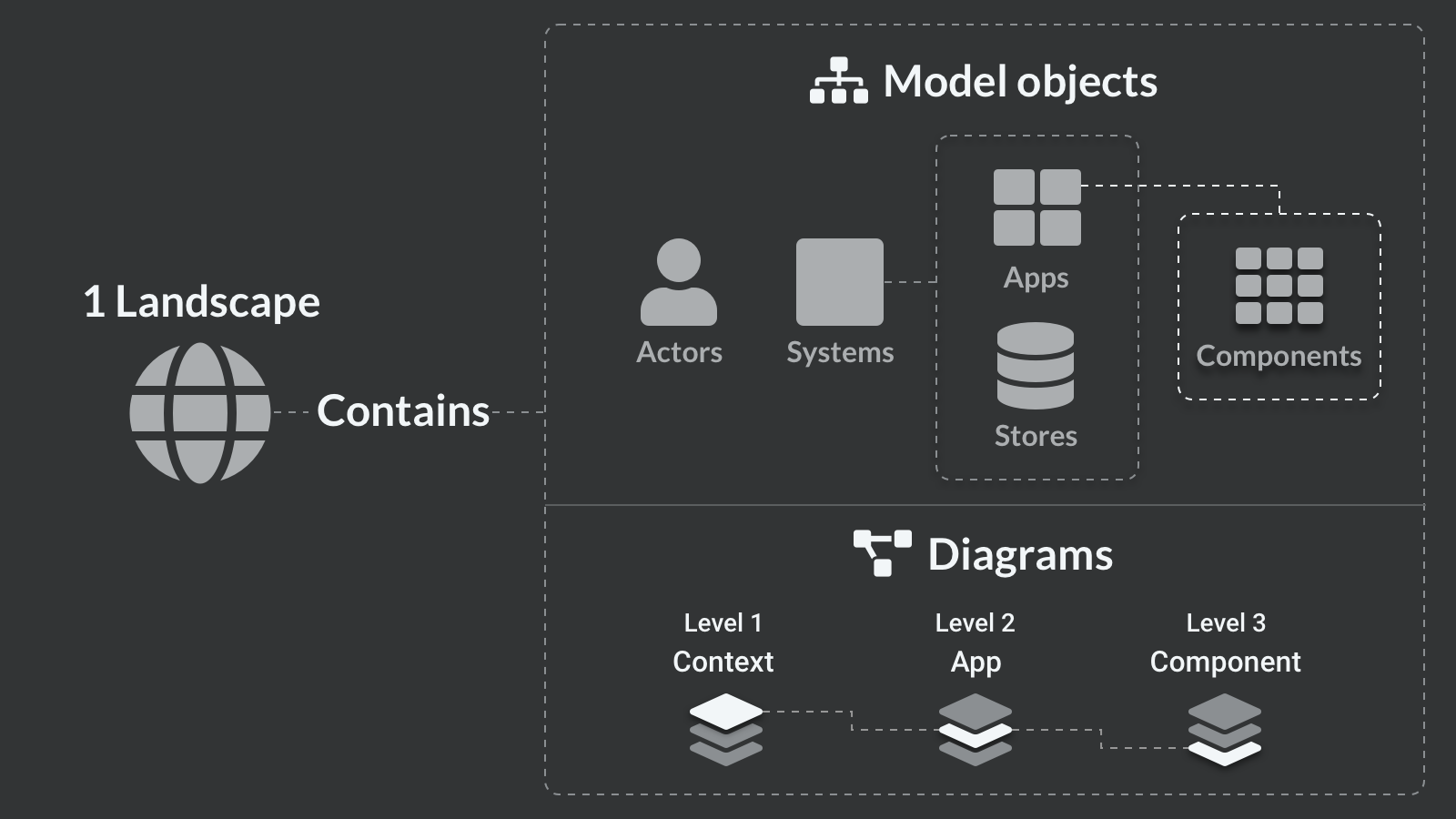
A landscape is the parent object for:

* The shared model (Domains, Objects and connections)
* Set of diagrams&#x20;
* Tags & flows

Consider a landscape to be the world you work in, referencing everything that interacts with each other in the real world - These should all be in 1 landscape.

## When to split a landscape

{% hint style="warning" %}
We recommend staying in 1 landscape as much as you can
{% endhint %}

The power of a landscape is the shared model, diagrams that can be drawn from the model and syncing updates across the whole landscape.

There are, however, a few reasons you may want to split out your landscapes. For example:

1. There is a clear separation of systems and they never/rarely interact
2. Regulatory reasons - keeping teams/people separate
3. Consultants - Separating customer-specific designs to share with them
4. Sandbox - Duplicating to "play" with the design or play with the features of IcePanel

Objects in separate landscapes are not linked in any way, so if you reference a system from another landscape, we recommend that you use the "External system" setting, so people know not to add the main details here. Updates will not be reflected if you edit these referenced objects.

## Large or complex systems?

If you are struggling to organize your model because of a large and complex architecture (e.g., hundreds of apps/stores, and many diagrams), we recommend using Domains to split out your systems into logical business areas.

These systems and child objects remain in a single model and can be shared and synced from other domains, but it reduces the amount you see on the diagrams and model view. This allows you to focus your conversations and sections of your model on business areas, logical system groupings, segregation of external and internal systems, etc., with the reusability of a model.

## Overview section

The overview section helps you access important diagrams and flows in your landscape or domain. It also contains insights on diagram activity and action items to keep your model up to date.

In the overview section, you can:

* View and manage pinned diagrams or flows
* See your recently viewed or edited diagrams or flows
* See most viewed or edited diagrams over time in the entire landscape or domain
* See action items in Health check (inaccurate comments, questions, unresolved comments, recommendations)

{% hint style="info" %}
Selecting a domain will filter the overview section to that specific domain.
{% endhint %}

<figure><img src="https://4065434276-files.gitbook.io/~/files/v0/b/gitbook-x-prod.appspot.com/o/spaces%2FOHewp5hylgOsOa0VDOBo%2Fuploads%2FkvjQl7fq6WuEEykTKBrV%2FOverview-section.gif?alt=media&amp;token=66cdffca-cec8-4cf4-9a1e-9971ea8d6be7" alt=""><figcaption></figcaption></figure>

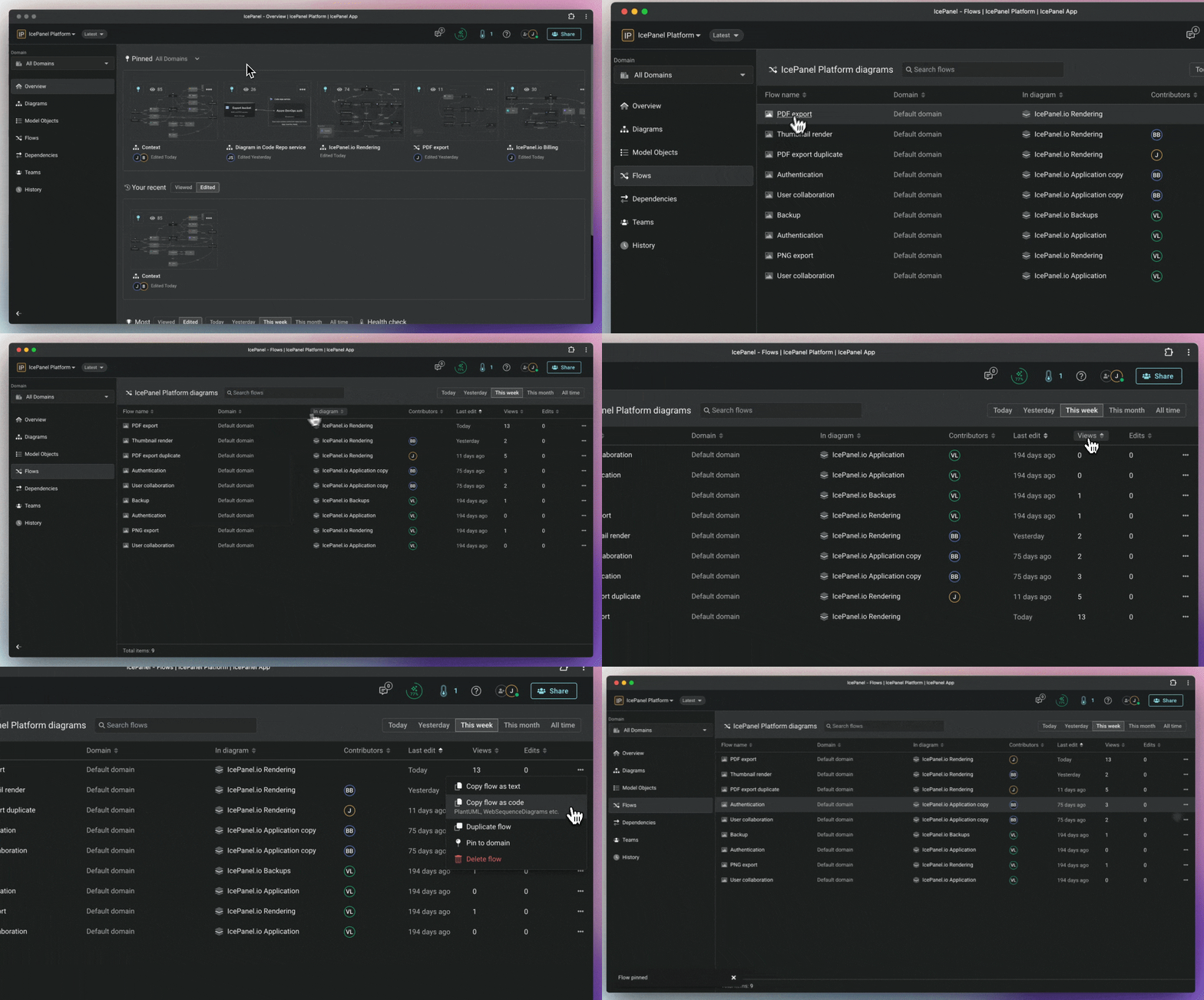
### How to pin a diagram or flow

You can pin items from the overview or diagrams/flows sections (see [Diagrams section](/core-features/diagramming/diagrams-section) and [Flows section](/visual-storytelling/flows/flows-section)).

To pin something from the overview section:

1. Click on the `...` menu beside the diagram or flow
2. Click on `Pin` diagram or flow button

To remove a pin, click the pin icon on the top left of the item in the pinned section.

<figure><img src="https://4065434276-files.gitbook.io/~/files/v0/b/gitbook-x-prod.appspot.com/o/spaces%2FOHewp5hylgOsOa0VDOBo%2Fuploads%2F3Zkmi29z2L8mtsXt3SbP%2FPin-diagram.gif?alt=media&amp;token=9e5c5ed9-99bb-4939-9c1a-a10995d25329" alt=""><figcaption><p>Pinning items in the overview section</p></figcaption></figure>

## Duplicating a landscape

For the most part, we recommend using 1 landscape - as explained above.

If you need to copy, here's how you can duplicate an existing landscape:

### Duplicating a landscape in the same organization

If you want to copy your work in the same organization, follow these steps:

{% hint style="info" %}
You need to be an **admin** to duplicate a landscape.
{% endhint %}

<figure><img src="https://4065434276-files.gitbook.io/~/files/v0/b/gitbook-x-prod.appspot.com/o/spaces%2FOHewp5hylgOsOa0VDOBo%2Fuploads%2FbokHOBMYqa0hWEgDQa5v%2FScreenshot%202024-10-02%20at%203.23.56%E2%80%AFPM.png?alt=media&amp;token=e2b6bd59-971b-481e-a55e-7ccb90730b53" alt=""><figcaption><p>Duplicating a landscape in the same organization</p></figcaption></figure>

1. Navigate to the overview screen.
2. Click the dropdown at the top left of the screen.
3. Select the `...` menu next to the landscape you want to duplicate.
4. Select **Duplicate landscape.**
5. You'll auto-navigate to the duplicated landscape.
6. Your duplicate landscape name will have the word "Duplicate" at the end.

### Duplicating a landscape to another organization

{% hint style="info" %}
You need to be an admin user in **both** organizations to do this. You also need a paid plan in the organization you're migrating to.&#x20;
{% endhint %}

<figure><img src="https://4065434276-files.gitbook.io/~/files/v0/b/gitbook-x-prod.appspot.com/o/spaces%2FOHewp5hylgOsOa0VDOBo%2Fuploads%2F103kIb6cjxlogdow3zpk%2Fimage.png?alt=media&amp;token=af567b7b-77dc-469a-a74e-16045bc1d864" alt=""><figcaption><p>Duplicating landscape to another organization</p></figcaption></figure>

If you want to move your work to someone else's organization, follow these steps:

1. Be invited to the other organization to which you want to copy your work.
2. Ensure you are an admin user in both organizations.
3. From the home screen, click the dropdown at the top left.
4. Select **Switch Landscape**.
5. Select the `...` menu next to the landscape you want to duplicate.
6. Select **Duplicate to another organization.**
7. Select the other organization and click **Duplicate.**
8. You'll auto-navigate to the duplicate landscape in the other organization.
9. Your duplicated landscape name will have the word "Duplicate" at the end.

## Copying to another landscape in the same organization

{% hint style="info" %}
You need to be an **admin** user to copy to another landscape.
{% endhint %}

<figure><img src="https://4065434276-files.gitbook.io/~/files/v0/b/gitbook-x-prod.appspot.com/o/spaces%2FOHewp5hylgOsOa0VDOBo%2Fuploads%2F8T22veLyDrCGCi3dTvEx%2Fimage.png?alt=media&amp;token=e9ed448e-7c4a-446d-9e25-6f0001a62ac6" alt=""><figcaption><p>Copying model/diagrams to between landscapes</p></figcaption></figure>

If you want to move your work to another landscape in the same org, follow these steps:

1. From the home screen, click the dropdown at the top left.
2. Select **Switch Landscape**.
3. Select the `...` menu next to the landscape you want to duplicate.
4. Select **Copy model/diagram between landscapes.**
5. Select the landscape you wish to merge with.
6. Click **Copy.**

This adds the landscape as a new Domain. You can then move the object(s) from this new domain to where they make sense in your merged landscape.

### Merging landscapes across organizations

1. Follow these steps:[ Duplicate the landscape to another organization](#moving-or-duplication-a-landscape-to-another-organization).
2. Then, follow these steps to [Copy to another landscape in the same organization](#copying-to-another-landscape-in-the-same-organization).

### Copying object(s) to another landscape

Currently, we don't support single-object copying between landscapes, only landscape based copying. However, if you want to move a system to another landscape, including the objects inside, you can use this workaround.

1. Follow these steps:[ ](#moving-or-duplication-a-landscape-to-another-organization)[Duplicating a landscape in the same organization](#duplicating-a-landscape-in-the-same-organization)
2. Navigate to the Model objects list.
3. Select all objects (`CMD` + `A` or `CTRL` + `A`).
4. **De-select** the objects you want to move.
5. Use the `...` menu to delete the remaining selected objects.
6. Confirm the deletion (If it's a large model, this might take time).
7. If you see some objects that should have been removed, try refreshing the browser and see if they're still there.
8. Then, follow these steps to [Copy to another landscape in the same organization](#copying-to-another-landscape-in-the-same-organization).

### Switching between landscapes

If you're part of multiple landscapes, you can switch between them by selecting the drop-down menu in the top left.

<figure><img src="https://4065434276-files.gitbook.io/~/files/v0/b/gitbook-x-prod.appspot.com/o/spaces%2FOHewp5hylgOsOa0VDOBo%2Fuploads%2FgvI0cgD6arIlrwfeZCVm%2Fimage.png?alt=media&amp;token=393b529c-4fc3-4708-89e4-9c3c73bd89b7" alt=""><figcaption><p>Switch between landscapes</p></figcaption></figure>


# Domains

{% hint style="info" %}
Domains are only available on Growth and Isolation plans.
{% endhint %}

## What is a domain?

A domain is an optional way to split up your model and related diagrams into logical groups, keeping the benefits of a single shared model. Domains are optional parent objects for systems (and the system's child objects), actors and areas.

You can create as many domains within a landscape, each with separate models that can be referenced across diagrams in different domains.

## When to use domains

The power of a landscape comes with the shared model, diagrams that can be created from the model and quickly updated across the whole landscape. Because of this, we recommend staying in 1 landscape as much as possible.

There are, however, a few common reasons this becomes hard to manage:

1. Large and/or complex architecture
2. Many diagrams at all levels

The temptation is to create a new landscape to reduce the clutter of many objects and diagrams, however, this separates the model and means you have maintenance overhead when changes are related to separate landscapes.&#x20;

We recommend using domains to split out the logical groups instead. This allows you to reuse objects in other domains, leveraging the power of modelling with the benefits of cleaner separation.

## How to create a domain

To create a new domain:

1. Go to the home screen
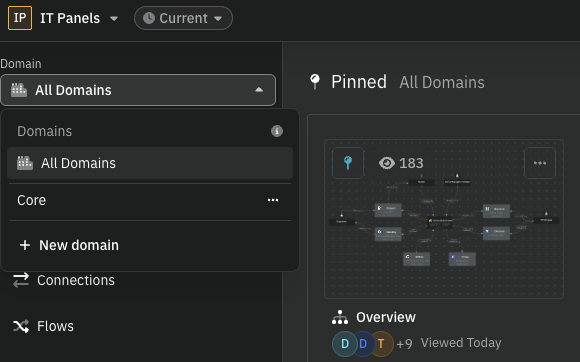
2. Click on the domain dropdown on the top left of the navigation
3. Click the `New domain` button located near the top
4. Click on the `...` menu beside the domain
5. Click on the `Rename domain` button
6. Name your new domain

You'll now be able to create new diagrams in the domain whilst using the same shared model.&#x20;

<figure><img src="https://4065434276-files.gitbook.io/~/files/v0/b/gitbook-x-prod.appspot.com/o/spaces%2FOHewp5hylgOsOa0VDOBo%2Fuploads%2Fm4F8HkcKKXE3vDUFwnAs%2FCreate-domain-2.gif?alt=media&amp;token=76de0802-32bb-4aad-bd4e-345953ce78c1" alt=""><figcaption><p>Creating a new domain</p></figcaption></figure>

## Adding objects from other domains in a diagram

Model objects in other domains within the same landscape can be added to a diagram. There are 2 ways to do this.

To do this via search in a diagram:

1. Double-click to add an object
2. Search for the object in another domain

To do this via the filtered tab:

1. Click on the `Existing objects` button in a diagram
2. Click on the `Other domains` tab
3. Select the object you want to add

<figure><img src="https://4065434276-files.gitbook.io/~/files/v0/b/gitbook-x-prod.appspot.com/o/spaces%2FOHewp5hylgOsOa0VDOBo%2Fuploads%2FBMe6tBi52VcLA89ETRwx%2FOther-Domains.gif?alt=media&amp;token=d97c9ebc-5792-479c-832f-50a29fa1f60d" alt=""><figcaption><p>Adding an object in another domain</p></figcaption></figure>

The domain name will be displayed on the object when used in another domain, making it clear that it's from another area of the shared model.

<figure><img src="https://4065434276-files.gitbook.io/~/files/v0/b/gitbook-x-prod.appspot.com/o/spaces%2FOHewp5hylgOsOa0VDOBo%2Fuploads%2FFFFMEO0xszs2QukS06jv%2Fimage.png?alt=media&amp;token=9c446118-9468-45d1-ab28-39d7f1c5bbb8" alt=""><figcaption><p>Objects from other domains will appear with a label on top</p></figcaption></figure>

## How to move objects to another domain

Model objects including Systems (and their child objects), Actors, and Groups can be moved across domains.

To move an object to another domain:

* Select the object you wish to move
* Navigate to the details panel located on the right
* Click on the `Domain` field
* Select the new domain you wish to move the object to in the dropdown. You'll see a breakdown of objects, connections, and diagrams that the change will impact
* Click on the `Change parent` button

This will automatically update any relevant diagrams and flows to reflect your changes.

<figure><img src="https://4065434276-files.gitbook.io/~/files/v0/b/gitbook-x-prod.appspot.com/o/spaces%2FOHewp5hylgOsOa0VDOBo%2Fuploads%2F9xRJOhTpEMpVsc6ycNT7%2FChange-Domain.gif?alt=media&amp;token=1aa28a83-beb7-41db-8f24-c552ba6b33cb" alt=""><figcaption><p>Changing the domain of an object</p></figcaption></figure>

## Adding a description to a domain

You can add a description to any domain. Hit the *Domain* in the top menu and add a description.

<figure><img src="https://4065434276-files.gitbook.io/~/files/v0/b/gitbook-x-prod.appspot.com/o/spaces%2FOHewp5hylgOsOa0VDOBo%2Fuploads%2FFz86Ih8mkT4OVRIg4JOk%2FClipboard-20251117-213525-351.gif?alt=media&amp;token=350324e9-4be7-49f0-bf42-46284cff95ca" alt=""><figcaption></figcaption></figure>

This description will be accessible both in the drop-down and via API.

## How to delete a domain

{% hint style="danger" %}
Doing this will delete everything from the domain, including model objects, diagrams and flows. This cannot be undone without a version revert.
{% endhint %}

To delete a domain:

1. Go to the home screen.
2. Click on the domain dropdown.
3. Click on the `...` menu beside the domain you want to delete.
4. Click on the `Delete domain` button
5. You'll be shown a menu that explains what will be removed
6. Click `Delete domain` to confirm.

<figure><img src="https://4065434276-files.gitbook.io/~/files/v0/b/gitbook-x-prod.appspot.com/o/spaces%2FOHewp5hylgOsOa0VDOBo%2Fuploads%2FceMnjo448HzWKIthe9UF%2FScreenshot%202024-02-01%20at%204.41.10%E2%80%AFPM.png?alt=media&amp;token=cfd7cb87-ed5f-4e02-832c-2cee2461c156" alt="" width="563"><figcaption><p>Deleting a domain confirmation screen</p></figcaption></figure>

### Switching between domains

You can switch between domains by selecting the drop-down menu on the left side of the screen.&#x20;

<figure><img src="https://4065434276-files.gitbook.io/~/files/v0/b/gitbook-x-prod.appspot.com/o/spaces%2FOHewp5hylgOsOa0VDOBo%2Fuploads%2FrTUcbNRIaPPN2OsiqaVU%2Fimage.png?alt=media&amp;token=b540ba40-5f29-4552-80dc-3929af3dfe5f" alt=""><figcaption><p>Switch between domains</p></figcaption></figure>


# Global search

Everything in IcePanel is part of the model and can be searched. Press Cmd/Ctrl + K or click the search icon on the top left of the navigation to open global search anywhere.

<figure><img src="https://4065434276-files.gitbook.io/~/files/v0/b/gitbook-x-prod.appspot.com/o/spaces%2FOHewp5hylgOsOa0VDOBo%2Fuploads%2FpkYYiLtLOJR3GaXlRrKs%2Fglobal-search-2.gif?alt=media&amp;token=67ee73f4-6aef-4915-8865-1812fe38ab6c" alt=""><figcaption></figcaption></figure>

Search for diagrams (including drafts), flows, model objects (systems, apps, containers, components, groups), and connections.

* Selecting an object will navigate to the Model Objects list.
* Selecting a connection will navigate to the Connections list.
* Selecting a diagram will open it.
* Selecting a flow will open it in edit mode.


# Decision records

Learn how to view, update, and add related context to your decision records in IcePanel.

{% embed url="<https://studio.saltfish.ai/demo-share/demo_1774568028210_301c0j4ml>" %}

### View decision records

To get started, head to the left-hand navigation bar and click the clipboard icon to open decision records.

![Click the clipboard icon in the left navigation bar to open the decision records view.](https://storage.saltfish.ai/demo-recordings/demo_1774568028210_301c0j4ml/step_1.jpg)

### Select a decision record

Once you're inside the decision records view, you'll see a timeline on the left, showing all previous records created in your organization. You can select a decision record to see its details, or search based on title.

![Select a decision record from the timeline on the left to open it.](https://storage.saltfish.ai/demo-recordings/demo_1774568028210_301c0j4ml/step_2.jpg)

### View decision record details

Over on the right, you'll find all the context for the record you're viewing: the title, summary, status, related links, and sections for context, decisions, and any other information. These can be edited as long as the record is in progress or rejected.

![View and edit details such as the name, description, and related links.](https://storage.saltfish.ai/demo-recordings/demo_1774568028210_301c0j4ml/step_3.jpg)

### Update status of a decision record

To edit the status of a decision record, click on the status field to open the dropdown menu.

![Select 'Approved' from the dropdown to mark this decision as finalized.](https://storage.saltfish.ai/demo-recordings/demo_1774568028210_301c0j4ml/step_4.jpg)

Notice how the timeline on the left updates automatically.

![Click on another decision record in the timeline to navigate to a different entry.](https://storage.saltfish.ai/demo-recordings/demo_1774568028210_301c0j4ml/step_5.jpg)

### Add related items to a decision record

For in-progress decision records, you can add related fields by clicking this plus icon next to 'Related'.

![Click the plus icon next to 'Related' to add related links to this decision record.](https://storage.saltfish.ai/demo-recordings/demo_1774568028210_301c0j4ml/step_6.jpg)

From here, you can link an external URL, another decision record you've previously created, a diagram, or even a draft to provide additional context.

![Choose from the dropdown to link external URLs, other decision records, diagrams, or drafts to provide additional context.](https://storage.saltfish.ai/demo-recordings/demo_1774568028210_301c0j4ml/step_7.jpg)

***

### You're all set!

You now know how to navigate decision records, update their status, and link related resources to keep your team aligned.


# Dependencies view

{% hint style="info" %}
The dependencies view is available on all plans.
{% endhint %}

Identifying critical parts of your system is key to understanding risk and vulnerabilities. The dependency view helps you investigate parts of your system based on incoming and outgoing connections across your model.&#x20;

We recommend using this view to answer things like:

* What systems, apps, or components have a lot of dependencies (and therefore risk)?
* What's the complexity of updating a system, app, or component?
* What third-party entities is my system exposed to?

With the dependency view, answering these questions becomes easy once a complex model is built over time. Instead of diagramming these views, you get them out of the box from your model.

## Using the Dependencies view

To view dependencies, click on the `Dependencies` tab from the landscape view. By default, the internal system with the most connections will be selected as the object of focus.

Here, you'll be able to:

* Select an object of focus (system, app, component, actor)
* Search incoming or outgoing dependencies of an object
* View and edit object details of dependencies
* View connections (direct, lower) between an object and a dependency

<figure><img src="https://4065434276-files.gitbook.io/~/files/v0/b/gitbook-x-prod.appspot.com/o/spaces%2FOHewp5hylgOsOa0VDOBo%2Fuploads%2FvD5rxsVdZyFxTGgDBGm7%2FDependencies-view.gif?alt=media&amp;token=b3a63d9c-62d8-48db-bbb7-20b3e4c0db24" alt=""><figcaption><p>Viewing dependencies in IcePanel</p></figcaption></figure>

{% hint style="info" %}
The connections count represents the number of unique **direct** connections (lower connections are not included).
{% endhint %}

## Viewing dependencies from a diagram

To view the dependencies of an object in a diagram, navigate to the `Connections` tab in the object details panel and click on the `View dependencies` button.

<figure><img src="https://4065434276-files.gitbook.io/~/files/v0/b/gitbook-x-prod.appspot.com/o/spaces%2FOHewp5hylgOsOa0VDOBo%2Fuploads%2FDcKjDNPFrSbzHILu0Ahj%2FDependencies-Diagram.gif?alt=media&amp;token=3d1f491e-e191-4a84-8525-079041a20f13" alt=""><figcaption><p>Viewing dependencies of an object in a diagram</p></figcaption></figure>

&#x20;


# Model Imports

Importing data into IcePanel

You can import data to IcePanel from many different data sources. Generally speaking there are 2 ways to import data: via the UI (see below) and via our [API & SDK](/integrations/rest-api).

{% hint style="info" %}
Only Admins can import data into IcePanel.
{% endhint %}

Importing into IcePanel adds the model objects and their connections to the model, but it does not create the corresponding diagrams. After importing, we recommend using the model viewer to visualize the new relationships.

{% hint style="success" %}
Trying to import a diagram from another tool? Take a look at our new [Agent skills](/integrations/agent-skills) that allow for easy import of diagrams.
{% endhint %}

## Importing via the UI

If you’re working in a new landscape, or if your landscape contains fewer than 20 objects, 10 connections, and 2 diagrams, you will see the following banner:

<figure><img src="https://4065434276-files.gitbook.io/~/files/v0/b/gitbook-x-prod.appspot.com/o/spaces%2FOHewp5hylgOsOa0VDOBo%2Fuploads%2FEPImBhbeXmpORQOqUGDd%2Fimage.png?alt=media&amp;token=b5319bf1-41dd-41e3-92e8-f2df2ff99574" alt=""><figcaption><p>Import banner</p></figcaption></figure>

By selecting Import Model, you will be prompted to create a file. Upload a YAML or JSON file to automatically import objects, connections and tags into IcePanel. **You can easily generate this file from a data source, script or using an LLM.**

You can also access this import banner from the model objects/connections tables by hitting the import button at the top right:

<figure><img src="https://4065434276-files.gitbook.io/~/files/v0/b/gitbook-x-prod.appspot.com/o/spaces%2FOHewp5hylgOsOa0VDOBo%2Fuploads%2FVT7od8GLJHj7C2hxeUaZ%2Fimage.png?alt=media&amp;token=82f8c048-24e1-4d72-bcec-d434cf995ba2" alt=""><figcaption><p>Import from model object/connection tables</p></figcaption></figure>

{% hint style="info" %}
You are currently not able to export from IcePanel, modify the file and then import back into IcePanel. For that purpose, we recommend looking at our API.
{% endhint %}

Once you have imported data, you can easily view it in the [Model viewer](/core-features/model-viewer) by hitting 'Review Imported Objects'.&#x20;

<figure><img src="https://4065434276-files.gitbook.io/~/files/v0/b/gitbook-x-prod.appspot.com/o/spaces%2FOHewp5hylgOsOa0VDOBo%2Fuploads%2FIsDMgyO9iGX4awu2V4L8%2Fimage.png?alt=media&amp;token=c5a40b38-60b3-4f41-9443-ecb826779108" alt=""><figcaption><p>Review imported objects</p></figcaption></figure>

***

### How to create the import file

**1. Learn about the import file structure**

Visit the developer documentation at:

```
https://developer.icepanel.io
```

Alternatively, provide an **LLM** with the **JSON schema** available at:

```
https://api.icepanel.io/v1/schemas/LandscapeImportData
```

***

**2. Enable schema validation for YAML files**

If you are using a YAML file for the import, add the following **prefix** to validate the file structure in your IDE:

```
# yaml-language-server: $schema=https://api.icepanel.io/v1/schemas/LandscapeImportData
```

***

**3. Generate the import file using an LLM (optional)**

You can use an LLM to generate the import file automatically. Example prompt:

```
Generate an IcePanel landscape import data model based on the C4 model from the infrastructure and software architecture of the platform.
Parse infrastructure files to understand the platform and use it to map the infrastructure into C4 model abstraction.
Do not create objects or connections that don't exist or are strongly implied by the infrastructure.
Fetch LandscapeImportData JSONSchema from api.icepanel.io/v1/schemas/LandscapeImportData along with nested schemas and strictly follow the schema to create a YAML file for import into IcePanel.
Fetch docs.icepanel.io/core-features/modelling.md for context on how to create IcePanel C4 model structures.
Infrastructure can be categorized into technologies by fetching the JSONSchema from api.icepanel.io/v1/schemas/CatalogTechnologyType.
Perform an exhaustive search for technologies using http requests to api.icepanel.io/v1/catalog/technologies?filter[name]=NodeJS and add the id to the technologyIds array.
If a technology cannot be found try reducing the search term to be more specific to find a match.
If a primary technology exists then assign the visual icon to icon.technologyId.
Write the resulting import data to a YAML file to the file named icepanel-landscape-import.yaml in the current directory.
Prefix the YAML file with # yaml-language-server: $schema=https://api.icepanel.io/v1/schemas/LandscapeImportData.
```

***

**4. Upload the file**

Upload the **JSON or YAML file** using the upload field above to import the objects, connections, and tags into your landscape.


# Exports

Your model data (domains, objects, connections, flows, tags, etc.) can be exported as JSON, CSV, SVG, PNG, and PDF. We recommend using [Share links & embeds](/collaboration/sharing) if you want to share diagrams with team members since they'll always remain up-to-date.

{% hint style="info" %}
Data can be exported in-app and also using our [API & SDK](/integrations/rest-api).
{% endhint %}

## Full model export (JSON)

You can export your full model in a landscape or diagram to JSON. This will include all information in your model, from objects to connections to granular metadata.&#x20;

Top-level information in the export:

* Domains
* Flows
* Model connections
* Model objects
* Tag groups
* Tags
* Teams

To export your model as JSON:

1. Click on the `Share` button on the top right of the navigation bar.
2. Click on the `Export` tab.
3. Select the `JSON` as the file type.
4. Select whether you want to export the Landscape or Diagram.
5. Click download.

<figure><img src="https://4065434276-files.gitbook.io/~/files/v0/b/gitbook-x-prod.appspot.com/o/spaces%2FOHewp5hylgOsOa0VDOBo%2Fuploads%2FffFadQKyYRE9x15CHZmh%2FScreenshot%202024-10-02%20at%2012.14.00%E2%80%AFPM.png?alt=media&amp;token=2cb899f3-7462-4f5a-84e8-1222899e2eb9" alt=""><figcaption><p>Exporting an entire model in JSON</p></figcaption></figure>

{% file src="/files/iHscjcaUrkndIpJIESEp" %}
Example JSON export
{% endfile %}

## Full model summary (PDF, Markdown, HTML, LLMs.txt)

You can also export a summary of your model, which can be helpful to share with external stakeholders or an LLM. This export contains model objects, flows, tags, and teams in the selected scope.

To export a summary of your model:

* Click on the `Share` button on the top right of the navigation.
* Click on the `Export` tab.
* Select `PDF`, `Markdown`, `HTML`, or `LLMs.txt` as the file type.
* Select the orientation (Portrait or landscape).
* Select the scope of the export (landscape, domain, model object, or diagram).
* Click download.

<figure><img src="https://4065434276-files.gitbook.io/~/files/v0/b/gitbook-x-prod.appspot.com/o/spaces%2FOHewp5hylgOsOa0VDOBo%2Fuploads%2FAHekEfyYLb7TSHd6iVwb%2FScreenshot%202025-05-13%20at%202.39.47%E2%80%AFPM.png?alt=media&amp;token=abbf9dbb-1cd8-4e45-8bf7-74183d2ffaa1" alt=""><figcaption><p>PDF exports</p></figcaption></figure>

{% file src="/files/2stm1qO914J9PE8Vt9U9" %}
Example PDF export
{% endfile %}

## Model objects (CSV)

To export model objects in a landscape:

1. Click on the `Share` button on the top right of the navigation.
2. Click on the `Export` tab.
3. Select `CSV` as the file type.
4. Select `Model objects` under contents and click download.

This will give you a list of objects in the landscape with metadata similar to the full JSON export. Connections or flows will **not be included**.

<figure><img src="https://4065434276-files.gitbook.io/~/files/v0/b/gitbook-x-prod.appspot.com/o/spaces%2FOHewp5hylgOsOa0VDOBo%2Fuploads%2FAXZ92REqBXQbBkSpuVGS%2FScreenshot%202024-10-02%20at%201.25.34%E2%80%AFPM.png?alt=media&amp;token=ebf95006-de59-4621-928c-b5f1578f6d9a" alt=""><figcaption><p>Exporting model objects as CSV</p></figcaption></figure>

### Export fields

* Identifier
* Belongs Inside System
* Belongs Inside App
* Belongs Inside Store
* Object Name
* Object Type
* Object Status
* Object External
* Object Displayed Description
* Object Tags
* Object Technology
* Object Teams
* Object Link
* Object Share Link
* Object Description

## Model connections (CSV)

To export model connections in a landscape:

1. Click on the `Share` button on the top right of the navigation.
2. Select `CSV` as the file type.
3. Select `Connections` under contents and click download.

<figure><img src="https://4065434276-files.gitbook.io/~/files/v0/b/gitbook-x-prod.appspot.com/o/spaces%2FOHewp5hylgOsOa0VDOBo%2Fuploads%2FJEPX4VBfejxdWa40oIHB%2FScreenshot%202024-10-02%20at%201.28.00%E2%80%AFPM.png?alt=media&amp;token=5975a88f-70e9-4f92-9134-ed8fe413d358" alt=""><figcaption><p>Exporting connections as CSV</p></figcaption></figure>

### Export fields

* Identifier
* Sender Belongs Inside
* Sender Object Name
* Sender Object Type
* Sender Object External
* Sender Object Tags
* Sender Object Technology
* Sender Object Teams
* Connection Name
* Connection Status
* Connection Direction
* Connection Tags
* Connection Technology
* Connection Description
* Receiver Belongs Inside
* Receiver Object Name
* Receiver Object Type
* Receiver Object External
* Receiver Object Tags
* Receiver Object Technology
* Receiver Object Teams

## Diagram export  (SVG or PNG)

Diagrams can be exported as SVG or PNG in light or dark themes.

To export a diagram in this format:

1. Navigate to the diagram you want to export.
2. Click on the `Share` button on the top right of the navigation.
3. Click on the `Export` tab.
4. Select  `SVG` or `PNG` as the file type.
5. Select `Light` or `Dark` for the theme and click download.

{% hint style="warning" %}
If downloads aren't working, we recommend disabling any pop-up blockers in your browser.
{% endhint %}

<figure><img src="https://4065434276-files.gitbook.io/~/files/v0/b/gitbook-x-prod.appspot.com/o/spaces%2FOHewp5hylgOsOa0VDOBo%2Fuploads%2F6RPuLNwc3ramHZqLE67y%2FScreenshot%202024-10-02%20at%201.28.47%E2%80%AFPM.png?alt=media&amp;token=accb71c6-39a2-4420-9bdb-bce5a6f80401" alt=""><figcaption><p>Exporting diagram PNGs</p></figcaption></figure>

### Example SVG export

<figure><img src="https://4065434276-files.gitbook.io/~/files/v0/b/gitbook-x-prod.appspot.com/o/spaces%2FOHewp5hylgOsOa0VDOBo%2Fuploads%2FoDr3TLKdTxaDKftFpWex%2FContext%20Diagram%201%20(Latest).svg?alt=media&amp;token=f63ee024-7f24-46e5-931e-9e7cbb579458" alt=""><figcaption><p>Dark theme</p></figcaption></figure>

<figure><img src="https://4065434276-files.gitbook.io/~/files/v0/b/gitbook-x-prod.appspot.com/o/spaces%2FOHewp5hylgOsOa0VDOBo%2Fuploads%2FCtEY2qTcm5cDg5aG7aOB%2FContext%20Diagram%201%20(Latest)%20(1).svg?alt=media&amp;token=8e9a6a40-3747-4c55-9510-98fda4ae775d" alt=""><figcaption><p>Light theme</p></figcaption></figure>


# Model viewer

Auto-layout view of your model objects and connections.

{% hint style="info" %}

## The model viewer is read-only.

{% endhint %}

## What is the model viewer?

The model viewer is an automatic view of all objects and connections in your landscape. It is arranged into a grid layout and is designed to give you information as you need it, instead of all information at once.

Share any feedback or request features [here](https://icepanel.canny.io/feature-requests) or email us at <mail@icepanel.io>.

## How to use the model viewer

{% stepper %}
{% step %}

### View model viewer

To view the model viewer, select Model viewer in the left navigation in the overview screen.

<figure><img src="https://4065434276-files.gitbook.io/~/files/v0/b/gitbook-x-prod.appspot.com/o/spaces%2FOHewp5hylgOsOa0VDOBo%2Fuploads%2FDH7RuNGPcJ1tKnQQbbZm%2Fimage.png?alt=media&amp;token=b6981e19-a884-4a71-8cc5-8ebd0425dfcb" alt=""><figcaption></figcaption></figure>
{% endstep %}

{% step %}

### Zoom into objects

Zoom into objects by clicking the expand icon at the top-left of an object, or double-clicking the object square. If there is no expand icon, it means the object is empty.

<figure><img src="https://4065434276-files.gitbook.io/~/files/v0/b/gitbook-x-prod.appspot.com/o/spaces%2FOHewp5hylgOsOa0VDOBo%2Fuploads%2Fn6K83GKNyH6X8pAU9Rcq%2Fimage.png?alt=media&amp;token=a3decd70-1634-4098-8dce-0a564fb9b889" alt=""><figcaption></figcaption></figure>
{% endstep %}

{% step %}

### Preview connections

Hover on model objects to preview the incoming and outgoing connections at each level.

<figure><img src="https://4065434276-files.gitbook.io/~/files/v0/b/gitbook-x-prod.appspot.com/o/spaces%2FOHewp5hylgOsOa0VDOBo%2Fuploads%2FwNygLQxQZ7vnH6e061ZE%2Fimage.png?alt=media&amp;token=49893fea-c796-4881-9e84-b07f7d7db137" alt=""><figcaption></figcaption></figure>

Select an object with a single click to see the incoming and outgoing connections pulse. You can also update model object information using the right-hand details panel.

<figure><img src="https://4065434276-files.gitbook.io/~/files/v0/b/gitbook-x-prod.appspot.com/o/spaces%2FOHewp5hylgOsOa0VDOBo%2Fuploads%2F7QQhPIL6Ql6A9Qofn7gI%2Fimage.png?alt=media&amp;token=7529d879-74c3-48c4-9cd4-b91131181d8f" alt=""><figcaption></figcaption></figure>
{% endstep %}

{% step %}

### View connections

Select connections between objects to view the direct and lower connections between those objects.

You can also see which diagrams the connections are shown in, and navigate directly to them.

<figure><img src="https://4065434276-files.gitbook.io/~/files/v0/b/gitbook-x-prod.appspot.com/o/spaces%2FOHewp5hylgOsOa0VDOBo%2Fuploads%2FEIofseuIhSBWEaewcb2i%2Fimage.png?alt=media&amp;token=778a2687-3113-496e-b071-3fc6945ca15e" alt=""><figcaption></figcaption></figure>
{% endstep %}
{% endstepper %}

***

### You're all set!

You now know how to navigate the model viewer and view connections between objects.


# Comments

It takes a team to build great diagrams. Comments help clarify parts of your diagram, mark inaccuracies, or share ideas. Everyone in your organization can leave, view and resolve comments to add to the discussion.

{% hint style="info" %}
Comments are only visible to an organization's admins, editors, and viewers. Share-link viewers can't see them.
{% endhint %}

<figure><img src="https://4065434276-files.gitbook.io/~/files/v0/b/gitbook-x-prod.appspot.com/o/spaces%2FOHewp5hylgOsOa0VDOBo%2Fuploads%2FJvwdvO2U0o80eHmuHWvz%2Fcomments-1.gif?alt=media&amp;token=cbf5fde0-c183-4487-8133-255922230f12" alt=""><figcaption><p>Browsing comments in IcePanel</p></figcaption></figure>

## Comment types

There are 3 comment types in IcePanel. Each comment type can be used to discuss a particular topic:&#x20;

* Question - to discuss parts that you're unsure about.
* Inaccuracy - to flag parts of the diagram that are incorrect.
* Idea - to share thoughts about changes or improvements.

<figure><img src="https://4065434276-files.gitbook.io/~/files/v0/b/gitbook-x-prod.appspot.com/o/spaces%2FOHewp5hylgOsOa0VDOBo%2Fuploads%2F9R1epjShO68ifWRRuzav%2Fcomment-types.png?alt=media&amp;token=ca3f6081-bcec-43ce-9f63-64151a845d5e" alt="" width="266"><figcaption><p>Comment types in IcePanel</p></figcaption></figure>

### Question comment type

Questions should be used when you're unsure of part of the diagram, want to know how something works, or if something is unclear.&#x20;

<figure><img src="https://4065434276-files.gitbook.io/~/files/v0/b/gitbook-x-prod.appspot.com/o/spaces%2FOHewp5hylgOsOa0VDOBo%2Fuploads%2FKcsXXbIoYiskNKa4IPFd%2FScreenshot%202024-02-22%20at%204.07.12%E2%80%AFPM.png?alt=media&amp;token=a3d6fc06-15ad-4dd3-8491-c59a2705f19f" alt="" width="353"><figcaption><p>Question comment type</p></figcaption></figure>

### Inaccuracy comment type

Inaccuracy comments should be used when something in the diagram or documentation is untrue or has changed.&#x20;

<figure><img src="https://4065434276-files.gitbook.io/~/files/v0/b/gitbook-x-prod.appspot.com/o/spaces%2FOHewp5hylgOsOa0VDOBo%2Fuploads%2FjhmtdDoDrYjk7haE7a6b%2FScreenshot%202024-02-23%20at%209.47.19%E2%80%AFAM.png?alt=media&amp;token=02c7206e-4c9f-4e66-901b-c82666f19dad" alt="" width="375"><figcaption><p>Inaccuracy comment type</p></figcaption></figure>

### Idea comment type

Ideas are thoughts about future improvements to your architecture or diagram. For example, changes to a system or app to improve performance.&#x20;

<figure><img src="https://4065434276-files.gitbook.io/~/files/v0/b/gitbook-x-prod.appspot.com/o/spaces%2FOHewp5hylgOsOa0VDOBo%2Fuploads%2FtWYgSCEsWIPePeiOJNrC%2FScreenshot%202024-02-22%20at%204.23.39%E2%80%AFPM.png?alt=media&amp;token=a902add0-7d70-4583-b835-c3a8a9bd1368" alt="" width="345"><figcaption><p>Idea comment type</p></figcaption></figure>

## Adding comments

Comments can be added to any diagram and by all admins, editors, and viewers of your organization as long as they have access to a landscape. Share link readers **can't** add or view comments left by others.

To add a comment in a diagram:

1. Click the comment icon in the top right of the navigation bar, then the `New comment` button.
   1. Or, click on the `+` button on the left-hand toolbar.
2. Select the type of comment you want to add (Question, Inaccuracy, Idea).
3. Type in your comment.
4. Mention someone using '@'. They'll receive an email notification and see the comment under the Mentions tab in the comments dropdown
5. Click on the confirmation button. Each comment type button differs:
   * Question comment type: `Ask question`
   * Inaccurate comment type: `Mark as inaccurate`
   * Idea comment type: `Add idea`
6. Click and drag on the comment bubble to move it to the desired location.
7. Team members can reply to the comment in the comment box.

<figure><img src="https://4065434276-files.gitbook.io/~/files/v0/b/gitbook-x-prod.appspot.com/o/spaces%2FOHewp5hylgOsOa0VDOBo%2Fuploads%2FnJOaFMsudrkLYTKbupvb%2Fadd-comment.gif?alt=media&amp;token=81437ca8-bf17-43e8-840e-a0c6107e2bda" alt=""><figcaption><p>Adding a comment in a diagram</p></figcaption></figure>

## Viewing comments

If there are a lot of comments in a diagram or domain, you can quickly scan through them in the comment drop-down.&#x20;

To view all comments:

1. Click on the comment icon in the top right of the navigation bar
2. You'll see 3 tabs:
   * Your comments: Comments that you created
   * Mentions: Comments where you were mentioned
   * All comments
3. In each tab, you can sort through open and resolved comments

<figure><img src="https://4065434276-files.gitbook.io/~/files/v0/b/gitbook-x-prod.appspot.com/o/spaces%2FOHewp5hylgOsOa0VDOBo%2Fuploads%2Fkj4bP5LzDyRk3T51cWCM%2Fview-comments.gif?alt=media&amp;token=161d3afa-f8f8-46bb-9dba-35b1bc0b3069" alt=""><figcaption><p>Viewing comments in the comment dropdown</p></figcaption></figure>

## Editing comments

To edit a comment:

1. Click on the comment bubble or find it in the comment drop-down.
2. Click on the pencil ✏️ icon.
3. Edit the comment.
4. Click on the checkmark button.

<figure><img src="https://4065434276-files.gitbook.io/~/files/v0/b/gitbook-x-prod.appspot.com/o/spaces%2FOHewp5hylgOsOa0VDOBo%2Fuploads%2FvigufafgJdheDe7WYn3u%2Fedit-comment.png?alt=media&amp;token=39c643fa-852f-4296-91ab-4d265552981e" alt="" width="563"><figcaption><p>Editing a comment</p></figcaption></figure>

## Pinning comments

Pinning a comment makes the comment text visible in the diagram.

To pin a comment:

1. Click on the comment bubble or find it in the comment drop-down.
2. Click on the pin📍 icon in the top right of the comment box.

<figure><img src="https://4065434276-files.gitbook.io/~/files/v0/b/gitbook-x-prod.appspot.com/o/spaces%2FOHewp5hylgOsOa0VDOBo%2Fuploads%2FR9Ls767ePloElIlWp7c5%2Fpin-comment.png?alt=media&amp;token=9915f84b-7524-4d5a-8eff-c7253e3c88c3" alt="" width="563"><figcaption><p>Pinning a comment</p></figcaption></figure>

## Resolving comments

Questions and Inaccuracy comments can be resolved to remove them from the diagram and reduce their effect on the Recommendation and Inaccuracy Score.

To resolve a comment:

1. Go to the comment (must be a Question or Inaccuracy type).
2. Click the `Resolved ◻` check box.
3. The comment will be removed from the diagram.

<figure><img src="https://4065434276-files.gitbook.io/~/files/v0/b/gitbook-x-prod.appspot.com/o/spaces%2FOHewp5hylgOsOa0VDOBo%2Fuploads%2F3h4agONNdXVitpl1hj3p%2Fresolve-comment.png?alt=media&amp;token=7f7d740c-8e70-4efe-9501-e901e699a917" alt="" width="563"><figcaption><p>Resolving a comment</p></figcaption></figure>

Resolved comments can still be accessed from the comments drop-down:

1. Click on the comment icon in the top right of the navigation bar.
2. Click on the `All comments` tab.
3. Click on the `Resolved comments` section to view all resolved comments.
4. If you want to restore the comment, click the comment and Resolved checkbox.

## Deleting comments

Only Idea comment types can be deleted.

To delete a comment:

1. Click on the comment bubble or find it in the comment drop-down.
2. Click on the trash 🗑️ icon to delete it.
3. Deleted comments can still be accessed in the drop-down under the resolved section.

<figure><img src="https://4065434276-files.gitbook.io/~/files/v0/b/gitbook-x-prod.appspot.com/o/spaces%2FOHewp5hylgOsOa0VDOBo%2Fuploads%2FtCdS3GWCzULoOEbWCoMb%2Fimage.png?alt=media&amp;token=a39a79ae-fa62-43b7-b700-1fa2f3269170" alt="" width="341"><figcaption><p>Deleting a comment</p></figcaption></figure>

## Notification

You’ll receive an email notification when:

1. **You’re mentioned in a comment**\
   Someone mentions you using `@your-name` in a new comment.
2. **Someone replies in a thread you’re involved in**\
   This includes threads where:
   * You started the conversation (you’re the original author), or
   * You were previously mentioned
3. **A comment is resolved**\
   If you started the thread or were mentioned in it, you’ll be notified when it’s resolved.

You **won’t** receive notifications when:

* You’re the one who wrote, replied to, or resolved the comment


# Share links & embeds

{% embed url="<https://studio.saltfish.ai/demo-share/demo_1779920108203_21zbgu93c>" %}

Sharing knowledge is critical to everyone being on the same page about how your system works and what is being built. IcePanel Share links make this easy, allowing a read-only and up-to-date version of your design to be shared with a URL. Share links can also be protected with passwords or SSO so only the right people can access your diagrams.

Share links can be embedded in the following collaboration tools, as well as any tools that support iframes:

* Confluence
* Notion
* Miro
* Microsoft Sharepoint

{% hint style="success" %}
Viewers are free on all IcePanel plans. Only admins and editors in a landscape can create share links.
{% endhint %}

## Create a share link

Start by clicking the Share button in the top right corner to open up the sharing options.

![Click the Share button to open the sharing options for this diagram.](https://storage.saltfish.ai/demo-recordings/demo_1779920108203_21zbgu93c/step_1.jpg)

You can copy this link and embed it as an iframe in tools like Confluence, Notion, or any other platform that supports iframing.

{% hint style="info" %}
**Tip:** When you share a link, viewers will be put exactly where you are when creating your link with the same zoom level, selected objects, and tag groups displayed. You can also have viewers enter a specific flow directly by opening it and sharing a link.
{% endhint %}

![Click Copy link to grab the shareable URL](https://storage.saltfish.ai/demo-recordings/demo_1779920108203_21zbgu93c/step_2.jpg)

{% hint style="info" %}
You can restrict navigation by toggling 'limit to this diagram'.
{% endhint %}

Manage sharing lets you configure domain restrictions and SSO settings for who can access the shared links.

![Manage sharing](https://storage.saltfish.ai/demo-recordings/demo_1779920108203_21zbgu93c/step_3.jpg)

This field controls which domains are permitted to view your shared content through SSO authentication.

{% hint style="warning" %}
To set up SSO links, you need to have SSO enabled. See [SSO - SAML](/other-information/sso-saml)
{% endhint %}

![Enter a domain here to allow SSO sharing specifically for that organization.](https://storage.saltfish.ai/demo-recordings/demo_1779920108203_21zbgu93c/step_4.jpg)

{% hint style="info" %}
Password and SSO-protected links are only available on Growth and Isolation plans.
{% endhint %}

## Sharing a specific version

Select the version you'd like to share. In this example below, version 71 is selected, which will let us share that exact snapshot of the diagram.

![Select version 71 here so you can share the exact version that matters to your audience.](https://storage.saltfish.ai/demo-recordings/demo_1779920108203_21zbgu93c/step_12.jpg)

Navigating to the diagrams and selecting one, I can now see this diagram in version 71.

Clicking Share now, the link will point to this exact version of the diagram.

![Click Share to generate a link for this specific diagram version.](https://storage.saltfish.ai/demo-recordings/demo_1779920108203_21zbgu93c/step_15.jpg)

Notice that the share link is locked to version 71, so anyone who uses this link will always see the diagram exactly as it appears in this version.

![Click Share to generate a link for this specific diagram version.](https://storage.saltfish.ai/demo-recordings/demo_1779920108203_21zbgu93c/step_16.jpg)

For more information on versioning, see [Versioning](/future-state-design/versioning)

### Disabling share links

Only admins and editors can create shared links for landscapes and diagrams by default.

To disable share links globally in the organization:

1. Open the Organization dropdown and click on `Manage` (only visible to Admins)
2. Go to Sharing
3. Turn off the `Share links` toggle

<figure><img src="https://4065434276-files.gitbook.io/~/files/v0/b/gitbook-x-prod.appspot.com/o/spaces%2FOHewp5hylgOsOa0VDOBo%2Fuploads%2F6w9NJH0buxBQbduElt7L%2Fimage.png?alt=media&amp;token=08334628-237a-491a-a56f-fd8e0c9c7615" alt=""><figcaption><p>Disabling share links in an organization</p></figcaption></figure>

{% hint style="info" %}
If you disable global share links, users will still be able to toggle share links on in the app (but they won't be accessible).
{% endhint %}

## Embedding share links

Landscapes and diagrams can be embedded via iFrames in other tools. If you share the latest version, these links will also remain up-to-date.

To embed a landscape or diagram:

1. Click on the `Share` button on the top right of the navigation (in a landscape or diagram)
2. Click on the `Share link` tab
3. With Share links enabled, select the tool in the embed list
4. Copy the share link or the iFrame code

### Embed in Notion

1. In a Notion page, paste your IcePanel share link
2. Select the `Create embed` option in the dropdown
3. Resize the embedded URL to max width and height so it's readable by your viewers

<div data-full-width="false"><figure><img src="https://4065434276-files.gitbook.io/~/files/v0/b/gitbook-x-prod.appspot.com/o/spaces%2FOHewp5hylgOsOa0VDOBo%2Fuploads%2Fn6bQSUf58xB9w8T4uDOI%2FEmbed-Notion.gif?alt=media&amp;token=689b72c1-20a3-43f1-a81a-63392d8bc3c4" alt=""><figcaption><p>Embedding a diagram in Notion</p></figcaption></figure></div>

### Embed in Miro

1. In a Miro board, click on the `More apps` button and select `Embed iFrame code`
2. Copy the iFrame code from IcePanel with your share link
3. Paste the iFrame code in Miro's text field and click `Embed`

Viewers must click on the iFrame image to load and interact with the landscape or diagram.

We recommend adding a link to the up-to-date share link by:

1. Selecting the iFrame
2. Add a link by using hotkey `Cmd + K` or `Ctrl + K` or by selecting the 3 dots menu on the image and then selecting `Link to`
3. Paste in the share link

<figure><img src="https://4065434276-files.gitbook.io/~/files/v0/b/gitbook-x-prod.appspot.com/o/spaces%2FOHewp5hylgOsOa0VDOBo%2Fuploads%2FChIfe2y6WCSv9jDyWVku%2FEmbed-Miro.gif?alt=media&amp;token=737ffdbb-4e17-4ea9-9593-92f13e44bb7d" alt=""><figcaption><p>Embedding a diagram in Miro</p></figcaption></figure>

### Embed in Confluence

1. Insert an iFrame macro with the + icon from the toolbar
2. Copy your IcePanel share link
3. Paste the share link in the URL field
4. Set the width to 100% and height to 800
5. If your Confluence page is set to a fixed width, set “Go full width” under iFrame *(optional)*
6. Add your share link under the iFrame for a direct link *(optional)*

<figure><img src="https://4065434276-files.gitbook.io/~/files/v0/b/gitbook-x-prod.appspot.com/o/spaces%2FOHewp5hylgOsOa0VDOBo%2Fuploads%2FHZVnirYUrNuCd7GZS5s2%2FEmbed-Confluence.gif?alt=media&amp;token=5f599712-8241-41a4-8779-dde9425032d5" alt=""><figcaption><p>Embedding a diagram in Confluence</p></figcaption></figure>


# Ownership teams

{% hint style="info" %}
Team ownership features are only available on Growth and Isolation plans.
{% endhint %}

If you ever wondered, **"Who are the experts on this app in my system?",** you can find exactly that with Ownership teams on IcePanel.

Ownership teams are a great way to show groups of people as experts on an object, giving better accountability for keeping everything updated. On each assigned object, you can see the names, roles and emails of those in the assigned team(s) so you can speak to the right person quickly.  Object details can also be locked so they're only editable by team owners.

## Creating an ownership team

{% hint style="info" %}
Only organization Admins can create, edit and delete teams.
{% endhint %}

To create an ownership team from the landscape page:

1. Navigate to the `Ownership Teams` tab.
2. Click the `+ New team` button.
   * If you have already created a team, click on the team dropdown and then the  + New team button at the bottom of the list.
3. Name your new team.
4. Click `Create team.`

<figure><img src="https://4065434276-files.gitbook.io/~/files/v0/b/gitbook-x-prod.appspot.com/o/spaces%2FOHewp5hylgOsOa0VDOBo%2Fuploads%2FpRyzW6BwK9dvNFLVnQ3c%2Fadd-new-team.png?alt=media&amp;token=77c677eb-1bd5-4a88-8052-8bb825f89234" alt=""><figcaption><p>Creating a team in a landscape</p></figcaption></figure>

## Adding people to a team

You can invite people in your organization to any team on the management or landscape page.

To invite people to a team:

1. Navigate to `Ownership teams` in the landscape page.
2. Select the team to which you want to add people from the dropdown.
3. Click the `Add team member` button.
4. Click `Add` on the people who you want to add to the team.
5. You can also use the search bar to find specific people.

<figure><img src="https://4065434276-files.gitbook.io/~/files/v0/b/gitbook-x-prod.appspot.com/o/spaces%2FOHewp5hylgOsOa0VDOBo%2Fuploads%2FpskENQM8ikcIVTjiRt1x%2Fadd-team-members.png?alt=media&amp;token=437f84d6-e25b-4fc8-9c99-af0ffc7b61d1" alt=""><figcaption><p>Adding people to a team</p></figcaption></figure>

## Removing people from a team

To remove people from a team:

1. Navigate to `Ownership teams` in the landscape page.
2. Select the team from which you want to remove someone in the dropdown.
3. Click the `Remove` button beside the team member.

<figure><img src="https://4065434276-files.gitbook.io/~/files/v0/b/gitbook-x-prod.appspot.com/o/spaces%2FOHewp5hylgOsOa0VDOBo%2Fuploads%2FGRyxMcJctPlWRYRcYrMf%2Fremove-user.png?alt=media&amp;token=c8000514-4536-4a0c-a7a0-048f9611c95b" alt=""><figcaption><p>Removing someone from a team</p></figcaption></figure>

## Assigning ownership teams to objects

You can assign an owner to your objects in a diagram or model view. This clarifies which teams are responsible for the object and see contact information (emails) of specific team members.

To assign an owner:

1. Select the object to which you want to assign an owner.
2. In the right-hand menu, click on the `Owners` field. By default, it'll be empty.
3. Select the team you want to assign ownership to. You can select more than 1 team.
4. Click on the dropdown icon of a team to see all team members (name, role). You can also copy their email address by hovering on the mail icon.

<figure><img src="https://4065434276-files.gitbook.io/~/files/v0/b/gitbook-x-prod.appspot.com/o/spaces%2FOHewp5hylgOsOa0VDOBo%2Fuploads%2FC0lBXC3qY9BKE1dOY522%2Fassign-owners.gif?alt=media&amp;token=66f4e24f-450c-4d8d-ad29-001579c34fde" alt=""><figcaption><p>Assigning an owner to an object</p></figcaption></figure>

## Viewing team objects

You can view all the teams' objects to get an overview of their scope within your landscape.

To see this:

1. Navigate to `Ownership Teams` from the landscape page.
2. Click the `View team objects` button.

<figure><img src="https://4065434276-files.gitbook.io/~/files/v0/b/gitbook-x-prod.appspot.com/o/spaces%2FOHewp5hylgOsOa0VDOBo%2Fuploads%2Fts9zb1OqhlRgr7BOqXPa%2Fview-team-objects.png?alt=media&amp;token=83012ae6-33e1-4a8b-88cc-902d96de9de7" alt=""><figcaption><p>Viewing team objects from the landscape page</p></figcaption></figure>

## Deleting a team

To delete a team:

1. Navigate to `Teams` from the landscape page.
2. Click on the team dropdown.
3. Click the `…` button beside the team you want to delete.
4. Click the `Delete team` button.
5. Click the `Delete` button to confirm.

<figure><img src="https://4065434276-files.gitbook.io/~/files/v0/b/gitbook-x-prod.appspot.com/o/spaces%2FOHewp5hylgOsOa0VDOBo%2Fuploads%2FTiQu13RqeCjxUTcvS1AL%2Fdelete-team.png?alt=media&amp;token=d9523e43-4063-4f3a-8fe9-18330d4ad68b" alt=""><figcaption><p>Deleting a team from the landscape page</p></figcaption></figure>

## Locking object details from being edited

Object details such as their name, type, and status can be locked from being edited by non-owners. When you lock an object, only Admins and Owners can edit the details or delete it from your model. All outgoing connections from that object will also be restricted from being edited. Editors can still remove locked objects or their outgoing connections from the diagram.

To lock object details:

1. Select the object you want to lock.
2. In the right-hand menu, select the team(s) you want to lock edit access to in the `Owner` field.
3. Click on the `Editable by` field (by default, this is set to all editors) and change it to *Owners only.*

<figure><img src="https://4065434276-files.gitbook.io/~/files/v0/b/gitbook-x-prod.appspot.com/o/spaces%2FOHewp5hylgOsOa0VDOBo%2Fuploads%2FwwnlZmxC3GGTZbnbZh4w%2Fedit-owernship.png?alt=media&amp;token=80846a32-1aa9-4917-a327-d4cecac31a80" alt=""><figcaption><p>Locking an object to owners</p></figcaption></figure>

{% hint style="info" %}
Locking an object to a team restricts non-owners from editing its details. However, nested objects will still be editable. For example, if you lock an app, other teams won't be able to change its name, but they'll be able to add, edit, or delete objects such as components within the app.
{% endhint %}

If you attempt to remove a team you're a part of as an Owner of a locked object, you'll see a confirmation prompt. Only do this if you're certain that you no longer need access to the object.  You'll need an Admin or another owner to give you access again.

<figure><img src="https://4065434276-files.gitbook.io/~/files/v0/b/gitbook-x-prod.appspot.com/o/spaces%2FOHewp5hylgOsOa0VDOBo%2Fuploads%2FG4Um8LfUzcswLa6R56Op%2FScreenshot%202024-01-29%20at%202.41.27%E2%80%AFPM.png?alt=media&amp;token=c16eb0be-d2c6-4d2a-9539-0ad82000f13b" alt="" width="375"><figcaption><p>Confirmation screen</p></figcaption></figure>

When non-owners view a locked object, they'll see a banner at the top of the details menu. They'll be unable to change or delete the object from the model.

<figure><img src="https://4065434276-files.gitbook.io/~/files/v0/b/gitbook-x-prod.appspot.com/o/spaces%2FOHewp5hylgOsOa0VDOBo%2Fuploads%2FjY8t8toVBd12Mn2ZMbq9%2Flocked.png?alt=media&amp;token=cd725ffa-c23c-463d-9ae2-04dd6d02c2c8" alt=""><figcaption><p>Locked object</p></figcaption></figure>


# Roles & permissions

IcePanel allows you to configure different user roles so the right people have the right level of access. There are 4 user roles in IcePanel:

* Admin - Full permissions <mark style="color:green;">`Paid`</mark>
* Editor - Full edit access to landscapes and diagrams <mark style="color:green;">`Paid`</mark>
* Billing - Limited access scoped to billing and team management <mark style="color:green;">`Free`</mark>
* Viewer - Can view, comment, and export <mark style="color:green;">`Free`</mark>
* Share viewers - Can only view shared diagrams <mark style="color:green;">`Free`</mark>

{% hint style="info" %}
Viewers and Billing users are free on all plans.
{% endhint %}

## Inviting people to an organization

To invite people:

1. Click on the `Share` button on the top right of the screen in a landscape or diagram.&#x20;

   **OR**: Click on the dropdown, `...` menu button, and `Manage organization.`
2. Select the role and landscapes they can access.
3. Enter your teammate's email. You can enter a list of emails comma-separated.
4. Click `Invite`. The invited user will receive an email from IcePanel to join your organization.

<figure><img src="https://4065434276-files.gitbook.io/~/files/v0/b/gitbook-x-prod.appspot.com/o/spaces%2FOHewp5hylgOsOa0VDOBo%2Fuploads%2FAqzBj6B1qgnFviIw3gB7%2FInvite-viewer.gif?alt=media&amp;token=71dea50e-a6e0-4af7-a941-5c33f60d1561" alt=""><figcaption><p>Inviting a team member to IcePanel</p></figcaption></figure>

## Editing or removing people from an organization

If you wish to edit or remove someone from your org:

1. Click on the dropdown at the top left of the screen from the landscape page
2. Click on the ⚙ icon button to enter the manage section
3. Go to the `Organization members` page from the left panel.
4. To edit a user's permission or landscape access, click on the dropdown and select the desired role or landscapes they can access.
5. To remove a user, click the `Remove` button on the right of the table. Click the `Remove` button again to confirm.

<figure><img src="https://4065434276-files.gitbook.io/~/files/v0/b/gitbook-x-prod.appspot.com/o/spaces%2FOHewp5hylgOsOa0VDOBo%2Fuploads%2F1RT46oZnJwdH6OR0Rudv%2FRemove-User.gif?alt=media&amp;token=6764465f-a872-4334-8f7f-6c806971d0e8" alt=""><figcaption><p>Removing a team member from IcePanel</p></figcaption></figure>

## 🙋 User roles

### ⚙️  Admin

{% hint style="info" %}
Admins are paid seats and will count toward your license. You can have as many admins in your organization as you want.
{% endhint %}

Admins have full permissions, including:

* Create a landscape
* Create, edit and delete anything inside a landscape
* Edit the default connection line types in the organization
* Manage tags and flows
* Create versions and share links
* Comment on diagrams
* Export diagrams & model
* Delete the organization
* Invite users, set their permissions and remove users
* Create and manage teams
* Change the Editable by permission on objects (see [Ownership teams](/collaboration/ownership-teams#locking-object-details-from-being-edited) for more info)
* Manage subscription and billing

### ✏️ Editor

{% hint style="info" %}
Editors are paid seats and will count towards your license.
{% endhint %}

They have permission to:

* Create, edit and delete anything inside a landscape (cannot create a landscape)
* Manage tags and flows
* Create versions (if part of a team assigned ownership of a system or app) and share links
* Comment on diagrams
* View team members
* Export diagrams & model

### 💰 Billing

{% hint style="info" %}
Billing users are free and do not count towards your seat license.
{% endhint %}

Billing users have permission to:

* Update payment information
* Upgrade or downgrade the subscription
* Invite users, set their permissions and remove users
* View and download invoices and receipts
* Rename the organization

### 👁️ Viewer

{% hint style="info" %}
Viewers are free and do not count towards your seat license.
{% endhint %}

Viewers have permission to:

* View and explore landscapes
* Comment on diagrams
* Export diagrams & model

### 🔗 Share-link viewers

{% hint style="info" %}
Share-link viewers are free and do not count towards your seat license.
{% endhint %}

Share-link viewers can only view the shared diagram and may be restricted from navigating different diagram levels. See [Share links & embeds](/collaboration/sharing) for more.


# Flows

## What are Flows?

Your systems architecture doesn't live in a static world, without interactions and data flows, so neither should your diagrams have to. With IcePanel Flows, you can show and explain the sequence of messages that run through your systems by each use case and focus on the objects and connections used. Flows can be adapted to show a range of interactions, from business use cases (how does our e-commerce system support a purchase?) to technical processes in your system (how do we authenticate users?).

This step-by-step approach will show you how to create and present different flows over the same diagrams seamlessly.

## Flow step types

There are 8 step types:

### 🟢 Introduction

The <mark style="color:green;">`Introduction`</mark> step shows all steps in the current flow before showing each step at a time.

You can add details to explain what the flow is about as a way to set the scene before moving into each individual step.

<figure><img src="https://4065434276-files.gitbook.io/~/files/v0/b/gitbook-x-prod.appspot.com/o/spaces%2FOHewp5hylgOsOa0VDOBo%2Fuploads%2F7JvIK0Lzl9tbpmqT2S9i%2Fimage.png?alt=media&amp;token=1b025f49-dedf-4a75-b429-353901391519" alt=""><figcaption></figcaption></figure>

### ➡️ Message

The `Message` step shows a message between 2 objects using an existing connection in the diagram.

{% hint style="info" %}
Connection direction doesn't matter for flow steps. You can show responses by flipping the direction of the connection just for the step.
{% endhint %}

<figure><img src="https://4065434276-files.gitbook.io/~/files/v0/b/gitbook-x-prod.appspot.com/o/spaces%2FOHewp5hylgOsOa0VDOBo%2Fuploads%2F5HFHSDo2Lm54qY25wVoU%2Fimage.png?alt=media&amp;token=e967d32e-f2f4-41b5-b1d6-db9477151341" alt=""><figcaption></figcaption></figure>

### 🔄 Process

The <mark style="color:blue;">`Process`</mark> steps show when a single model object does something.

Use the Process flow step for:

* Technical process you don't need the details for such as when an external object processes something for you and just returns the result such as "Process fraud check"
* Business processes such as "Ensure the new user is successfully onboarded"
* Actor actions that happen outside of your solution, such as "Send physical mail" or "Contact Brian from accounting".

<figure><img src="https://4065434276-files.gitbook.io/~/files/v0/b/gitbook-x-prod.appspot.com/o/spaces%2FOHewp5hylgOsOa0VDOBo%2Fuploads%2F9OkAaqIV47T4lCPurHvm%2Fimage.png?alt=media&amp;token=e82a81e9-0339-4f0a-b937-a12b57eb5c8a" alt=""><figcaption></figcaption></figure>

### ◆ Alternate paths

The <mark style="color:yellow;">`Alternate paths`</mark> step allows you to split a flow and show different paths depending on a decision. This is to show `OR` decisions, when A or B or C ... are true compared to the others.

This is useful to show True / False decisions&#x20;

It's also useful to show multiple options, such as:

* Authentication methods
* Payment methods
* Web app vs Android app vs Apple app
* etc.

<figure><img src="https://4065434276-files.gitbook.io/~/files/v0/b/gitbook-x-prod.appspot.com/o/spaces%2FOHewp5hylgOsOa0VDOBo%2Fuploads%2Fh1oVYL3RV4PT40wBMwvE%2Fimage.png?alt=media&amp;token=57ddbbc3-34b4-40ec-8b9d-02c976bfbde7" alt=""><figcaption></figcaption></figure>

### 🛣️ Parallel paths

The <mark style="color:yellow;">`Parallel paths`</mark> step allows you to show multiple steps happening in parallel or synchronously. This is to show `AND` decisions, when A and B and C ... are true alongside the others.

This is useful to show:

* Events/message broker with Producers with many consumers.
* Sending notifications to multiple systems
* Any asynchronous process

<figure><img src="https://4065434276-files.gitbook.io/~/files/v0/b/gitbook-x-prod.appspot.com/o/spaces%2FOHewp5hylgOsOa0VDOBo%2Fuploads%2FLeIgf5DhOabTrYi3apTa%2Fimage.png?alt=media&amp;token=fb54fdd2-e390-4d1f-ba37-d5373a89269e" alt=""><figcaption></figcaption></figure>

### ↱ Go to another flow

The <mark style="color:blue;">`Go to another flow`</mark> step allows you to link multiple flows together. Use this to send people to another flow in the same or another diagram.

This is helpful to have high-level flows that have more detail lower down to tell a full story across multiple C4 model levels.

When you go to another flow, you get the option to return back to that step during or at the end of the other flow.

<figure><img src="https://4065434276-files.gitbook.io/~/files/v0/b/gitbook-x-prod.appspot.com/o/spaces%2FOHewp5hylgOsOa0VDOBo%2Fuploads%2FdaMlnBW8dz7LaQJMBDhb%2Fimage.png?alt=media&amp;token=8436635b-86f2-4e14-83c9-8b1e9108a063" alt=""><figcaption></figcaption></figure>

### ℹ️ Information

The <mark style="color:purple;">`Information`</mark> steps allow you to show important information that is not tied to any object or connection. Use this to add details to a flow that don't tie into anything in the diagram.

<figure><img src="https://4065434276-files.gitbook.io/~/files/v0/b/gitbook-x-prod.appspot.com/o/spaces%2FOHewp5hylgOsOa0VDOBo%2Fuploads%2FTXetjRiwgg67W2SgX28u%2Fimage.png?alt=media&amp;token=d234d949-dc30-49e2-8196-ced1755c3d59" alt=""><figcaption></figcaption></figure>

### 🏁 Conclusion

The <mark style="color:red;">`Conclusion`</mark> step is to show the flow has ended and shows all steps in the flow. It allows you to add some closing context to the end of the flow.&#x20;

<figure><img src="https://4065434276-files.gitbook.io/~/files/v0/b/gitbook-x-prod.appspot.com/o/spaces%2FOHewp5hylgOsOa0VDOBo%2Fuploads%2FkJ5mW0UaBLKDl9mC0Jr3%2Fimage.png?alt=media&amp;token=80e1e93a-1022-4123-b634-05617ca07893" alt=""><figcaption></figcaption></figure>

## Creating a Flow

{% hint style="info" %}
You can create up to 3 Flows on the Free plan, and unlimited on Growth and Isolation plans.
{% endhint %}

To create a new flow in a diagram:

1. Click on flow dropdown at the top left of the screen
2. Click `New flow`&#x20;
3. Edit the flow name by clicking on the pencil icon in the list view

<figure><img src="https://4065434276-files.gitbook.io/~/files/v0/b/gitbook-x-prod.appspot.com/o/spaces%2FOHewp5hylgOsOa0VDOBo%2Fuploads%2Fqz6cxPE4weyJcoHNaTas%2FCreating%20a%20flow.gif?alt=media&amp;token=05fe2e45-d8e0-463a-9f7a-2123df5c3b61" alt=""><figcaption><p>Creating a flow</p></figcaption></figure>

## Adding steps to a Flow

To add steps to a flow:

1. Make sure you're in edit mode (The play button will be visible, `CMD/CTRL` + `E`)
2. Click the `+ Step` button in your flow
3. The default step is a Message type between 2 objects. Click the Message button to change this.
4. Select the object you want to start the step from
5. Select the object that’s connected to your first selected object (the list will only show connected objects to the one you selected in step 2)
6. If there is only 1 connection between those objects, it will be auto selected. If you more than 1, select the connection you want to use for that step (the list will only show connections between those 2 objects in the current diagram)
7. Add a title to describe what happens in that step. Your title will be added with the step number to the current diagram, highlighting when that step is in focus. *(optional)*
8. Optional - You can also add more details for this step too - good for longer pieces of text of technical details.

{% hint style="info" %}
**Tip**: We recommend labels on connections to convey high-level technical choices (at level 2 & 3) or business relationships (at level 1). Then use Flows to identify how that technical connection is used in realistic scenarios between your users, objects and external Systems or Apps.
{% endhint %}

<figure><img src="https://4065434276-files.gitbook.io/~/files/v0/b/gitbook-x-prod.appspot.com/o/spaces%2FOHewp5hylgOsOa0VDOBo%2Fuploads%2FOWZ96uhTG28A6u4Mx7O5%2FAdding%20a%20step.gif?alt=media&amp;token=718c1185-1c98-4cb2-808b-4b4a3990c38a" alt=""><figcaption><p>Adding a step to a flow</p></figcaption></figure>

### Intelligent flow selection

Select an object or connection before adding a step to automatically fill the details of a step.&#x20;

To do this:

1. Make sure you're in edit mode (The play button will be visible, `CMD/CTRL` + `E`)
2. Select a connection for a `Message` step type will be added with the objects, connection and title auto-filled. &#x20;
3. Select the sender object and `SHIFT` select the receiever object for a `Message` step type will be added with the objects, connection and title auto-filled. This works in either direction of a conection.
4. Select an object for a <mark style="color:blue;">`Process`</mark> step type will be added with the objects, connection and title auto-filled.&#x20;

<figure><img src="https://4065434276-files.gitbook.io/~/files/v0/b/gitbook-x-prod.appspot.com/o/spaces%2FOHewp5hylgOsOa0VDOBo%2Fuploads%2F83aYtijihoue9frYJbWV%2FIntelliegnt%20adding%20a%20step.gif?alt=media&amp;token=470b8de6-2c73-4fbe-84f3-903d9507902f" alt=""><figcaption><p>Selecting an object and adding a step</p></figcaption></figure>

## Reordering steps

You can reorder by dragging the grip icon by the number of the step card.

1. Make sure you're in the edit mode (The play button will be visible, `CMD/CTRL` + `E`)
2. Click and drag the grip handle to the left of a step card to the desired location.
3. A blue line will appear where the step will be placed when you let go.

To place in a path, drop on the path itself. The path will turn grey, indicating you're hovering on the right place.

<figure><img src="https://4065434276-files.gitbook.io/~/files/v0/b/gitbook-x-prod.appspot.com/o/spaces%2FOHewp5hylgOsOa0VDOBo%2Fuploads%2FgCKAqwL3m2eP9ddRloi6%2FReordering%20steps.gif?alt=media&amp;token=5dd54c82-9fc4-48bd-b266-6ba2179987ad" alt=""><figcaption><p>2 ways to reorder steps in a flow</p></figcaption></figure>

## Duplicating a step

To duplicate a step:

1. Make sure you're in the edit mode (The play button will be visible, `CMD/CTRL` + `E`)
2. Hover on the step you want to duplicate
3. Click the `…` menu item on the top right of the step
4. Click `Duplicate step`

## Deleting steps

To delete a step:

1. Make sure you're in the edit mode (The play button will be visible)
2. Hover on the step you want to delete
3. Click the `…` menu item on the top right of the step
4. Click `Delete step`

## Adding paths to a Flow

{% hint style="info" %}
Paths are only available on Growth and Isolation plans.
{% endhint %}

Paths allow you to communicate more complex logical steps in your flow. There are 3 types of paths in IcePanel — **Alternate** **paths,** **Parallel paths,** and **Go to another flow**.

### Alternate paths

Alternate paths show steps based on a choice or scenario. For example, you may want to show different paths for a success or failure scenario. Think of these as *OR* scenarios.

To add an *Alternate path*:

1. Make sure you're in the edit mode (The play button will be visible, `CMD/CTRL` + `E`)
2. Click the `+ Step` button
3. Change the step type to `Alternate path`
4. Add a first step by clicking on the `+ Step in path` button nested in the path
5. To add more steps to the path, select a step before and click on the `+ Step in path` button under that step.
6. You can edit the path name by first clicking on the dropdown menu at the top of the path, then on the pencil icon of the path

To add another path in the alternate path:

1. Click on the dropdown menu at the top of the path
2. Click on the `Add path` button

The group of paths also has a title, which you can use to explain the decision being made and use each path names to explain the choices.

{% hint style="info" %}
Changing an existing step to a path will add that step to the first path.
{% endhint %}

<figure><img src="https://4065434276-files.gitbook.io/~/files/v0/b/gitbook-x-prod.appspot.com/o/spaces%2FOHewp5hylgOsOa0VDOBo%2Fuploads%2Fh4eDJfy18DaVXj31Pf1z%2FAlternate%20paths.gif?alt=media&amp;token=47b921d6-fc50-4e1f-8e6c-b0b1626e5b9d" alt=""><figcaption><p>Creating an alternate path</p></figcaption></figure>

### Parallel paths

Parallel paths are useful for showing asynchronous steps, for example, a messaging queue or any scenario with parallelization. Think of these as *AND* scenarios.

To create a *Parallel path*:

1. Make sure you're in the edit mode (The play button will be visible, `CMD/CTRL` + `E`)
2. Click the `+ Step` button
3. Change the step type to `Parallel path`
4. Add a first step by clicking on the `+ Step in path` button nested in the path
5. To add more steps to the path, select a step before and click on the `+ Step in path` button under that step.
6. You can edit the path name by first clicking on the dropdown menu at the top of the path, then on the pencil icon of the path.

To add another path in the parallel path:

1. Click on the dropdown menu at the top of the path
2. Click on the `Add path` button

The group of paths also has a title, which you can use to explain the decision being made and use each path names to explain the choices.

{% hint style="info" %}
Changing an existing step to a path will add that step to the first path.
{% endhint %}

<figure><img src="https://4065434276-files.gitbook.io/~/files/v0/b/gitbook-x-prod.appspot.com/o/spaces%2FOHewp5hylgOsOa0VDOBo%2Fuploads%2FmPacMbMRSGtWfAzTyANL%2FParallel%20paths.gif?alt=media&amp;token=3fba07f2-08fd-4b54-9353-42382f9440ac" alt=""><figcaption><p>Creating a parallel path</p></figcaption></figure>

### Go to flow

Once you have many flows across different diagrams in your domain, you can connect them to communicate even richer stories.

To add a *Go to another flow* step:

1. Click the `+ Step` button under the active step&#x20;
2. Change step type to  `Go to another flow`
3. Click on the `Select flow` dropdown
4. Select the flow you want to link

<figure><img src="https://4065434276-files.gitbook.io/~/files/v0/b/gitbook-x-prod.appspot.com/o/spaces%2FOHewp5hylgOsOa0VDOBo%2Fuploads%2Fwlj6veIOYQWQhFZrBPqa%2FGo%20to%20flows.gif?alt=media&amp;token=a4d9b696-6552-4a37-8336-accfd83e09c3" alt=""><figcaption><p>Creating a Go to flow step</p></figcaption></figure>

## Duplicating a path

1. Click on the paths dropdown&#x20;
2. Click on the `…` menu item on the right of the path you want to duplicate
3. Click on the `Duplicate path` button

## Deleting paths

To delete a single path:

1. Click on the paths dropdown&#x20;
2. Click on the `…` menu item on the right of the path you want to duplicate

To delete all paths:

1. Click on the `…` menu at the top of the paths
2. Click the `Delete` button

## Presenting flows

Presenting flows is a powerful way to focus attention on the topic you want to discuss in your System design. IcePanel allows you to navigate chronologically or non-linearly across your flow, depending on what you want to communicate.

There are a few ways to go through a flow:

* Press play to present the flow (we recommend hiding details until they're needed)
* Use the `Back` and `Next` buttons at the top of the Flow editor
* Use the ⬅️ or ⬆️ (back) and ➡️ or ⬇️ (next) arrow keys on the keyboard
* Click each step in the Flow steps dropdown
* Click the step on a connection directly in the diagram

{% hint style="info" %}
**Tip:** Combining Flows with Tags on IcePanel is a useful way to layer on relevant attributes for a particular use case. For example, if you want to go through a flow while also highlighting specific levels of risk or cost across different objects, you can use IcePanel’s *pin tag* feature. Play around with different tags to facilitate different conversations with stakeholders.
{% endhint %}

<figure><img src="https://4065434276-files.gitbook.io/~/files/v0/b/gitbook-x-prod.appspot.com/o/spaces%2FOHewp5hylgOsOa0VDOBo%2Fuploads%2FcdwEnlkeSrWqNqp3tn4z%2Fpinned%20tags%20with%20flows.gif?alt=media&amp;token=8a2cde75-d4a7-47ce-a4c1-1a788ff97ba6" alt=""><figcaption><p>Presenting a flow with pinned tags</p></figcaption></figure>

### Flows with paths

Here are a few things to keep in mind when you present flows with paths:

* For Alternate Paths, the flow will highlight the *first path created* by default in the diagram. Use the **⇥** button on the right of the path area to navigate through the different paths
* For Parallel Paths, *the first step* of each path will be highlighted by default. For example, if you have 3 different paths in a parallel path, the first step of each will be highlighted when you navigate to the path. Afterwards, the flow will navigate through the first path created by default
* For Go to flow paths, the `Next` button will change to `Go to flow` and navigate to that flow by default. You can skip this by clicking the `Skip flow` button at the bottom of the step.

You can rearrange path orders by clicking on the dropdown menu in the path and using the draggable area on the left of each path.

### Visual options

Flows also come with a few additional visual customizations when presenting:

1. First, click on the `…` menu item on the right of the Flow editor
2. To show all connection names in the diagram, click the checkbox next to that option (this is turned off by default)
3. To show all steps in the flow, click the checkmark next to that option (by default, flows will only show the descriptions of the previous and next steps). If this is turned on, step titles for each step will appear in your diagram

<figure><img src="https://4065434276-files.gitbook.io/~/files/v0/b/gitbook-x-prod.appspot.com/o/spaces%2FOHewp5hylgOsOa0VDOBo%2Fuploads%2FPYMHSddclQafTahmTpbP%2Fflow%20visual%20settings.gif?alt=media&amp;token=e99dbf39-d907-4820-be78-bc42415ba8d3" alt=""><figcaption><p>Adjusting visual settings for Flows</p></figcaption></figure>

## Duplicate a Flow

To duplicate a flow:

1. Open the flow you want to duplicate or the list of flows in the dropdown
2. Click on the `…` menu item on the right of the Flow editor
3. Click on the `Duplicate flow` button

## Deleting a Flow

To delete a flow:

1. Open the flow you want to delete or the list of flows in the dropdown
2. Click on the `…` menu item on the right of the Flow editor
3. Click on the `Delete flow` button
4. Click on the `Delete` button to confirm

## Exporting a Flow

IcePanel supports exports in a few formats if you plan on sharing images/PDFs of your diagrams or want to visualize them as sequence diagrams.

### Copy flow as text

This will copy your steps chronologically with object names, step types, step title, connection names, and paths. This can be useful to append to an image or PDF of your diagram.

To copy a flow as text:

1. Open the flow you want to copy or the list of flows
2. Click on the `…` menu item on the right of the flow editor
3. Click on the `Copy flow as Text` button

*Example output:*

```
Introduction: Notes about this flow
- Step 1: User: This happens first
- Step 2: User -> API service: Thing happens via Request PNG or PDF export
- Step 3: API service -> Export topic: Then this happens via Publish export request
```

### Copy flow as code

To export your flow as code to create a sequence diagram:

1. Open the flow you want to copy or the list of flows
2. Click on the `…` menu item on the right of the Flow editor
3. Click on the `Copy flow as PlantUML` button
4. Paste the code in a UML tool like PlantUML or [WebSequenceDiagrams](https://www.websequencediagrams.com/)

{% hint style="info" %}
At this moment, IcePanel doesn’t support sequence diagram imports to flow
{% endhint %}

<figure><img src="https://4065434276-files.gitbook.io/~/files/v0/b/gitbook-x-prod.appspot.com/o/spaces%2FOHewp5hylgOsOa0VDOBo%2Fuploads%2FTQkS68JMZ9ETwy2wOndI%2Fcopy%20flow%20as%20code.gif?alt=media&amp;token=0741d12e-1da4-4b67-984d-a07aa42daeb5" alt=""><figcaption><p>Exporting a flow to a sequence diagram</p></figcaption></figure>

### Copy flow as Mermaid

To export your flow as Mermaid to create a sequence diagram:

1. Open the flow you want to copy or the list of flows
2. Click on the `…` menu item on the right of the Flow editor
3. Click on the `Copy flow as Mermaid` button
4. Paste the code into Mermaid

<figure><img src="https://4065434276-files.gitbook.io/~/files/v0/b/gitbook-x-prod.appspot.com/o/spaces%2FOHewp5hylgOsOa0VDOBo%2Fuploads%2FosKAXvR6eQkT0AkixJ0z%2Fimage.png?alt=media&amp;token=7aefb0ad-1d86-452f-a340-eb297366db9e" alt=""><figcaption><p>Copy flow as Mermaid</p></figcaption></figure>


# Flows section

The flows section lists all your flows in the landscape or domain.  Use this section to find specific flows, view essential insights, and manage your flows.

<figure><img src="https://4065434276-files.gitbook.io/~/files/v0/b/gitbook-x-prod.appspot.com/o/spaces%2FOHewp5hylgOsOa0VDOBo%2Fuploads%2F5TqMUooUP0VkdTX0iZjv%2FFlows-section.gif?alt=media&amp;token=41611152-e462-40c1-bb62-e4e3afdb8e2b" alt=""><figcaption><p>Managing your flows</p></figcaption></figure>

In the flows section, you can:

* Search for flows
* Sort flows by any column (name, domain, diagram, contributors, last edit, views, edits) over specific periods (today, yesterday, this week, this month, all time)
* Perform flow actions
  * Copy flow as text
  * Copy flow as code
  * Duplicate flow (admin or editors only)
  * Pin or unpin flow (admin or editors only)
  * Delete flow (admin or editors only)


# Tags

Tags are flexible model object properties that help organize and draw attention to different objects in your system. They're fully customizable, and with IcePanel's tag visualization tools, you can show different perspectives on your system to have more focused discussions.

With tags, you can highlight specific parts of your system like:

* Risk
* Cost
* Security
* Regions
* Release versions
* Deployment information

<figure><img src="https://4065434276-files.gitbook.io/~/files/v0/b/gitbook-x-prod.appspot.com/o/spaces%2FOHewp5hylgOsOa0VDOBo%2Fuploads%2FNCL0iJAqsEl2idEQ8xT2%2FTags-Intro.gif?alt=media&amp;token=ed6b14c8-5fc3-42a8-851e-f1e6dd5ad02a" alt=""><figcaption><p>Add tags and visualize your system from multiple perspectives</p></figcaption></figure>

## Creating a Tag group

{% hint style="info" %}
A maximum of 2 tag groups can be created per landscape on Free plans. For unlimited tag groups, upgrade to Growth or Isolation plans.
{% endhint %}

A Tag group is a collection or category for your tags. Tag groups and their respective tags are shared across a landscape and can be edited by users with `Editor` or `Admin` permissions.

There 2 ways to create a Tag group:

### **In the bottom Tag bar (faster)**

1. Navigate to the bottom Tag bar in a diagram
2. Click on the `New group` button
3. Name the Tag group
4. To edit the Tag group icon, click on the overflow menu and `Set icon` *(optional)*
5. To re-arrange Tag groups, click and drag on the area to the left of the Tag group *(optional)*

<figure><img src="https://4065434276-files.gitbook.io/~/files/v0/b/gitbook-x-prod.appspot.com/o/spaces%2FOHewp5hylgOsOa0VDOBo%2Fuploads%2FWzEurc4DricdrItpEWG9%2Fimage.png?alt=media&amp;token=bba7d870-1431-4ec7-9678-ee50296b3599" alt=""><figcaption><p>Creating a new Tag group in the Tag bar</p></figcaption></figure>

### **In the object details view**

1. Click on an object in a diagram or the model objects tab
2. On the right-hand menu, click the `Add tag` button (if the object already has tags, click on the tag area)
3. Click on `New group`
4. Name the Tag group
5. Click on the Tag group icon to edit it (*optional)*

<figure><img src="https://4065434276-files.gitbook.io/~/files/v0/b/gitbook-x-prod.appspot.com/o/spaces%2FOHewp5hylgOsOa0VDOBo%2Fuploads%2FB1M6meD3Y4y43KRzeG3g%2Fimage.png?alt=media&amp;token=24e21fad-b475-4a80-85f4-239a7538b20d" alt="" width="375"><figcaption><p>Creating a new Tag group in object details view</p></figcaption></figure>

## Creating a tag

There are no restrictions on the number of tags you can create on all plans, but they must be nested in a Tag group.

There are 2 ways to create a tag:

### **In the bottom Tag bar (faster)**

1. Navigate to the bottom tag bar in a diagram
2. Click on the Tag group you want to add a tag to
3. Click on the `New tag` button
4. Name the tag
5. Hover on the tag and click on `Color` to edit the tag's colour *(optional)*

<figure><img src="https://4065434276-files.gitbook.io/~/files/v0/b/gitbook-x-prod.appspot.com/o/spaces%2FOHewp5hylgOsOa0VDOBo%2Fuploads%2FoEtsTZIOixSUWWr8o4Mp%2Fimage.png?alt=media&amp;token=4697ed56-1494-411e-9457-ca7abf6a6a8c" alt="" width="375"><figcaption><p>Creating a new tag in the Tag bar</p></figcaption></figure>

### **In the object details view**

1. Click on an object in a diagram or the model objects tab
2. On the right-hand menu, click on the `Add tag` button (if the object already has tags, click on the tag area)
3. Click on the `+` button at the top right of the Tag group or on the `New tag` button if the Tag group is empty
4. Name the tag
5. Click on the palette icon (🎨) to edit the colour of the tag *(optional)*

<figure><img src="https://4065434276-files.gitbook.io/~/files/v0/b/gitbook-x-prod.appspot.com/o/spaces%2FOHewp5hylgOsOa0VDOBo%2Fuploads%2F73phuADn5EurhuF03fxW%2Fimage.png?alt=media&amp;token=711d9034-2192-411d-9884-0065ad37a5ea" alt="" width="375"><figcaption><p>Creating a new tag in object details view</p></figcaption></figure>

## Adding a tag to an object

To add a tag to an object:

1. Click on an object in a diagram or the Model objects tab
2. On the right-hand menu, click on the `Add tag` button (if the object already has tags, click on the tag area)
3. Click on the tag(s) you want to add. You can add as many tags to an object

{% hint style="info" %}
**Tip:** You can quickly add a tag to multiple objects by multi-selecting objects and applying the tag.
{% endhint %}

<figure><img src="https://4065434276-files.gitbook.io/~/files/v0/b/gitbook-x-prod.appspot.com/o/spaces%2FOHewp5hylgOsOa0VDOBo%2Fuploads%2FRcbPL7z4ObtGXIkpg88X%2FAdd-Tags.gif?alt=media&amp;token=fdcda4d6-43dd-403d-94e3-9d89e005d33f" alt=""><figcaption><p>Adding tags to multiple objects</p></figcaption></figure>

## Deleting a Tag group

There are 2 ways to delete a Tag group.

### **In the bottom tag bar (faster)**

1. Navigate to the bottom tag bar in a diagram
2. Click on the Tag group you want to delete
3. Click on the overflow menu beside the Tag group
4. Click on the `Delete` button
5. Click on the `Delete` button again to confirm

<figure><img src="https://4065434276-files.gitbook.io/~/files/v0/b/gitbook-x-prod.appspot.com/o/spaces%2FOHewp5hylgOsOa0VDOBo%2Fuploads%2FGBB1YpNZA0fqcN86JR4m%2Fimage.png?alt=media&amp;token=d6eebabd-7459-48a6-a4c3-9e20b53f8db7" alt="" width="375"><figcaption><p>Deleting a Tag group in the Tag bar</p></figcaption></figure>

### **In the object details view**

1. Click on an object in a diagram or the model objects tab
2. On the right-hand menu, click on the tag area
3. Hover over the Tag group and click on the trash icon (🗑️)
4. Click on the `Delete` button to confirm

<figure><img src="https://4065434276-files.gitbook.io/~/files/v0/b/gitbook-x-prod.appspot.com/o/spaces%2FOHewp5hylgOsOa0VDOBo%2Fuploads%2FkGVzTug6thSSwNZgTGFC%2Fimage.png?alt=media&amp;token=40119009-0f75-4dcc-981b-1141e851baaa" alt="" width="375"><figcaption><p>Deleting a Tag group in object details view</p></figcaption></figure>

## Deleting a tag

There are 2 ways to delete a Tag group:

### **In the bottom tag bar (faster)**

1. Navigate to the bottom tag bar in a diagram
2. Click on the Tag group where the tag is located
3. Hover over the tag you want to delete
4. Click on the `Delete` button
5. Click on the `Delete` button again to confirm

<figure><img src="https://4065434276-files.gitbook.io/~/files/v0/b/gitbook-x-prod.appspot.com/o/spaces%2FOHewp5hylgOsOa0VDOBo%2Fuploads%2FQWr743ETRJTBoT4iNcbz%2Fimage.png?alt=media&amp;token=3cbd4a66-2e14-4eaf-ab28-f4e4052ca11f" alt="" width="375"><figcaption><p>Deleting a tag in the Tag bar</p></figcaption></figure>

### **In the object details view**

1. Click on an object in a diagram or the model objects tab
2. On the right-hand menu, click on the tag area
3. Hover over a tag and click on the pencil icon (✏️) to the right
4. Click on the trash icon (🗑️)
5. Click on the `Delete` button to confirm

<figure><img src="https://4065434276-files.gitbook.io/~/files/v0/b/gitbook-x-prod.appspot.com/o/spaces%2FOHewp5hylgOsOa0VDOBo%2Fuploads%2FpWMsIMnjXS1J8EklgPm1%2Fimage.png?alt=media&amp;token=ebcd6598-7473-4b93-b777-ce77445e5186" alt="" width="375"><figcaption><p>Deleting a tag in object details view</p></figcaption></figure>

## Seeing tags in a diagram

You can view your tags in a diagram by opening the Tags bar at the bottom of the navigation. Click on the `Tags` label or a Tag group to open it. Tags are only visible in a diagram when the Tags bar is open.

The Tags bar is a controller for:

* Showing tags by Tag group in a diagram
* Highlighting objects by tag by hovering over it
* Pinning objects by clicking on the tag
* Focusing on objects by tag
* Hiding objects by  tag

### Showing tags by Tag group

When the Tag bar opens, you can switch between Tag groups to view your diagram objects with their respective tags. Each object will display the tag's colour as a coloured bar on the bottom.&#x20;

If an object has 2 or more tags applied, it will add a bar for each tag colour horizontally responsive. Connections only use the colour of the first tag applied unless hovering, pinning, or focusing on other tags.&#x20;

<figure><img src="https://4065434276-files.gitbook.io/~/files/v0/b/gitbook-x-prod.appspot.com/o/spaces%2FOHewp5hylgOsOa0VDOBo%2Fuploads%2FxBCYXrkGb5iY5PM41gdn%2FShowing-Tags.gif?alt=media&amp;token=44877f75-e1c2-435a-98bf-3b49557d1fb8" alt=""><figcaption><p>Showing tags by Tag group</p></figcaption></figure>

### Highlighting objects by tag

Hovering on a tag will highlight all objects in that tag's colour in the diagram.

<figure><img src="https://4065434276-files.gitbook.io/~/files/v0/b/gitbook-x-prod.appspot.com/o/spaces%2FOHewp5hylgOsOa0VDOBo%2Fuploads%2FWlRIF0N1SU3zf9HJsZBU%2FHighlight-Tags.gif?alt=media&amp;token=41393cb6-4e08-4710-8186-e7809d4f1174" alt=""><figcaption><p>Highlighting tags in a diagram</p></figcaption></figure>

### Pinning a tag

Pinning tags is a quick way to give extra visual attention to specific objects in the diagram.

To pin a tag:

1. Open the Tag bar
2. Click on the tag you want to pin
3. Click on the tag again to unpin it&#x20;

Pinned tags apply a dotted line in the colour of the tag around the object. The tag name is also added to the bottom left of the object.

<figure><img src="https://4065434276-files.gitbook.io/~/files/v0/b/gitbook-x-prod.appspot.com/o/spaces%2FOHewp5hylgOsOa0VDOBo%2Fuploads%2FxvEJQrxAJdj76jNGu7jY%2FPin-Tag.gif?alt=media&amp;token=04e3b057-e77e-4d82-b22b-08c7df33da41" alt=""><figcaption><p>Pinning a tag</p></figcaption></figure>

{% hint style="info" %}
**Tip:** You can click on the pin icon (📍) to pin all tags in a Tag group. If an object has more than 1 tag, the dotted line will default to the *first* tag in the list.
{% endhint %}

### Focusing on a tag

Focusing on a tag allows you to reduce the complexity of a diagram by only showing the objects with the tag, their connections (any direction), and the objects they're connected to.

To focus on a tag:

1. Open the Tag bar
2. Hover on the tag you want to focus on and click the `Focus` button
3. To unfocus the tag, click on the tag again

Only objects with that tag, their connections, and connected objects will appear in the diagram. Connected objects will be slightly greyed out. An indicator will appear in the bottom navigation to show tags in focus. You can also use this to unfocus the tag.

<figure><img src="https://4065434276-files.gitbook.io/~/files/v0/b/gitbook-x-prod.appspot.com/o/spaces%2FOHewp5hylgOsOa0VDOBo%2Fuploads%2F5SlxI3Fq7nyaEZ3Jf0t8%2FFocus-Tag.gif?alt=media&amp;token=3f98475b-966b-4556-b805-0ddfeffee2fb" alt=""><figcaption><p>Focusing on a tag</p></figcaption></figure>

### Hiding a tag

Hiding a tag removes all objects with the tag and their connections (any direction) in the diagram. It's a great way to show the difference when model objects are being deprecated or exist in a future release without removing them permanently from the diagram or model.

To hide a tag:

1. Open the Tag bar
2. Hover on the tag you want to hide and click the `Hide` button
3. To unhide the tag, click on the tag again

Objects with that tag and their connections will disappear from the diagram unless you hover over the tag (they'll appear slightly greyed out). An indicator will appear in the bottom navigation to show hidden tags.&#x20;

<figure><img src="https://4065434276-files.gitbook.io/~/files/v0/b/gitbook-x-prod.appspot.com/o/spaces%2FOHewp5hylgOsOa0VDOBo%2Fuploads%2FYlb4zMEvbnRxOGtrt0Px%2FHide-Tags.gif?alt=media&amp;token=b4f52e39-d6fb-4574-a97b-932658f138f9" alt=""><figcaption><p>Hiding a tag</p></figcaption></figure>

{% hint style="info" %}
**Note:** You can hide more than 1 tag in a diagram
{% endhint %}

## Tags with flows

Using tags in combination with [Flows](/visual-storytelling/flows) is a great way to visualize use cases with an added layer of perspective. This can help your team identify anything from risky areas in a flow to expensive systems or apps that should be investigated for cost reduction.

<figure><img src="https://4065434276-files.gitbook.io/~/files/v0/b/gitbook-x-prod.appspot.com/o/spaces%2FOHewp5hylgOsOa0VDOBo%2Fuploads%2F98UtCTQh4DFcED6hHxRI%2FTags-Flows.gif?alt=media&amp;token=aa47c0ef-06fb-4ac6-ba7a-59ed6404d2ab" alt=""><figcaption><p>Viewing tags when going through a flow</p></figcaption></figure>

## Filtering tags in the Model objects tab

If you prefer to view objects by tag in a list view, you can use filters in the Model objects tab.

Here's how to do this:

1. From your landscape, go to the Model objects tab
2. Click on the `Filter` button
3. Click on `Tags`
4. Select which tags you want to filter

<figure><img src="https://4065434276-files.gitbook.io/~/files/v0/b/gitbook-x-prod.appspot.com/o/spaces%2FOHewp5hylgOsOa0VDOBo%2Fuploads%2F1XAt4gGp9ywEtbpJ5CuU%2FFilter-Tags.gif?alt=media&amp;token=98e41573-22ce-4121-b5e1-d80056efbcd9" alt=""><figcaption><p>Filtering tags in Model objects list</p></figcaption></figure>


# Technology choices

IcePanel allows you to attach technology choices to objects and connections so your audience can quickly see everything from service providers to languages, frameworks, gateways, and more. Add tech choices from our existing catalogue, or upload a custom technology.

{% hint style="info" %}
Private technology choices are only available on paid plans.
{% endhint %}

## Adding an existing technology

To add a new technology:

1. Click on the `Icon` button on the top-left of the right-hand details panel OR the `+ Add technology` button lower in the panel.
2. Search for the technology and add it.

Technologies added will contain a link to the website, description, docs URL (optional), and an updates URL (optional).

To remove a technology, navigate the technology section in the details panel, click on the `...` menu option, and click on `Remove`.

<figure><img src="https://4065434276-files.gitbook.io/~/files/v0/b/gitbook-x-prod.appspot.com/o/spaces%2FOHewp5hylgOsOa0VDOBo%2Fuploads%2FNbk4uTCTwim8y8nNkB3R%2Fadd-tech-choice.gif?alt=media&amp;token=6b3cbef3-c1cd-4c74-81b1-88a8c8a6a092" alt=""><figcaption><p>Adding a tech choice from the catalogue</p></figcaption></figure>

{% hint style="info" %}
If you’re trying to add a technology that’s uncommon at that level, you’ll need to confirm that you want to add it.&#x20;
{% endhint %}

<figure><img src="https://4065434276-files.gitbook.io/~/files/v0/b/gitbook-x-prod.appspot.com/o/spaces%2FOHewp5hylgOsOa0VDOBo%2Fuploads%2FBqT47qWDqdddm7UB0LYB%2Fimage.png?alt=media&amp;token=d4186e15-1006-44e7-917a-673aacf537ff" alt=""><figcaption><p>Adding an uncommon technology to an object</p></figcaption></figure>

### Setting the technology icon

Each object can have 1 technology icon added that will appear in the diagram and exports. This adds a quick visual indicator for viewers to understand the different parts of your diagram. If an object has no icon, the first technology added will automatically be set as the icon. This can be changed as you add more technologies.

To change the technology icon:

1. Click on the object or connection.
2. Click the icon button on the top-left of the details panel OR the technology property lower in the panel.
3. Click on the `...`menu button and select `Select as icon` .

<figure><img src="https://4065434276-files.gitbook.io/~/files/v0/b/gitbook-x-prod.appspot.com/o/spaces%2FOHewp5hylgOsOa0VDOBo%2Fuploads%2FK3D0fZN8vQRjZzrMQhon%2Fchange-tech-icon.gif?alt=media&amp;token=1c9e30d8-12f2-42b7-9c6b-f8876c502008" alt=""><figcaption><p>Changing tech icon</p></figcaption></figure>

## Adding a new technology&#x20;

You can submit technologies not in the catalogue for private or public use.

{% hint style="info" %}
Public submissions must be approved by IcePanel, but you'll still be able to use them privately.
{% endhint %}

To submit a new technology:

1. Search for the technology in the right-hand details panel.
2. Enter the URL of the technology and click on `Add technology`.  Alternatively, click on `No website for this technnology`if there's no website.
3. Follow the steps to add the new technology. IcePanel uses a combination of AI and [Brandfetch](https://brandfetch.com/) to pull in the relevant information about the technology, saving you time from manual entry.
4. In the final step, you can choose whether to use the technology for private (only within your organization) or public use.

<figure><img src="https://4065434276-files.gitbook.io/~/files/v0/b/gitbook-x-prod.appspot.com/o/spaces%2FOHewp5hylgOsOa0VDOBo%2Fuploads%2F8M3d4PDzasgznJ9iHjqI%2Fnew-tech-choice.gif?alt=media&amp;token=a04ec905-0348-4590-8300-0c37e0a90510" alt=""><figcaption><p>Adding a new technology</p></figcaption></figure>

## Filtering by technologies

Technologies that you add to objects are part of the model. This allows you to filter diagrams by technologies and browse objects by technology in the model objects tab.&#x20;

<figure><img src="https://4065434276-files.gitbook.io/~/files/v0/b/gitbook-x-prod.appspot.com/o/spaces%2FOHewp5hylgOsOa0VDOBo%2Fuploads%2FilKx6swl8RFMBktW7lmY%2Ftechnology-tags.gif?alt=media&amp;token=71f980c4-d5b3-45bc-aac0-cb1a55eaf182" alt=""><figcaption><p>Filtering a diagram by technology</p></figcaption></figure>

<figure><img src="https://4065434276-files.gitbook.io/~/files/v0/b/gitbook-x-prod.appspot.com/o/spaces%2FOHewp5hylgOsOa0VDOBo%2Fuploads%2FC4WfLauAbmSAEmH74iTd%2Fmodel-objects-tech-filter.png?alt=media&amp;token=bbf1966d-a0fd-46f6-831b-831c4f5af4e2" alt=""><figcaption><p>Filtering objects my technology</p></figcaption></figure>

## Viewing your technologies

Navigate to the technologies tab from the home screen to see a breakdown of all the different technologies you use in the landscape or domain. The tabs are ordered by the technologies assigned to the most objects and link to a list of the model objects.

<figure><img src="https://4065434276-files.gitbook.io/~/files/v0/b/gitbook-x-prod.appspot.com/o/spaces%2FOHewp5hylgOsOa0VDOBo%2Fuploads%2FGA5RubPFLdxsevVakBPz%2FScreenshot%202025-02-14%20at%201.16.57%E2%80%AFPM.png?alt=media&amp;token=d7f1ee71-88b9-48ee-b933-e93cd0c531de" alt=""><figcaption><p>Technologies tab</p></figcaption></figure>

## Managing your technologies

{% hint style="info" %}
Only admins can review and manage technology submissions.
{% endhint %}

Admins in the org can manage internal technologies and submissions in `Manage organization` .

From the technologies section, admins can:

* Edit technologies (name, description, URL links, icons).
* Set private technologies to the public (requires review by IcePanel).
* Delete technologies.
* Add new technologies.

<figure><img src="https://4065434276-files.gitbook.io/~/files/v0/b/gitbook-x-prod.appspot.com/o/spaces%2FOHewp5hylgOsOa0VDOBo%2Fuploads%2FJpFKkpOnCZ9NkT6lH4hF%2FScreenshot%202025-02-14%20at%201.22.34%E2%80%AFPM.png?alt=media&amp;token=5f25359a-38a4-498b-8207-b8117923e11f" alt=""><figcaption><p>Manage technologies in the Manage section</p></figcaption></figure>


# Drafts

🔮 Design future states of software architecture

{% hint style="success" %}
Multiple drafts are only available on the Growth plan. Archiving drafts is a Scale Plan feature only.
{% endhint %}

Architecture design doesn’t end once you’ve modelled the current state — it’s a continuous, collaborative process. Ideas are proposed, reviewed, and approved, and decisions need to be tracked for context and learning.

**Drafts** let you explore future changes to your architecture without impacting the live model. Drafts exist in isolation, so edits don’t affect anything outside until merged. With drafts, you can group multiple diagrams and model updates into a single update for cohesive change management.

## <sup>A quick run-through of how drafts work:</sup> <a href="#a-quick-run-through-of-how-drafts-work" id="a-quick-run-through-of-how-drafts-work"></a>

[<sup>Watch the walk-through directly on Youtube.</sup> ](https://www.youtube.com/watch?v=O9s_JMWqlG4)

{% embed url="<https://www.youtube.com/watch?v=O9s_JMWqlG4>" %}

## Future state architecture <a href="#future-state-architecture" id="future-state-architecture"></a>

In software development, documenting and diagramming your current architecture helps teams understand how things work today. But progress requires proposing and discussing future changes.

Communicating the **future state** of your system(s) provides a shared vision of where the team is headed and how technical decisions align with business goals. Even as designs evolve, this clarity helps everyone understand the technical journey toward achieving those goals.

## How to create Drafts

There are 2 ways to create a new Draft:&#x20;

1. Inside a diagram, select the *Draft* button and hit 'New Draft'.

<figure><img src="https://4065434276-files.gitbook.io/~/files/v0/b/gitbook-x-prod.appspot.com/o/spaces%2FOHewp5hylgOsOa0VDOBo%2Fuploads%2Fm8IkXXuWAkE5JyoZKyj4%2FClipboard-20251030-230339-102.gif?alt=media&amp;token=5901d81d-9cf8-46f7-92c6-d9686db0eacd" alt=""><figcaption><p>How to create a new draft</p></figcaption></figure>

2. From the Draft table, select the *New Draft* button, name it and select the Diagram you want to modify.

<figure><img src="https://4065434276-files.gitbook.io/~/files/v0/b/gitbook-x-prod.appspot.com/o/spaces%2FOHewp5hylgOsOa0VDOBo%2Fuploads%2FDjRzWBaNHOpk3RRIaOe8%2FClipboard-20251030-230707-294.gif?alt=media&amp;token=840b3322-b096-4bcb-b291-d275d81861c4" alt=""><figcaption><p>How to create a new draft</p></figcaption></figure>

## Modifying a diagram with Drafts

Once you have created your draft, you can start making changes to the diagram, the model objects, tags or flows. Modify anything you'd like. Edits on model objects, connections, and diagrams (including layout edits) are treated as draft changes. Changes in a draft will default to `future` state.

Changes are added to the Diagram and Model summary at the top. Any changes should be visible in the top menu.

{% hint style="success" %}
Drafts also work with Flows and Tags, meaning you can show the effects on user flows based on the changes you're making; you can propose new flows and highlight technology, risk, cost etc.&#x20;
{% endhint %}

<figure><img src="https://4065434276-files.gitbook.io/~/files/v0/b/gitbook-x-prod.appspot.com/o/spaces%2FOHewp5hylgOsOa0VDOBo%2Fuploads%2FIbjyeZxpUdJ4PDVKXNTd%2FClipboard-20251103-212128-775.gif?alt=media&amp;token=52bfd0a3-8370-4809-ba2c-b60c6acab842" alt=""><figcaption><p>Modiyfing a diagram in drafts</p></figcaption></figure>

{% hint style="danger" %}
You are currently not able to change the **Type** of an object or the **Parent** inside a draft.
{% endhint %}

## Model-based (multi-diagrams) drafts

Within the same draft, you can modify as many diagrams as you'd like.&#x20;

From the Diagram view, select the Diagram button and click 'View all diagrams'. This will let you navigate to another diagram to make changes.

<figure><img src="https://4065434276-files.gitbook.io/~/files/v0/b/gitbook-x-prod.appspot.com/o/spaces%2FOHewp5hylgOsOa0VDOBo%2Fuploads%2F3LY2cLgk7wOuZV5IWrUn%2FClipboard-20251031-212153-113.gif?alt=media&amp;token=381ac8be-0bef-4426-adbd-d4d04d4faac6" alt=""><figcaption><p>Adding multiple diagrams to the same draft</p></figcaption></figure>

Edited diagrams are automatically added to the *Diagrams change* list at the top left of the navigation. See all model object changes in the draft under the new *Model* tab.

## Creating multiple drafts in the same diagram

You can create as many drafts as you'd like with the same diagram. This can help you compare proposals with each other and your current design. Keep in mind that these drafts don't interact with each other. There are separate forks from the current model.

## Drafts table

In the drafts table, you find a summary of all the drafts open and their statuses: `In-progress`, `Merged` and `Archived`.&#x20;

<figure><img src="https://4065434276-files.gitbook.io/~/files/v0/b/gitbook-x-prod.appspot.com/o/spaces%2FOHewp5hylgOsOa0VDOBo%2Fuploads%2F6JWgNefhil5Q2S0fKlaL%2Fimage.png?alt=media&amp;token=1aacb1bc-d9d9-47b3-b696-a114690e76d2" alt=""><figcaption></figcaption></figure>

From this table, you can:&#x20;

* View Drafts
* Create a new draft
* Archive or delete a draft

## Review Changes

Once you're happy with your changes, you can review them by selecting the *Changes* drop-down. If you're in the diagram, clicking on a change will bring up that object if it's present.

<figure><img src="https://4065434276-files.gitbook.io/~/files/v0/b/gitbook-x-prod.appspot.com/o/spaces%2FOHewp5hylgOsOa0VDOBo%2Fuploads%2F77z4jwZI1rM1gxMDu1Zy%2FClipboard-20251031-215339-355.gif?alt=media&amp;token=bf46d89f-a42b-487f-8c2b-0edc96a1d5bc" alt=""><figcaption><p>Review changes</p></figcaption></figure>

You can also view all the model changes in the *model* tab.&#x20;

## Merge changes

Merge your draft when you agree to the proposed changes. A modal will appear with a list of changes and who proposed them.&#x20;

<figure><img src="https://4065434276-files.gitbook.io/~/files/v0/b/gitbook-x-prod.appspot.com/o/spaces%2FOHewp5hylgOsOa0VDOBo%2Fuploads%2FtrhOVoQyV1sZGOGtZaJE%2FClipboard-20251103-214105-347.gif?alt=media&amp;token=41b7adad-8aa3-46d5-8651-fd8d59393afe" alt=""><figcaption><p>Merges changes</p></figcaption></figure>

Merging a draft will automatically create a new version of your model.&#x20;

## Conflicts

You will not be able to merge your draft if there are any conflicts. In that case, you will see a red *Merge conflicts* button.

<figure><img src="https://4065434276-files.gitbook.io/~/files/v0/b/gitbook-x-prod.appspot.com/o/spaces%2FOHewp5hylgOsOa0VDOBo%2Fuploads%2FXb8KV2UVqv4h9usBg1vb%2FClipboard-20251103-214444-791.gif?alt=media&amp;token=d38db02c-2a53-4eaa-bebf-dd78f04f4dc5" alt=""><figcaption><p>Conflicts in drafts</p></figcaption></figure>

Fix the conflicts first and then merge again.

***

Happy drafting! 🧊


# Versioning

{% hint style="info" %}
Only Admins can version a landscape or domain.
{% endhint %}

Versions let you create a snapshot of your design at a specific point in time so that you can track significant architectural decisions. You can only create versions at the landscape level. Versions are static, and the diagrams and objects can't be edited or removed from your landscape.

{% embed url="<https://studio.saltfish.ai/demo-share/desktop_1778022401_e6l>" %}

## Manage versions in Icepanel

To see which version you're currently working in, head over to the left sidebar and click on 'Version Current'. The version timeline will show you the version information and let you manage your versions.

![Click 'Version Current' in the left sidebar to see which version you're in and manage your versions.](https://storage.saltfish.ai/demo-recordings/desktop_1778022401_e6l/step_2.jpg)

### Revert Version

{% hint style="warning" %}
Only available on Growth and Scale plans.
{% endhint %}

If you ever need to go back to a previous version, just select 'Revert to version' from this menu. You can also edit the version name and notes by clicking 'Edit version'.

![You can revert to a specific version by selecting the three dots and then 'revert to version'.](https://storage.saltfish.ai/demo-recordings/desktop_1778022401_e6l/step_3.jpg)

Confirm reversions by adding a note and selecting 'Revert Version'.&#x20;

<figure><img src="https://4065434276-files.gitbook.io/~/files/v0/b/gitbook-x-prod.appspot.com/o/spaces%2FOHewp5hylgOsOa0VDOBo%2Fuploads%2FLwhfv97v1iSNRn2FAGO0%2Fimage.png?alt=media&amp;token=1f7bae58-8d18-43f2-9dd1-326550c5b4ba" alt=""><figcaption><p>Confirm reversion of a version</p></figcaption></figure>

### Auto-version

Toggle 'Auto version' on to enable automatic weekly versioning for your landscape on Fridays.

![Toggle 'Auto version' on to enable automatic weekly versioning for your landscape on Fridays.](https://storage.saltfish.ai/demo-recordings/desktop_1778022401_e6l/step_4.jpg)

### Manually Creating a Version

{% hint style="info" %}
On the Free plan, you can create up to 3 versions.&#x20;
{% endhint %}

Click 'Create version' to manually create a new version of your current landscape.

![Click 'Create version' to manually create a new version of your current landscape.](https://storage.saltfish.ai/demo-recordings/desktop_1778022401_e6l/step_6.jpg)

You will need to enter a version name and notes to document the reason for this version.

![Enter a version name and notes to document the reason for this version.](https://storage.saltfish.ai/demo-recordings/desktop_1778022401_e6l/step_9.jpg)

## Sharing a version

[Share links & embeds](/collaboration/sharing)

{% hint style="warning" %}
Only available on Growth and Scale plans.
{% endhint %}

You can share a specific version by selecting it from the home page or diagram and clicking the share link option. The version name will be labelled in the share link toggle.

<figure><img src="https://4065434276-files.gitbook.io/~/files/v0/b/gitbook-x-prod.appspot.com/o/spaces%2FOHewp5hylgOsOa0VDOBo%2Fuploads%2FriTtCifY5qwndS2ET83L%2Fimage.png?alt=media&amp;token=5914b3ac-04f5-43e6-9a19-7613fc8b2f02" alt=""><figcaption><p>Sharing a version</p></figcaption></figure>


# MCP server

{% hint style="info" %}
IcePanel's MCP server is only available on paid plans.
{% endhint %}

IcePanel contains a rich amount of data about your software architecture; everything from systems, apps, stores, components, relationships, and the details about them. As your model grows, making sense of your architecture gets harder.

Connect your data in IcePanel with your LLM of choice and ask it questions to quickly get answers about your software architecture.

### How it works

After configuring your AI client with IcePanel, you’ll be able to ask it things like:

* What are my landscapes?
* Details about any model objects — “What does IcePanel do?”
* Object relationships — “What is this API service connected to?”
* Technology information — “What are the most commonly used tech in my system?”
* Team ownership — “What does *team X* own?”
* Verifying designs with decisions — "Does this architecture reflect our decision records?"
* Add objects and connections

### ✅ Supported MCP tools

#### Read tools (list and details):

* Model object, domain and connections
* Diagram and flow contents
* Team, technology choice, tags
* Decision records (ADRs)

#### Write/delete tools (create and update)

* Model object and connection
* Decision records (ADRs)

### ❌ Unsupported MCP tools

* Diagram create&#x20;
* Draft tools
* Version tools
* Comment tools

## Tools you can connect to

Check your tools for "Custom MCP connectors"

We've tested with:

* Claude
* Claude code
* Microsoft Copilot Studio
* Codex
* Cursor
* VS Code

## Enable OAuth access in IcePanel for write

By default, all editors and admins in IcePanel can setup MCP with read access. Write access is disabled by default for existing organizations. To enable it, go to the AI settings page and toggle OAuth write access.

<figure><img src="https://4065434276-files.gitbook.io/~/files/v0/b/gitbook-x-prod.appspot.com/o/spaces%2FOHewp5hylgOsOa0VDOBo%2Fuploads%2FzkJXzAeRXtbCVV87vi06%2FScreenshot%202026-04-07%20at%2010.40.50%E2%80%AFAM.png?alt=media&amp;token=5e290dad-5672-4dbd-afd7-7b35e7e23f55" alt=""><figcaption></figcaption></figure>

## Connect IcePanel MCP as custom MCP server

Some tools support custom MCP servers. If you want to add IcePanel tools to a tool that supports custom MCP tools, add the following:

`Name (if requested): IcePanel`\
`MCP server URL: https://mcp.icepanel.io/mcp`

*Example in Linear:*

<figure><img src="https://4065434276-files.gitbook.io/~/files/v0/b/gitbook-x-prod.appspot.com/o/spaces%2FOHewp5hylgOsOa0VDOBo%2Fuploads%2FOws3medOd4nf8pM6B0CI%2Fimage.png?alt=media&amp;token=da5cf33b-d5b9-4364-82a8-2f2d2b760755" alt=""><figcaption><p>Example custom MCP server in Linear</p></figcaption></figure>

## Connect IcePanel MCP to Claude

{% embed url="<https://studio.saltfish.ai/demo-share/demo_1774301843171_zggw37zpi>" %}

### Introduction

**Connect IcePanel to Claude**

Set up the IcePanel MCP connector so Claude can access and query your architecture data directly.

{% stepper %}
{% step %}

### Click your profile

Start in Claude and click on your profile menu to access the settings.

![Click your profile menu to access account settings.](https://storage.saltfish.ai/demo-recordings/demo_1774301843171_zggw37zpi/step_1.jpg)

{% endstep %}

{% step %}

### Select Settings

Go into Settings to configure our connectors.

![Select Settings to configure connectors and integrations.](https://storage.saltfish.ai/demo-recordings/demo_1774301843171_zggw37zpi/step_2.jpg)

{% endstep %}

{% step %}

### Open Connectors

Open up the Connectors section where we can manage external data sources.

![Open Connectors to manage external data sources.](https://storage.saltfish.ai/demo-recordings/demo_1774301843171_zggw37zpi/step_3.jpg)

{% endstep %}

{% step %}

### Add a custom connector

Click Add custom connector to start linking IcePanel to your Claude instance.

![Click Add custom connector to start linking IcePanel to Claude.](https://storage.saltfish.ai/demo-recordings/demo_1774301843171_zggw37zpi/step_4.jpg)

{% endstep %}

{% step %}

### Add MCP details&#x20;

Type in:

* Name: IcePanel
* MCP server URL: <https://mcp.icepanel.io/mcp>

&#x20;Then click Add to save this configuration.

![Type in https://mcp.icepanel.io/mcp and click Add to save the IcePanel MCP server configuration.](https://storage.saltfish.ai/demo-recordings/demo_1774301843171_zggw37zpi/step_5.jpg)

{% endstep %}

{% step %}

### Click Connect

Click Connect, and this will take you through the authentication process to authorize access to your IcePanel account.

![Click Connect to authenticate and authorize access to your IcePanel account.](https://storage.saltfish.ai/demo-recordings/demo_1774301843171_zggw37zpi/step_6.jpg)

{% endstep %}

{% step %}

### Open the landscape dropdown

This is where you'll select which IcePanel landscape you want to connect to.

![Open the landscape dropdown to choose which IcePanel project Claude can access.](https://storage.saltfish.ai/demo-recordings/demo_1774301843171_zggw37zpi/step_8.jpg)

{% endstep %}

{% step %}

### Select your IcePanel landscape&#x20;

Choose which Landscape you want to connect to.

![Select the IcePanel landscape you want to connect from the list to grant read access to this landscape.](https://storage.saltfish.ai/demo-recordings/demo_1774301843171_zggw37zpi/step_9.jpg)

{% endstep %}

{% step %}

### Click Allow

Click Allow to authorize Claude to read your architecture data from this landscape.

![Click Allow to authorize Claude to read your IcePanel architecture data.](https://storage.saltfish.ai/demo-recordings/demo_1774301843171_zggw37zpi/step_10.jpg)

{% endstep %}

{% step %}

### Click Configure

Cool! Now that the connection is established, click Configure to set up permissions for the available tools.

![Click Configure to review and set permissions for the IcePanel tools.](https://storage.saltfish.ai/demo-recordings/demo_1774301843171_zggw37zpi/step_12.jpg)

{% endstep %}

{% step %}

### Review tools for Claude access

Here you can see all the tools that Claude can use with IcePanel.

![Review the available read-only tools so you can control what Claude can access.](https://storage.saltfish.ai/demo-recordings/demo_1774301843171_zggw37zpi/step_13.jpg)

{% endstep %}

{% step %}

### Recommended: select Always allow for the read-only tools

This will allow Claude to automatically query your data without needing approval each time. Keep an eye on this list for future tools.

![We recommend selecting Always allow for the read-only tools to enable automatic queries without approval prompts.](https://storage.saltfish.ai/demo-recordings/demo_1774301843171_zggw37zpi/step_14.jpg)

{% endstep %}

{% step %}

### Configured!

Great! Your IcePanel connector is now fully configured with all the tool permissions set.

![Your IcePanel connector is now fully configured with tool permissions set.](https://storage.saltfish.ai/demo-recordings/demo_1774301843171_zggw37zpi/step_15.jpg)

{% endstep %}

{% step %}

### Test it

Start a new chat so I can show you how to query your IcePanel data.

![Test it with a new chat to start a conversation where you can query your IcePanel data.](https://storage.saltfish.ai/demo-recordings/demo_1774301843171_zggw37zpi/step_16.jpg)

{% endstep %}

{% step %}

### Enter example query

Ask questions like, "list all of the Cloud Run services in my IcePanel landscape".

![Enter a query in the chat input to test the IcePanel integration with Claude.](https://storage.saltfish.ai/demo-recordings/demo_1774301843171_zggw37zpi/step_17.jpg)

{% endstep %}

{% step %}

### Response

And there you have it! Claude uses the IcePanel integration to pull back all of your Cloud Run services with details like service names, regions, and visibility settings. This is a simple example, but you can do much more complex queries.

![Here you can see a detailed table listing all GCP Cloud Run services in the IcePanel landscape, including service names, captions, hostnames, regions, and visibility settings.](https://storage.saltfish.ai/demo-recordings/demo_1774301843171_zggw37zpi/step_18.jpg)

{% endstep %}
{% endstepper %}

***

## Connect IcePanel MCP to Claude Code

{% stepper %}
{% step %}

### Run this command to enable IcePanel MCP:

```
claude mcp add --transport http icepanel https://mcp.icepanel.io/mcp
```

{% endstep %}

{% step %}

### Run claude

```
claude
```

{% endstep %}

{% step %}

### Run /mcp

```
/mcp
```

{% endstep %}

{% step %}

### Select icepanel

{% endstep %}

{% step %}

### Select 1 Authenticate

<figure><img src="https://4065434276-files.gitbook.io/~/files/v0/b/gitbook-x-prod.appspot.com/o/spaces%2FOHewp5hylgOsOa0VDOBo%2Fuploads%2FogVfbGDwOkHouEEKqlY5%2Fimage.png?alt=media&amp;token=925785f0-4640-48e9-b05e-b3342513540d" alt=""><figcaption></figcaption></figure>
{% endstep %}

{% step %}

### Log in and select landscape

Choose which Landscape you want to connect to.

<figure><img src="https://4065434276-files.gitbook.io/~/files/v0/b/gitbook-x-prod.appspot.com/o/spaces%2FOHewp5hylgOsOa0VDOBo%2Fuploads%2FXJ3RW7Xrte1DQZclNUhZ%2Fimage.png?alt=media&amp;token=fb5a690d-acac-464e-be0a-30d568db1ac5" alt=""><figcaption></figcaption></figure>
{% endstep %}

{% step %}

### Click Allow

Click Allow to authorize Claude to read your architecture data from this landscape.

<figure><img src="https://4065434276-files.gitbook.io/~/files/v0/b/gitbook-x-prod.appspot.com/o/spaces%2FOHewp5hylgOsOa0VDOBo%2Fuploads%2FPvvHYIKmFHfy74vNxi1t%2Fimage.png?alt=media&amp;token=ec5bfa9a-b3ef-468f-b30f-05e0eb943f34" alt=""><figcaption></figcaption></figure>
{% endstep %}

{% step %}

### Authentication Successful

<figure><img src="https://4065434276-files.gitbook.io/~/files/v0/b/gitbook-x-prod.appspot.com/o/spaces%2FOHewp5hylgOsOa0VDOBo%2Fuploads%2Fw6B7LpuHDabuUkd1Zsti%2Fimage.png?alt=media&amp;token=31cccb4b-4f09-4ba5-bb94-3bf00a3e07f6" alt=""><figcaption></figcaption></figure>
{% endstep %}

{% step %}

### You're connected!

Test your connection with the cursor chat.
{% endstep %}
{% endstepper %}

***

## Connect IcePanel to Copilot Studio

{% stepper %}
{% step %}

### Create a new agent and select tools

<figure><img src="https://4065434276-files.gitbook.io/~/files/v0/b/gitbook-x-prod.appspot.com/o/spaces%2FOHewp5hylgOsOa0VDOBo%2Fuploads%2FT1eKhbjziR3GxVCW5zJS%2FScreenshot%202026-08-26%20at%2011.28.32%E2%80%AFAM.png?alt=media&amp;token=e0f86f71-4c6a-4fe7-b2cb-4d0b1d6f6334" alt=""><figcaption></figcaption></figure>
{% endstep %}

{% step %}

### Click on Add, then Model Context Protocol

<figure><img src="https://4065434276-files.gitbook.io/~/files/v0/b/gitbook-x-prod.appspot.com/o/spaces%2FOHewp5hylgOsOa0VDOBo%2Fuploads%2FfQmyqbMuinGElJhmkWl2%2FScreenshot%202026-08-26%20at%2012.57.26%E2%80%AFPM.png?alt=media&amp;token=2723f668-000e-43ab-b6e3-91b878400032" alt=""><figcaption></figcaption></figure>
{% endstep %}

{% step %}

### Fill in the details

<figure><img src="https://4065434276-files.gitbook.io/~/files/v0/b/gitbook-x-prod.appspot.com/o/spaces%2FOHewp5hylgOsOa0VDOBo%2Fuploads%2FRpdy7zkgOWtF1zXdfolX%2FScreenshot%202026-08-26%20at%2012.58.38%E2%80%AFPM.png?alt=media&amp;token=c71d9162-ee43-4be0-9ebf-b6446bafe389" alt=""><figcaption></figcaption></figure>

Enter <https://mcp.icepanel.io/mcp> for the Server URL, OAuth 2.0, and Dynamic.
{% endstep %}

{% step %}

### Create a new connection

<figure><img src="https://4065434276-files.gitbook.io/~/files/v0/b/gitbook-x-prod.appspot.com/o/spaces%2FOHewp5hylgOsOa0VDOBo%2Fuploads%2FULRBhN46FJ88nvGS32Pf%2FScreenshot%202026-08-26%20at%201.00.05%E2%80%AFPM.png?alt=media&amp;token=689f50c0-01dc-418b-a5b1-7554c3061c03" alt=""><figcaption></figcaption></figure>

Select create, choose the landscape in IcePanel, and add the connection.
{% endstep %}

{% step %}

### Test and publish your agent

{% endstep %}
{% endstepper %}

***

## Connect IcePanel to Cursor via MCP

{% stepper %}
{% step %}

### Go to Cursor settings

<figure><img src="https://4065434276-files.gitbook.io/~/files/v0/b/gitbook-x-prod.appspot.com/o/spaces%2FOHewp5hylgOsOa0VDOBo%2Fuploads%2FvSMdfGMmKtRH60Mgq7MY%2Fimage.png?alt=media&amp;token=88844354-f762-478d-a37b-b4d8552e92de" alt="Cursor settings"><figcaption><p>Cursor settings page</p></figcaption></figure>

{% endstep %}

{% step %}

### Click Tools & MCP's

<figure><img src="https://4065434276-files.gitbook.io/~/files/v0/b/gitbook-x-prod.appspot.com/o/spaces%2FOHewp5hylgOsOa0VDOBo%2Fuploads%2FQn33nf0qKpESNLsh95w5%2Fimage.png?alt=media&amp;token=52b4bbc5-68fd-449b-b66a-6567e52d256b" alt=""><figcaption><p>Tools and MCP settings in Cursor</p></figcaption></figure>
{% endstep %}

{% step %}

### Add Custom MCP

<figure><img src="https://4065434276-files.gitbook.io/~/files/v0/b/gitbook-x-prod.appspot.com/o/spaces%2FOHewp5hylgOsOa0VDOBo%2Fuploads%2FSFkmLnXgq8xo7PBUd3Gk%2Fimage.png?alt=media&amp;token=ca80d669-7e9c-4592-8d0d-c802ccfa180b" alt=""><figcaption><p>Add Custom MCP tool</p></figcaption></figure>
{% endstep %}

{% step %}

### Add IcePanel MCP:

Add IcePanel Server using:

```jsonc
{
  "mcpServers": {
    "icepanel": {
      "type": "streamable-http",
      "url": "https://mcp.icepanel.io/mcp",
      "note": "For Streamable HTTP connections, add this URL directly in your MCP Client"
    }
  }
}
```

*Example shows just the IcePanel connector.*
{% endstep %}

{% step %}

### Connect MCP

<figure><img src="https://4065434276-files.gitbook.io/~/files/v0/b/gitbook-x-prod.appspot.com/o/spaces%2FOHewp5hylgOsOa0VDOBo%2Fuploads%2FjszdWFHGOIUyFJ39o2ZF%2Fimage.png?alt=media&amp;token=b054526d-8cb0-4a33-a99c-179385f9aa39" alt=""><figcaption><p>Connect the new MCP connector</p></figcaption></figure>
{% endstep %}

{% step %}

### Log in and select landscape

Choose which Landscape you want to connect to.

![Authenticate and select the IcePanel landscape you want to connect to.](https://storage.saltfish.ai/demo-recordings/demo_1774301843171_zggw37zpi/step_9.jpg)

{% endstep %}

{% step %}

### Click Allow

Click Allow to authorize Claude to read your architecture data from this landscape.

![Click Allow to authorize Claude to read your IcePanel architecture data.](https://storage.saltfish.ai/demo-recordings/demo_1774301843171_zggw37zpi/step_10.jpg)
{% endstep %}

{% step %}

### View tools

<figure><img src="https://4065434276-files.gitbook.io/~/files/v0/b/gitbook-x-prod.appspot.com/o/spaces%2FOHewp5hylgOsOa0VDOBo%2Fuploads%2Fh5SdevFmnfiZHtlqF3xH%2Fimage.png?alt=media&amp;token=26cea452-a9a3-46d4-982d-277a823f35a3" alt=""><figcaption></figcaption></figure>
{% endstep %}

{% step %}

### You're connected!

Test your connection with the cursor chat.
{% endstep %}
{% endstepper %}

***

## Connect IcePanel MCP to Codex

{% stepper %}
{% step %}

### Go to the settings page

<figure><img src="https://4065434276-files.gitbook.io/~/files/v0/b/gitbook-x-prod.appspot.com/o/spaces%2FOHewp5hylgOsOa0VDOBo%2Fuploads%2FWjQ12FYQsGfPCIdVfDsa%2FScreenshot%202026-04-06%20at%201.45.46%E2%80%AFPM.png?alt=media&amp;token=6fa5bdd5-0267-4a0f-aa62-a758a85f4d92" alt=""><figcaption></figcaption></figure>
{% endstep %}

{% step %}

### Navigate to MCP servers

Click on the `Add server` button.

<figure><img src="https://4065434276-files.gitbook.io/~/files/v0/b/gitbook-x-prod.appspot.com/o/spaces%2FOHewp5hylgOsOa0VDOBo%2Fuploads%2FUCF8DVCuqSvIb9ptLb9Q%2FScreenshot%202026-04-06%20at%201.46.02%E2%80%AFPM.png?alt=media&amp;token=a6ea75ee-135d-4707-bc88-0984123378a8" alt=""><figcaption></figcaption></figure>
{% endstep %}

{% step %}

### Give the MCP a name and paste the IcePanel MCP url

Paste <https://mcp.icepanel.io/mcp> into the URL field. Leave everything else blank and click save.

<figure><img src="https://4065434276-files.gitbook.io/~/files/v0/b/gitbook-x-prod.appspot.com/o/spaces%2FOHewp5hylgOsOa0VDOBo%2Fuploads%2FM6xBUE5qt9MoXY8pb4HC%2FScreenshot%202026-04-06%20at%201.46.19%E2%80%AFPM.png?alt=media&amp;token=61cfff08-a446-4234-ab8b-f105f61f79b3" alt=""><figcaption></figcaption></figure>
{% endstep %}

{% step %}

### Authenticate

Click on the `Authenticate` button.

<figure><img src="https://4065434276-files.gitbook.io/~/files/v0/b/gitbook-x-prod.appspot.com/o/spaces%2FOHewp5hylgOsOa0VDOBo%2Fuploads%2FwHWAvcKrhBzahxoKPwOP%2FScreenshot%202026-04-06%20at%202.00.09%E2%80%AFPM.png?alt=media&amp;token=c3fc8478-b298-4b2a-a0b3-9ea3d1ed63fd" alt=""><figcaption></figcaption></figure>
{% endstep %}

{% step %}

### Select the IcePanel landscape to give access

Choose the landscape and click allow. You'll see a plain text confirmation screen in the browser.

<figure><img src="https://4065434276-files.gitbook.io/~/files/v0/b/gitbook-x-prod.appspot.com/o/spaces%2FOHewp5hylgOsOa0VDOBo%2Fuploads%2FuEXWo5x8o5Zvc7X2p936%2FScreenshot%202026-04-06%20at%202.09.22%E2%80%AFPM.png?alt=media&amp;token=8254dfb7-4a5e-43a8-8309-82de88f7ece6" alt=""><figcaption></figcaption></figure>
{% endstep %}

{% step %}

### You're ready to go!

Start chatting. Note that Codex doesn't allow for custom tool permissions.

<figure><img src="https://4065434276-files.gitbook.io/~/files/v0/b/gitbook-x-prod.appspot.com/o/spaces%2FOHewp5hylgOsOa0VDOBo%2Fuploads%2FNbzGcFLb9TXR0whsAGqV%2FScreenshot%202026-04-06%20at%202.02.46%E2%80%AFPM.png?alt=media&amp;token=5631e5a3-8150-405e-9c88-53f11391fd09" alt=""><figcaption></figcaption></figure>
{% endstep %}
{% endstepper %}

***

## Connect IcePanel MCP to VS Code

{% stepper %}
{% step %}

### Open chat customizations from the right menu

<figure><img src="https://4065434276-files.gitbook.io/~/files/v0/b/gitbook-x-prod.appspot.com/o/spaces%2FOHewp5hylgOsOa0VDOBo%2Fuploads%2FscW4WFcNztgWE7t3NWXt%2FScreenshot%202026-04-10%20at%201.27.19%E2%80%AFPM.png?alt=media&amp;token=b919b586-5a8c-40c5-8f81-3e744da6cf6e" alt=""><figcaption></figcaption></figure>
{% endstep %}

{% step %}

### Click on the '+' button to add a new MCP server

<figure><img src="https://4065434276-files.gitbook.io/~/files/v0/b/gitbook-x-prod.appspot.com/o/spaces%2FOHewp5hylgOsOa0VDOBo%2Fuploads%2Fw4lMCEhuw9Ky34CeoCJC%2FScreenshot%202026-04-10%20at%201.27.35%E2%80%AFPM.png?alt=media&amp;token=0a787705-79b2-4058-9242-4dbc3896e468" alt=""><figcaption></figcaption></figure>
{% endstep %}

{% step %}

### Select the http option and enter the IcePanel MCP url

<https://mcp.icepanel.io/mcp>

<figure><img src="https://4065434276-files.gitbook.io/~/files/v0/b/gitbook-x-prod.appspot.com/o/spaces%2FOHewp5hylgOsOa0VDOBo%2Fuploads%2Fhys3W25rFrFNZyXQ0SF8%2FScreenshot%202026-04-10%20at%201.27.43%E2%80%AFPM.png?alt=media&amp;token=6bae9a17-053a-4efa-a2a1-78f6874c809b" alt=""><figcaption></figcaption></figure>
{% endstep %}

{% step %}

### Click allow and open the authentication browser link

<figure><img src="https://4065434276-files.gitbook.io/~/files/v0/b/gitbook-x-prod.appspot.com/o/spaces%2FOHewp5hylgOsOa0VDOBo%2Fuploads%2FUswYZ81JMSXnNjth8Asp%2FScreenshot%202026-04-10%20at%201.27.54%E2%80%AFPM.png?alt=media&amp;token=1c916e10-4cc1-4893-a862-47153edb929b" alt=""><figcaption></figcaption></figure>
{% endstep %}

{% step %}

### Log in and select the landscape

Click allow, and you'll be taken back to VS Code

<figure><img src="https://4065434276-files.gitbook.io/~/files/v0/b/gitbook-x-prod.appspot.com/o/spaces%2FOHewp5hylgOsOa0VDOBo%2Fuploads%2FbcIhutXvLLEKssBYgUf7%2FScreenshot%202026-04-10%20at%201.28.09%E2%80%AFPM.png?alt=media&amp;token=40757e3e-839d-428b-bae5-8e05e8fa740c" alt=""><figcaption></figcaption></figure>
{% endstep %}
{% endstepper %}

## ✉️ Support

* Reach out to [Support](mailto:support@icepanel.io) if you experience any issues.

## 📝 License

MIT License

## 🙏 Acknowledgments

* Thanks to our beta testers and community members


# Agent skills

Integrate your agents with IcePanel using skills.

* The `creating-c4-diagrams` turns code or a prompt into model objects, connections, and diagrams in IcePanel using our API/SDK.
* `translating-context-maps` turns an image or sketch of a DDD context map into IcePanel objects, connections, and diagrams.
* `importing-mermaid-c4` imports Mermaid C4 code into IcePanel objects, connections, and diagrams.

### Use cases

* Translating code into C4 model objects and connections
* Importing sketches, images, and Mermaid C4 code into IcePanel
* Creating diagrams (Level 1 to 3) from objects and objects with a clean layout

## Adding the IcePanel plugin (Claude)

{% stepper %}
{% step %}

### Go to Settings > Plugins

<figure><img src="https://4065434276-files.gitbook.io/~/files/v0/b/gitbook-x-prod.appspot.com/o/spaces%2FOHewp5hylgOsOa0VDOBo%2Fuploads%2FCzVw4N3DBzTOYp6xwQGz%2FScreenshot%202026-08-25%20at%2011.22.53%E2%80%AFAM.png?alt=media&amp;token=1788ac7e-b3e2-4204-9a93-050526b8d880" alt=""><figcaption></figcaption></figure>
{% endstep %}

{% step %}

### Click on Add > Add marketplace

<figure><img src="https://4065434276-files.gitbook.io/~/files/v0/b/gitbook-x-prod.appspot.com/o/spaces%2FOHewp5hylgOsOa0VDOBo%2Fuploads%2FDagA7uuizFp3hBHAPJbs%2FScreenshot%202026-08-25%20at%2011.24.18%E2%80%AFAM.png?alt=media&amp;token=d8d75e48-9811-4db1-b8fc-6570a420ff40" alt=""><figcaption></figcaption></figure>
{% endstep %}

{% step %}

### Add IcePanel's plugin repo

<https://github.com/IcePanel/icepanel-plugin>
{% endstep %}

{% step %}

### Click on the '+' button to add it

<figure><img src="https://4065434276-files.gitbook.io/~/files/v0/b/gitbook-x-prod.appspot.com/o/spaces%2FOHewp5hylgOsOa0VDOBo%2Fuploads%2FW2xnsaYPLkmbduGmDhkh%2FScreenshot%202026-08-25%20at%2011.25.13%E2%80%AFAM.png?alt=media&amp;token=5a2fadb5-19cf-4af9-a939-eafb2f6e2769" alt=""><figcaption></figcaption></figure>

{% endstep %}

{% step %}

### Use the skills

<figure><img src="https://4065434276-files.gitbook.io/~/files/v0/b/gitbook-x-prod.appspot.com/o/spaces%2FOHewp5hylgOsOa0VDOBo%2Fuploads%2FVNsRtQwck3rg0Mkmmtcx%2FScreenshot%202026-09-11%20at%2011.30.03%E2%80%AFAM.png?alt=media&amp;token=65218a96-6069-4c15-853b-cb7efb7977bc" alt=""><figcaption></figcaption></figure>

{% endstep %}
{% endstepper %}


# API & SDK

## Introduction

The IcePanel REST API is publicly accessible to write automated scripts or custom integrations with external tools. We also offer 2 SDKs. Feel free to reach out if you would like another SDK to be generated.

* Full API reference: <https://developer.icepanel.io/api-reference/landscapes/get>
* TypeScript SDK: <https://github.com/IcePanel/icepanel-js>
* Java SDK: <https://github.com/IcePanel/icepanel-java>

{% hint style="warning" %}
To create an API key, you need to be an admin.
{% endhint %}

## Authentication

First generate an API key on your organization management screen. Make sure to copy your key now as you won't be able to see it again for security reasons!

You can then set the `Authorization` HTTP header on any authenticated requests.

```
Authorization: ApiKey SH5XAiWtgevC2ZfQym3i:17a9c60035eed62c8f4f195c754ee6972ffc40ce975c5571ec521f463ebefa7f
```

## Example

See the example below for how to request a list of projects using `curl`.

```bash
curl 'https://api.icepanel.io/v1/organizations/{organizationId}/landscapes' \
  -H 'Accept: application/json' \                                                                                
  -H 'Authorization: ApiKey SH5XAiWtgevC2ZfQym3i:17a9c60035eed62c8f4f195c754ee6972ffc40ce975c5571ec521f463ebefa7f'
```

## Limits

The following API limits are in place:

<table><thead><tr><th>Integrations</th><th>Free</th><th width="188.6484375">Growth</th><th width="171.09375">Scale</th><th>Enterprise</th></tr></thead><tbody><tr><td>API (read)</td><td>✗</td><td>10,000 requests / mo</td><td>Unlimited</td><td>Unlimited</td></tr><tr><td>API (write)</td><td>✗</td><td>1,000 requests / mo</td><td>Unlimited</td><td>Unlimited</td></tr><tr><td>Import API</td><td>✗</td><td>5 requests / mo</td><td>500 requests / mo</td><td>Unlimited</td></tr><tr><td>Export API</td><td>✗</td><td>5 requests / mo</td><td>500 requests / mo</td><td>Unlimited</td></tr><tr><td>MCP server</td><td>✗</td><td>✓</td><td>✓</td><td>✓</td></tr></tbody></table>

The limits restart at the beginning of each month.


# Webhooks

{% hint style="info" %}
Webhooks are only available on Scale and Enterprise plans
{% endhint %}

IcePanel can notify your server in real time whenever model objects or model connections change in your organization. You register a subscription pointing to a public HTTPS endpoint, and IcePanel will POST a signed JSON payload to that URL for every matching event.

### Subscriptions

A subscription tells IcePanel where to deliver events. All webhook subscriptions live under your organization settings. To create one, navigate to your organization settings, select **Webhooks**, then select **Create webhook**. Fill in the dialog , adding a custom name for your webhook so you can identify and add the endpoint URL.&#x20;

<figure><img src="https://4065434276-files.gitbook.io/~/files/v0/b/gitbook-x-prod.appspot.com/o/spaces%2FOHewp5hylgOsOa0VDOBo%2Fuploads%2FugPtBtKUwR4tm2Mr10PL%2Fimage.png?alt=media&amp;token=e6a980ba-6f89-47c4-8bd5-bf272886edc2" alt=""><figcaption></figcaption></figure>

Select **Create webhook**, and copy the signing secret displayed as it will not be shown again.

<figure><img src="https://4065434276-files.gitbook.io/~/files/v0/b/gitbook-x-prod.appspot.com/o/spaces%2FOHewp5hylgOsOa0VDOBo%2Fuploads%2Fy4wo7pRu9GNYhwGb1ZKX%2Fimage.png?alt=media&amp;token=de5312a2-b135-4034-9bb7-f3bac1b07e4f" alt=""><figcaption></figcaption></figure>

### Events

When model object or connection data in your organization changes, IcePanel fires an event for each enabled subscription and sends a \`POST\` request with \`Content-Type: application/json\` to the endpoint configured on each subscription.

The request body looks like this:

```json
{
  "collection": "model-object",
  "operation": "updated",
  "organizationId": "0JnNFdtmTTDTZbH0NLLR",
  "subscriptionId": "nzIKI2OkmMm1z3KcqHNl",
  "resourceId": "nzIKI2OkmMm1z3KcqHNl",
  "before": {
    "id": "0kaIAscJNGbY4zdwZUXp",
    "versionId": "OPMle3buwNOgEbXkCvBm",
    "landscapeId": "87OkRSC8YfyyUZswblF0"
  },
  "after": {
    "id": "0kaIAscJNGbY4zdwZUXp",
    "versionId": "OPMle3buwNOgEbXkCvBm",
    "landscapeId": "87OkRSC8YfyyUZswblF0"
  }
}
```

Consumers should consider that the `before` and `after` values will vary depending on the collection the operation was executed on, while the top-level fields are always present.&#x20;

Each field in the payload is described below:

<table><thead><tr><th width="162.3046875">Field</th><th width="152.53125">Type</th><th>Description</th></tr></thead><tbody><tr><td>collection</td><td>string</td><td>Check table bellow</td></tr><tr><td>operation</td><td>string</td><td>Check table bellow</td></tr><tr><td>organizationId</td><td>string</td><td>Organization the event belongs to</td></tr><tr><td>subscriptionId</td><td>string</td><td>Subscription that dispatched this event</td></tr><tr><td>resourceId</td><td>string</td><td>ID of the affected resource</td></tr><tr><td>before</td><td>object | null</td><td>State before the change. <code>null</code> for <code>created</code> events</td></tr><tr><td>after</td><td>object | null</td><td>State after the change. <code>null</code> for <code>deleted</code> events</td></tr></tbody></table>

Webhook consumers are encouraged to call back the IcePanel API to fetch the full, up-to-date state of the affected resource. The following table describes the collections and operations that are currently supported by IcePanel webhooks.

| Collection         | Operations                    | API reference                                                                              |
| ------------------ | ----------------------------- | ------------------------------------------------------------------------------------------ |
| `model object`     | `created` `updated` `deleted` | [Get model object ](https://developer.icepanel.io/api-reference/model/objects/get)         |
| `model connection` | `created` `updated` `deleted` | [Get model connection ](https://developer.icepanel.io/api-reference/model/connections/get) |

### Signature Validation

Signature validation is a way to verify that an incoming HTTP request was genuinely sent by\
IcePanel and has not been tampered with in transit. IcePanel signs each request using a shared\
secret known only to IcePanel and the user who created the webhook subscription.

Each incoming webhook request sent by IcePanel includes headers that should be used to perform\
signature validation:

* `X-IcePanel-Signature`— an HMAC-SHA256 hex digest
* `X-IcePanel-Timestamp` — a Unix timestamp in seconds

To verify the received webhook request, check the `X-IcePanel-Timestamp` header and reject requests older than 5 minutes to prevent replay attacks. Then recompute the **HMAC-SHA256** signature using the received timestamp, body and your subscription secret. Compare the recomputed signature against the received `X-IcePanel-Signature` header value. Both should be equal for the signature validation to pass.&#x20;

Below is an example of how to verify using Node.js:

```javascript
// Shared secret from the IcePanel webhook subscription, used to verify request authenticity
const WEBHOOK_SUBSCRIPTION_SECRET = process.env.WEBHOOK_SUBSCRIPTION_SECRET

// Requests with a timestamp outside this window are rejected to prevent replay attacks
const WEBHOOK_TIMESTAMP_TOLERANCE = process.env.WEBHOOK_TIMESTAMP_TOLERANCE

/**
 * Validates an incoming webhook request by verifying the HMAC-SHA256 signature
 * @param {{ timestamp: string, body: string, signature: string }} options
 * @returns {boolean}
 */
function validateSignature(options) {
  // Reject requests older than WEBHOOK_TIMESTAMP_TOLERANCE
  const requestTimeMs = parseInt(options.timestamp, 10) * 1000
  if (Math.abs(Date.now() - requestTimeMs) > WEBHOOK_TIMESTAMP_TOLERANCE) {
    return false
  }

  // Compute the HMAC-SHA256 signature
  const expectedSignature = crypto
    .createHmac('sha256', WEBHOOK_SUBSCRIPTION_SECRET)
    // Interpolate timestamp and body using a dot character
    .update(`${options.timestamp}.${options.body}`)
    .digest('hex')

  // Compare the received signature with the computed signature
  return crypto.timingSafeEqual(
    Buffer.from(expectedSignature),
    Buffer.from(options.signature)
  )
}
```

### Disabling webhooks

IcePanel allows you to disable webhooks that have been created. This means that if you wish to stop receiving events to a particular endpoint temporarily, you can disable the active webhook for as long as desired, then re-enable it when ready. This prevents you needing to completely delete the webhook, and is designed to give you greater control.&#x20;

To disable a webhook, select the ellipsis button that appears when you hover over a webhook. Here you can select “Disable webhook”. To re-enable it follow the same steps, but instead select the updated button “Enable webhook”.

<figure><img src="https://4065434276-files.gitbook.io/~/files/v0/b/gitbook-x-prod.appspot.com/o/spaces%2FOHewp5hylgOsOa0VDOBo%2Fuploads%2Fialj4gbmSypbIW3gV1Fw%2Fimage.png?alt=media&amp;token=9e603a95-1940-4af6-afd4-78953c6f36f8" alt=""><figcaption></figcaption></figure>


# Audit logs

{% hint style="success" %}
Audit logs are only available on the Scale Plan.
{% endhint %}

Audit logs can be found under **Settings**. Any action view/edit/logins will be shown on that page. You are also able to export the logs as CSV by hitting the *Export CSV* button at the top right.

<figure><img src="https://4065434276-files.gitbook.io/~/files/v0/b/gitbook-x-prod.appspot.com/o/spaces%2FOHewp5hylgOsOa0VDOBo%2Fuploads%2F5NOsk8gV7TSdmpAvQ8vn%2Fimage.png?alt=media&amp;token=ccacef28-6c9c-480e-a218-e5e26bced848" alt=""><figcaption><p>Audit logs</p></figcaption></figure>


# Training Workshops

Looking for some hands-on help from an expert? We've got you covered! We offer 4 custom training sessions that can help you and your team get up to speed with IcePanel.&#x20;

These training sessions can be used to:

* Learn about the C4 model
* Create your first set of diagrams in IcePanel
* Improve diagrams you already created&#x20;
* Learn about advanced features or techniques in IcePanel

## How much does it cost?

4 Training sessions are at a fixed price can be purchased for.&#x20;

* $10,000 USD&#x20;
* $13,600 CAD
* €9,000
* £8,000

Simply reach out to us at <sales@icepanel.io> and we will arrange for the invoicing and scheduling of the sessions.


# IcePanel

Yes, this is our system architecture 😉

To view this in full screen, follow [this link](https://s.icepanel.io/poAqz4n9S6fOW3/c2sv/landscape/diagrams/viewer?diagram=7xmqw7WN4a\&drawer=expanded\&model=kmqK0BWX6w\&overlay_tab=tags\&x1=-1846.4\&x2=1640\&y1=-728.4\&y2=1736.4).

{% embed url="<https://s.icepanel.io/poAqz4n9S6fOW3/c2sv/landscape/diagrams/viewer?diagram=7xmqw7WN4a&drawer=expanded&model=kmqK0BWX6w&overlay_tab=tags&x1=-895.4&x2=1471.9&y1=-875.4&y2=1665.3>" %}


# E-commerce

An e-commerce system

To view this in full screen, follow [this link](https://s.icepanel.io/5OKxXHfTnxxlso/dZkN/landscape/diagrams/viewer?diagram=NVZEy9VT3e\&model=pCS7PDG1H9\&overlay_tab=tags\&x1=225.4\&x2=1910.6\&y1=-440.4\&y2=1368.4\&drawer=expanded).

{% embed url="<https://s.icepanel.io/5OKxXHfTnxxlso/dZkN>" %}


# Low-code

Low-code website builder

To view this in full screen, follow [this link](https://s.icepanel.io/S521pDUEELeL9V/oyVo/landscape/diagrams/viewer?diagram=fzjFLC7HpY\&model=xNVd3iH3nh\&overlay_tab=tags\&x1=-778.6\&x2=2170.6\&y1=-826.7\&y2=2338.7\&drawer=expanded).

{% embed url="<https://s.icepanel.io/S521pDUEELeL9V/oyVo>" %}


# Marketplace

A marketplace app for booking and reserving accommodations

To view this in full screen, follow [this link](https://s.icepanel.io/VgpDRTvGLyNobm/gezU/landscape/diagrams/viewer?diagram=i5SgMiDDUn\&model=E0sSejG2lS\&overlay_tab=tags\&x1=-624\&x2=2112\&y1=-1056.3\&y2=1880.3\&drawer=expanded).

{% embed url="<https://s.icepanel.io/VgpDRTvGLyNobm/gezU>" %}


# Bank

A banking system

To view this in full screen, follow [this link](https://s.icepanel.io/Zwaz3mpkZKn7dR/Lymv/landscape/diagrams/viewer?diagram=JtnMJkMF9g\&model=On17CTm7Cx\&overlay_tab=tags\&x1=-224\&x2=2304\&y1=-1096.6\&y2=1616.6\&drawer=expanded).

{% embed url="<https://s.icepanel.io/Zwaz3mpkZKn7dR/Lymv>" %}


# RSS feed

Stackfeed.io architecture

To view this in full screen, follow [this link](https://s.icepanel.io/OpV6LEKHxXNdLk/A8Ng/landscape/diagrams/viewer?diagram=MPZjMaraKv\&model=n58OVc3YWt\&overlay_tab=tags\&x1=596.3\&x2=2539.7\&y1=-24\&y2=1120\&drawer=expanded).

{% embed url="<https://s.icepanel.io/OpV6LEKHxXNdLk/A8Ng>" %}


# Microservice Diagram

A microservice diagram

To view this in full screen, follow [this link](https://s.icepanel.io/poAqz4n9S6fOW3/c2sv/landscape/diagrams/viewer?diagram=7xmqw7WN4a\&model=kmqK0BWX6w\&overlay_tab=tags).

{% embed url="<https://s.icepanel.io/poAqz4n9S6fOW3/c2sv/landscape/diagrams/viewer?diagram=7xmqw7WN4a&model=kmqK0BWX6w&overlay_tab=tags>" %}


# Event-based Diagram

An event-based diagram

To view this in full screen, follow [this link](https://s.icepanel.io/v2sIeTcDfSJ29G/lboA).

{% embed url="<https://s.icepanel.io/v2sIeTcDfSJ29G/lboA>" %}


# Deployment Diagram

A deployment diagram.

To view this in full screen, follow [this link](https://s.icepanel.io/v2sIeTcDfSJ29G/zcJz).

{% embed url="<https://s.icepanel.io/v2sIeTcDfSJ29G/zcJz>" %}


# Networking Diagram

A networking diagram

To view this in full screen, follow [this link](https://s.icepanel.io/poAqz4n9S6fOW3/c2sv/landscape/diagrams/viewer?diagram=wHisGep8U3\&model=kmqK0BWX6w\&overlay_tab=tags\&drawer=expanded).

{% embed url="<https://s.icepanel.io/poAqz4n9S6fOW3/c2sv/landscape/diagrams/viewer?diagram=wHisGep8U3&drawer=expanded&model=kmqK0BWX6w&overlay_tab=tags>" %}


# Glossary

<table><thead><tr><th width="278">Term</th><th width="485">Definition</th></tr></thead><tbody><tr><td>Accuracy score</td><td><p>A number score added to diagrams or objects that check if any reality links are out-of-date or inaccuracy comments have been added. </p><p></p><p>See <a data-mention href="/integrations/accuracy-score">Inaccuracy score</a> for more.</p></td></tr><tr><td>Actor</td><td>Level 1 in the C4 model - The end user who uses the systems.</td></tr><tr><td>App</td><td>Level 2 in the C4 model - A deployable &#x26;/or runable service or client that lives within a system (a type of C4 container - not Docker).</td></tr><tr><td>C4 model</td><td><p>A simple set of hierarchical abstractions and diagram types to communicate complex systems. Designed to be accessible to technical and non-technical people. </p><p></p><p>See <a data-mention href="/core-features/modelling">Modelling</a> for more.</p></td></tr><tr><td>Component</td><td>Level 3 of the C4 model - The building blocks/modules that make up the container.</td></tr><tr><td>Diagram flow</td><td><p>A sequence of events flowing through an existing diagram - you can have multiple on 1 diagram. </p><p></p><p>See <a data-mention href="/visual-storytelling/flows">Flows</a> for more.</p></td></tr><tr><td>Domain</td><td><p>Level 0 for the C4 model - An optional way to split up your model and related diagrams into logical groupings while keeping the benefits of a single shared model. </p><p></p><p>See <a data-mention href="/core-features/domains">Domains</a> for more.</p></td></tr><tr><td>Draft</td><td><p>A diagram shows siloed changes that have not been merged into the main model—a great way to plan future architecture changes with multiple options without affecting all other diagrams. </p><p></p><p>See <a data-mention href="/future-state-design/draft-current-vs-future-state">Drafts (old)</a> for more.</p></td></tr><tr><td>Landscape</td><td><p>A landscape is a shared model and set of diagrams containing internal and external objects in your organization at varying levels of detail. </p><p></p><p>See <a data-mention href="/core-features/landscape">Landscapes</a> for more.</p></td></tr><tr><td>Landscape recommendations</td><td><p>A score to help polish your documentation and make them more easily understandable to your readers. </p><p></p><p>See <a data-mention href="/core-features/recommendation">Recommendation score</a> for more.</p></td></tr><tr><td>Model</td><td>The shared library of model objects, connections and meta data used to draw references from in the diagrams.</td></tr><tr><td>Model objects</td><td>The actors, systems, apps, stores and components used to describe how your system design works.</td></tr><tr><td>Organization</td><td>The owning group of everything you create in IcePanel including users, landscapes, models, model objects, diagrams.</td></tr><tr><td>Ownership team</td><td><p>Groups of users within your organization that can be assigned ownership of model objects. </p><p></p><p>See <a data-mention href="/collaboration/ownership-teams">Ownership teams</a>for more.</p></td></tr><tr><td>Share link</td><td><p>Auto-updated URL share links of your design. </p><p></p><p>See <a data-mention href="/collaboration/sharing">Share links &amp; embeds</a> for more.</p></td></tr><tr><td>Store</td><td>Level 2 in the C4 model - A deployable &#x26;/or runable database or store that lives within a system (a type of C4 container - not Docker).</td></tr><tr><td>System</td><td>Level 1 in the C4 model - The highest level of abstraction in the C4 model that delivers value to end users. Often owned by a development team.</td></tr><tr><td>Tag group</td><td><p>A group of metadata tags highlights different perspectives within the diagrams. </p><p></p><p>See <a data-mention href="/visual-storytelling/perspective-tags">Tags</a> for more.</p></td></tr><tr><td>Tags</td><td><p>A metadata tag can be added to objects to visualize diagrams dynamically and filter the model. </p><p></p><p>See <a data-mention href="/visual-storytelling/perspective-tags">Tags</a> for more.</p></td></tr><tr><td>Version</td><td><p>A frozen past version or current latest editable design of your landacape. </p><p></p><p>See <a data-mention href="/future-state-design/versioning">Versioning</a> for more.</p></td></tr></tbody></table>


# SSO - SAML

{% hint style="success" %}
IdP-initiated login is now available. If you’re an existing client and would like to be migrated, please email us. If you’re new, fill out the form below.
{% endhint %}

Configuring single sign using SAML integrates IcePanel with your organizations identity provider. This allows users in your organization to securely and easily sign in to IcePanel without the need to manage additional credentials.

## Getting started

Instructions can vary based on your SAML identity provider. See examples for [identity providers](#identity-providers) below.

Step 1: Create a new SAML application in your identity provider with the following info:

* ACS URL / Reply URL - **leave this empty. We will provide you with this link as a very last step.**
* Entity ID / Identifier - `https://app.icepanel.io/auth/saml`

Step2: Fill out below form:

* Fill out our [SAML registration form](https://icepanel.io/sso-registration/saml) with the requested information from your app. Once that's submitted, it can take up to 1 business day for us to configure it. We'll be in touch shortly to confirm and check everything is working.

***

## Identity providers

We support all identity providers that support SAML 2.0.

### Google Workspace

1. First navigate to `Apps` / `Web and mobile apps` on the [Google Admin console](https://admin.google.com/).
2. Click `Add app` / `Add custom SAML app`.
3. Fill in the app name as `IcePanel` and upload the [IcePanel logo](https://assets.icepanel.io/logo/blue/460.png).
4. Copy the values from the `SSO URL`, `Entity ID` and `Certificate` fields into our [SAML registration form](https://icepanel.io/sso-registration/saml).
5. Leave the `ACS URL` field to empty. We will provide you with this URL as a very last step.
6. Set the `Entity ID` field to <https://app.icepanel.io/auth/saml>.
7. Set the `Name ID format` field to `EMAIL` and the `Name ID` field to `Primary email`.
8. Click the `User access` section and check the toggle for `ON for everyone`.
9. Done, now wait for us to let you know it's all setup on our end.

### Microsoft Entra ID

1. First navigate to `Entra ID` on the [Microsoft Entra ID portal](https://portal.azure.com).
2. Click `Enterprise applications` from the left sidebar.
3. Click `New application` and pick the `Non-gallery application` type.
4. Fill in the app name as `IcePanel` and upload the [IcePanel logo](https://assets.icepanel.io/logo/dark/logo-social-icon.png).
5. Click `Single sign-on` in the left sidebar and choose the `SAML` method.
6. Click the edit pencil in the `Basic SAML configuration`.
7. Set the `Identifier (Entity ID)` field to <https://app.icepanel.io/auth/saml>
8. Leave the `Reply URL (Assertion Consumer Service URL)` field to empty (or use a placeholder if you cannot leave it empty). We will provide you with this URL as a very last step.
9. Copy the `Certificate (Base64)`, `Login URL` and `Azure AD Identifier (also called Microsoft Entre Identifier)` fields into our [SAML registration form](https://icepanel.io/sso-registration/saml).
10. Click `Users and groups` in the left sidebar and add the users or groups that need access to IcePanel.
11. Done, now wait for us to let you know it's all setup on our end.

### Okta

1. First navigate to `Admin > Applications` on the Okta portal.
2. Click `Add New App` and select SAML 2.0.
3. Leave the `Single sign on URL` field to empty. We will provide you with this URL as a very last step.
4. Set the `Audience URI (SP Entity ID)`  to <https://app.icepanel.io/auth/saml>
5. Set the `Name ID format` to email address and the `Application username` to email.
6. Click `View setup instructions` get the necessary information.
7. Copy the values from the `SSO URL`, `Identity Provider Issuer (Entity ID)` and `Certificate` fields into our [SAML registration form](https://icepanel.io/sso-registration/saml).
8. Make sure the required users or groups have permission to access to the Okta app.
9. Done, now wait for us to let you know it's all setup on our end.

***

## SSO share links

Once you've configured a SAML app with us you can globally secure access to share links with SSO.

In organization management you can set one or more domains that can access your share links securely. The example below will restrict all share link access to users who authenticate with `@icepanel.io` email addresses.

![Configure SAML SSO](https://assets.icepanel.io/docs/sso/share-link-sso.png)

Users will now be redirected to your SAML authentication flow before gaining access to a share link. They will not be required to create an IcePanel account, so these users will not count toward your plan seat count in any way.

### Need more support?

[Book a call](https://cal.com/team/icepanel/icepanel-technical-support) with our technical team if you have any questions about SSO.


# UI theme

IcePanel supports light and dark modes.

To edit your theme:

1. Navigate to your profile on the top-right menu.
2. Select the theme dropdown.
3. Choose light, dark, or system.

<figure><img src="https://4065434276-files.gitbook.io/~/files/v0/b/gitbook-x-prod.appspot.com/o/spaces%2FOHewp5hylgOsOa0VDOBo%2Fuploads%2Fr0ypjQ4mXY2RUSNDg4in%2Flight-mode.gif?alt=media&amp;token=92b88b93-c11f-415b-8145-6f15f5765977" alt=""><figcaption><p>Changing your UI theme</p></figcaption></figure>


# Hotkeys

## Create new objects

* **Any type:** `Shift + N`
* **System:** `Shift + S`
* **Actor:** `Shift + P`
* **Group:** `Shift + G`
* **App:** `Shift + A`
* **Store:** `Shift + D`
* **Component:** `Shift + X`

## Duplicate

* Component in canvas: `CMD/Ctrl + D`

## Edit controls

* **Undo:** `CMD / Ctrl + Z`
* **Redo (Mac):** `CMD + Shift + Z`
* **Redo (Windows):** `Ctrl + Y`
* **Multi-select / unselect:** `Shift + Click (each object)`
* **Multi-select box:** `Shift + Click + drag`&#x20;
* **Find objects in a diagram:** `CMD / Ctrl + F`

## Camera controls

* **Camera reset position and zoom around selected objects:** `Shift + C`
* **Camera reset position and zoom:** `CMD / Ctrl + Shift + C`
* **Move the camera without selecting objects:** `Space (hold down)`

## Documentation

* **Enter / exit Markdown mode:** `CMD / Ctrl + Shift + M`
* **Apply MD styling and exit editing description:** `CMD / Ctrl + S`

## Flows

* **Add a new step of the selected object or connection:** `CMD / Ctrl + Shift + E`

## Model objects list

* **Select all:** `CMD / Ctrl + A`
* **Deselect all:** `Escape`
* **Add to selection:** `Shift + Click`
* **Toggle the selection:** `Cmd / Ctrl + Click`
* **Expand all nested objects:** `Shift + Click Expand`


# Troubleshooting

### Network error

1. Ensure you have a working internet connection.
2. Check the [IcePanel status](https://status.icepanel.io) website for any downtime or planned maintenance.
3. If you have the [Allow CORS](https://chrome.google.com/webstore/detail/allow-cors-access-control/lhobafahddgcelffkeicbaginigeejlf), [uBlock Origin](https://chrome.google.com/webstore/detail/ublock-origin/cjpalhdlnbpafiamejdnhcphjbkeiagm) or other Chrome plugins that modify network requests, make sure IcePanel is added to your whitelist.
4. If you have a corporate firewall make sure the IcePanel REST API is whitelisted at `api.icepanel.io`.

### Opening IcePanel shows the loading screen forever

1. Ensure you have a working internet connection.
2. Check the [IcePanel status](https://status.icepanel.io) website for any downtime or planned maintenance.
3. If you're on a corporate network, try a private network (organizations often block our WebSocket)
   * If this fixes the problem you'll need to ask your network administrator to whitelist our WebSocket connection for `wss://app.icepanel.io/real-time`

### Error logging into SSO (auth/web-storage-unsupported)

This happens if the browser does not support web storage or if the user disables them.

This can happen if Chromes "Block third-party cookies" option is enabled. Either disable this or add `https://app.icepanel.io` as an exception in the section below.

<figure><img src="https://4065434276-files.gitbook.io/~/files/v0/b/gitbook-x-prod.appspot.com/o/spaces%2FOHewp5hylgOsOa0VDOBo%2Fuploads%2FTnmdQ9FA0l5janUAdmRH%2Fchrome-auth-cookie-exception%20(1).png?alt=media&amp;token=55862775-2ffe-41bc-9686-120618ccd9bc" alt=""><figcaption><p>Chrome auth cookie exception</p></figcaption></figure>

### Error loading diagram (WebGL unsupported in this browser)

Ensure the `Use graphics acceleration when available` option is enabled in your web browser.

### Error 'CanvasRenderer is not yet implemented'

To solve this error, make sure Graphics Acceleration is enabled in your browser.

<figure><img src="https://4065434276-files.gitbook.io/~/files/v0/b/gitbook-x-prod.appspot.com/o/spaces%2FOHewp5hylgOsOa0VDOBo%2Fuploads%2FJF3Sqm7S6ulTLbOTvdEz%2Fimage.png?alt=media&amp;token=1e9dd6e5-ad68-4e48-a4af-bff3299c7cd4" alt=""><figcaption><p>Graphics Acceleration</p></figcaption></figure>

### Error trying to create diagrams via API

You need to ensure the position of the x and y axes is a multiple of 4. Otherwise, you will receive the error `Rect position not in grid was specified.`


# FAQ

Frequently-asked questions

### Can diagrams be embedded in other documents and pages?

Yes! See [Share links & embeds](/collaboration/sharing) for details.

### How do I share feature suggestions?

Submit your ideas through our [Feedback](https://feedback.icepanel.io/) portal, where you can also vote on other users’ suggestions.\
\
We actively review these posts to gauge interest and prioritize future development. You also get notified when a feature that you upvoted gets released!&#x20;

### I have an issue, how do I get help?

Start by reviewing the [Troubleshooting](/other-information/troubleshooting) page. If your issue isn’t covered, you can:

* Contact your Customer Success Manager (Scale customers).&#x20;
* Use the Contact Us feature in the Help Center.
* Email <mail@icepanel.io> (if Contact us feature isn’t accessible)

For technical issues, including a recording is preferred, as it provides the most complete context. Screenshots and detailed reproduction steps are also helpful.

<figure><img src="https://4065434276-files.gitbook.io/~/files/v0/b/gitbook-x-prod.appspot.com/o/spaces%2FOHewp5hylgOsOa0VDOBo%2Fuploads%2FIYOn2HooVX3glsUyNF6u%2Fimage.png?alt=media&amp;token=62343118-d1c1-4e41-80ac-bd151a090614" alt=""><figcaption><p>Getting help</p></figcaption></figure>

When using Contact Us, be sure to select the appropriate I need help with option to ensure you receive the support you need:

* *Support* - An immediate issue you need resolved ASAP
* *Bug* - An unexpected behavior that can be addressed in a future release
* *Sales* - Questions regarding billing or licenses
* *Other* - Miscellaneous inquiries

### Where are the objects and connections from my other diagram?

Changes to model objects and connections propagate across the model, but diagrams display only what has been explicitly added.

Our reasoning for this design choice is that each diagram is meant to tell a specific story, so automatically adding objects from other diagrams often disrupts the intended narrative.

Instead, a number of tools are provided to support quickly adding existing content to any diagram, including:

* Each of the features shown in [Adding existing objects](https://docs.icepanel.io/core-features/diagramming#adding-existing-objects)
* Toggling connections on/off, as shown in [Viewing dependencies and connections of an object](https://docs.icepanel.io/core-features/diagramming#viewing-dependencies-and-connections-of-an-object).

### Why am I getting an “already exists” error?

Each model object must have a unique name within its scope. Violating this rule raises an “already exists” error.

In practice, this means that a model object cannot share a name with another object that:

* Share the same parent, or
* Reside higher in the hierarchy within the same Domain.

Otherwise, sharing names is allowed.

This lets you apply the same naming conventions across Systems, as long as no ambiguities arise. For example, each system can have a Store named “database” and an App named “front-end” without issue.

### Why isn’t the Technology I want available?

There are a lot of technologies out there, so we probably just haven’t added it yet!

You can add a new [Technology choices](/visual-storytelling/technology-choices) by following [Adding a new technology](https://docs.icepanel.io/visual-storytelling/technology-choices#adding-a-new-technology). Once added, it is immediately available to all users in your organization.

### Can I change multiple objects at once?&#x20;

Yes, IcePanel supports multi-selection! Options include:

* Multi-select / unselect: Shift + Click (each object)
* Multi-select box: Shift + Click + drag

Changes made while a selection is active apply to all objects it contains. Common use cases include:

* [Add or remove from Group](https://docs.icepanel.io/core-features/modelling/groups#multi-select-assigning-groups-to-objects)
* [Add or remove Tag](https://docs.icepanel.io/visual-storytelling/perspective-tags#adding-a-tag-to-an-object)
* [Remove from diagram](https://docs.icepanel.io/core-features/modelling#removing-model-objects-from-a-diagram)
* [Delete from model](https://docs.icepanel.io/core-features/modelling#deleting-objects-from-the-model)

See the [Hotkeys](/other-information/hotkeys) article for more useful shortcuts!

### Should Interfaces be modeled as objects or connections?

Many interfaces meet the criteria for Systems and are therefore best modeled as objects.

<table data-header-hidden><thead><tr><th width="74.33984375"></th><th></th><th></th></tr></thead><tbody><tr><td>#</td><td>Criteria</td><td>Interface</td></tr><tr><td>1</td><td>Delivers value to its users, whether they are human or not.</td><td>✔ Transforms and transports data between Systems.</td></tr><tr><td>2</td><td>Owned and maintained by a single technical team.</td><td>✔ Typically managed by a middleware or data team</td></tr></tbody></table>

For diagrams aimed at non-technical audiences, using the[ via property](https://docs.icepanel.io/core-features/diagramming#connection-via-property) of Connections to reference interfaces instead of explicitly showing them can help reduce visual noise.

***

Any other questions? Reach out to us <mail@icepanel.io> 🧊


# AI in IcePanel

How IcePanel uses AI

IcePanel utilizes OpenAI models to enhance various capabilities within the platform.

### **Use of OpenAI Models**

IcePanel utilizes OpenAI models to enhance various capabilities within the platform. All AI-powered features are **strictly opt-in** and are **disabled by default**. Users must explicitly enable these features in their settings before any OpenAI models are used on their behalf.

### **Data Usage and Training**

IcePanel does **not** train or fine-tune OpenAI models on customer data. When AI features are enabled, the models are used as-is, ensuring that user information remains private and secure. IcePanel does not contribute any user-specific data for training. OpenAI may process inputs to improve the general performance of its systems, in accordance with their policies.

### **Opting In**

Users can choose to enable or disable AI-powered features at any time through their account settings. If AI features are not enabled, OpenAI models are not used in any part of the IcePanel platform.

### **Feedback and Improvements**

Feedback from IcePanel users helps improve the overall experience and quality of AI-powered features. If you’d like to chat with us, feel free to book time with our team or reach out at **<mail@icepanel.io>**.

***

## AI features

#### MCP Server

For more information about our MCP, see [MCP server](/integrations/mcp-server).

#### Generate detailed descriptions

Generate more comprehensive, in-depth descriptions for objects. These are useful for documenting intent, behavior, and implementation details directly within your diagrams.

{% embed url="<https://studio.saltfish.ai/demo-share/demo_1769645295444_h8c2u8o2f>" %}

#### Generate display descriptions

Automatically generate concise, human-readable display text for objects. This helps make diagrams easier to scan and understand without manually writing descriptions.

{% embed url="<https://studio.saltfish.ai/demo-share/demo_1769646841762_jrbb82eqm>" %}

#### Get insights

Select one or more objects to generate a high-level summary explaining what they represent and how they relate to each other in the system.

{% embed url="<https://studio.saltfish.ai/demo-share/demo_1769647274847_ya6k37vov>" %}